
This is the print version of this page. All content is copyright Indezine.com 2000-2026.
Learn about PowerPoint and video.
Author: Geetesh Bajaj
Product/Version: PowerPoint
Content on this page is not recent and has been retained for historical reasons.
PowerPoint and Codecs?
Which Codec Does this Video Clip Use?
Determine and Download Codecs
Convert Codecs and Formats
Insert Video
Link Videos (for Unsupported Formats)
All audio and video files use a codec. In effect, PowerPoint needs to decode these codec-transcoded media files when they have to be played.
PowerPoint by itself does not decode the audio and video files. Rather, it uses the MCI player (all PowerPoint versions before PowerPoint 2003). PowerPoint 2003 uses both the MCI player and Windows Media Player. You'll find more info about how PowerPoint 2003 deals with multimedia files in this informative article by Andrew May on the Microsoft site.
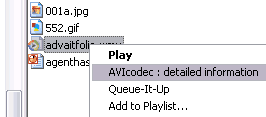
To find out which codec a particular video clip is encoded with, you'll need to use a third-party tool like AVICodec. After you install AVICodec, you can right-click any video clip in Windows Explorer and choose AVICodec : detailed information to view more info.
Quite often, you cannot play video files because of missing codecs. However, there are times when you cannot play video files in PowerPoint even though you have the codecs installed. This happens when your MCI settings are changed. You must read the PowerPoint and Multimedia article by Austin Myers to find out if changing your MCI settings helps.
If changing your MCI settings does not resolve the problem, you can find out which codec a particular video file uses with AVIcodec. Right-click any video file in Windows Explorer and choose AVIcodec: detailed information to know which codec the media file uses. Thereafter, you can probably find a link to download your codec from these sites:
Converting between codecs is easy. If you do use digital video applications like Adobe Premiere or Sony Vegas Pro, you already know more than just conversion of codecs and formats.
We need to mention here that changing codecs involves recompression of video files and thus deteriorates the movie quality. Only convert codecs and formats if there is no other viable option left.
There are several shareware and freeware applications that allow you to convert between codecs and video formats. One such tool is Avery Lee's VirtualDub. VirtualDub is a free program under GNU General Public License. Another is Stoik's free Video Converter.
You'll find step-by-step tutorials to convert codecs using both VirtualDub and Stoik Video Converter on Indezine.com.
For converting from QuickTime to AVI, look at Indezine's PowerPoint and QuickTime page.
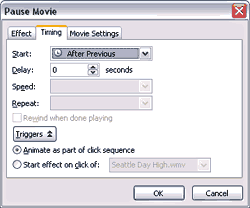
Normally, you'll insert video clips into PowerPoint using the Insert menu options. When you choose a video, PowerPoint prompts you if you want the video to play automatically. Unless you have some reason for the video to play on a mouse click, it is a good idea to accept this option. You can always change this behavior using the Custom Animation task pane.
If you need to change the behavior of inserted videos to play automatically, follow these steps:
You can resize your video once it is inserted in a slide. Once you select the video, you'll see eight handles around the video—four on the corners and the other four between the corners (on the sides).
PowerPoint allows you to insert AVI, MOV (older versions only), MPG, WMV and ASF video formats natively. For these formats, you'll be allowed much control in the form of timing, video size and appearance.
Sometimes, you might want a video clip to fade in before it starts playing. It is always good to have a video clip appear subtly rather than have it appear and play all at once, especially since PowerPoint does not allow you to fade just the audio part of the video.
You can also add a nice border to your video clip in PowerPoint itself. This ends up often looking like a frame.
For other formats, especially ones like RealVideo and QuickTime (newer versions); sometimes the only route open is to link the videos from a hyperlink or Action button.
Now clicking on whatever has been provided an Action Setting attribute will initiate the associated program in slideshow mode. If you have linked to a RealVideo movie, this might initiate RealPlayer or the QuickTime player in case you have linked to a MOV video. In all cases you will have to close the video clip independently of PowerPoint.
You can use the linking technique to initiate any associated program from within PowerPoint, even non-video files.
You May Also Like: How Will Argentine Tango Skills Make You a Better Presenter? | Train PowerPoint Templates


Microsoft and the Office logo are trademarks or registered trademarks of Microsoft Corporation in the United States and/or other countries.
