
This is the print version of this page. All content is copyright Indezine.com 2000-2026.
Learn how PowerPoint handles Multimedia.
Author: Austin Myers
Product/Version: PowerPoint
How PowerPoint Handles Multimedia
How does PowerPoint handle multimedia? The short answer, it doesn't, it calls upon the Windows system services to get the job done. Let me say that again, PowerPoint does very little with multimedia other than hand it over to Windows for playback.
Why is this important? Because we could "fidget" all day with PowerPoint trying to correct a problem when the real problem is in how Windows has been installed, setup, and modified. Almost every multimedia problem in PowerPoint has its roots in the operating environment, (Windows).
So let's start with how Windows handles multimedia. A common misconception is that it uses the Windows Media Player. It does not! Instead it uses a group of Advanced Programming Instructions (API) that is commonly referred to as the Multimedia Control Interface (MCI). These are a part of Windows Operating System and are present regardless of the installation or non-installation of Media Player.
As an example of the MCI's use, consider that you can assign sounds to events or actions like starting or closing an application. Windows doesn't start Media Player every time to "play" the sound; the function is built in to Windows itself.
The MCI dates back a decade or so and was first introduced with Windows 3.x when Microsoft worked with a number of companies to develop a standard way to implement multimedia on the PC. The MCI itself is built in a modular fashion so that newer, and improved modules or components could be added.
Of course, the biggest advantage to this is that software vendors could simply call upon the MCI to do multimedia functions without having to write new program code to do the job. This is exactly how PowerPoint is designed to work. Like everything, there is a downside. If a vendor wants more functionality than is provided by the MCI standard, they must write their own program to do it. Apple decided to do this with the release of QuickTime 3 and all later versions. That's why only versions 1 and 2 work with PowerPoint. Or more specifically, they work with the Windows MCI.
So if this functionality is built-in, why doesn't it work on my system? There are a number of reasons this problem occurs. Remember when I said that the MCI is modular in nature? The most common problem is that one (or more) of these modules wasn't installed with Windows, was removed, damaged, overwritten, or redirected.
How could that happen? The installation part is easy. When Windows is installed you are given the option of installing Multimedia Tools. It may be that none or only parts of it were installed. To determine this go in to "Control Panel" and start the Add/Remove program and then select "Windows Setup". Here you can scroll through the components of Windows that are installed. Make certain the Multimedia is checked and that all the Multimedia components are selected. Click OK and any missing components are installed. (Note: A reboot may be needed for the changes to take effect.)
What other things can cause these problems? The answer is, installation of third-party applications. Remember we are talking about a "standard" way to deal with multimedia? Unfortunately, some vendors don't want to follow the standard and in an effort to make their application "better", replace certain modules of the MCI. These modules can be drivers, *.dll files, or codecs. I guess the thinking goes something like, "Hey we have the best player out there so why would a user want to use anything else, go ahead and change it." Well, at least I prefer this idea to thinking the competition would deliberately scramble the MCIs use for everyone else.
What software does this? There are a bunch of them but the more common ones I have tested and know cause problems are, QuickTime 3, 4 and 5, Xing Player and Encoder, Real Player, WinAmp, and several of the video authoring programs. In most cases the changes made by these programs can be corrected without any ill effect. Notice I said "most" of the time. There are situations whereby restoring the MCI to its original condition, you will not be able to use the third-party software.
Wouldn't it be nice if there were a handy way to test the MCI to make certain everything is in place and a specific file will play correctly before trying to use it in PowerPoint? Turns out there is one. When you installed all of the multimedia components with Windows, you also installed a version of Media Player that works directly with the MCI. Wait! Do NOT confuse this with the "Windows Media Player". Boy do I wish Microsoft had given them different names.
Windows Media Player versions 6.x and 7.x are available as a download from the Microsoft website. These players have nothing to do with PowerPoint or the MCI, other than they too use certain modules for functionality.
If you have a Multimedia file you want to test for compatibility try using the MCI Media Player. To do so click Start - Run, and in the command line type "mplayer.exe" (or "mplayer32.exe" for WinNT) and click OK. This starts the MCI Media Player. Yes, it's the same one you were used to in earlier versions of Windows. Remember, I said the MCI has been around a long time. Now with File - Open, navigate to the file you want to test and see if it plays properly. If it does, it should work in PowerPoint just fine, if it doesn't play correctly it will NOT work in PowerPoint. Folks it's a simple test and can save you from hours of hair-pulling and low-level cursing.
All right, we understand PowerPoint uses the MCI, how do I set it up properly? We have been talking about the MCI and it's modules, we need to get into it a bit deeper to see how the modules are used. As the MCI dates back to Win 3.x its "settings" are kept in two files (win.ini and system.ini) that are read at boot up. Each of these files has sections that determine how the MCI will work and interact with your computer system. We need to edit them and make certain they follow the "standard" established by Microsoft.
STOP! Before going any further, PLEASE back up your system. Nuff said!
Using a text editor (Notepad works fine) open the win.ini file. Scroll down to the heading [MCI Extensions] and compare them to the following. If they are different, correct them, if there are lines or entries missing add them, if there are duplicate entries remove one of them. The entries ARE case sensitive. After you are done, "Save" the file back to its original location. Do the same for the system.ini file. (Note: A reboot is required for the changes to take effect.)
| WIN.INI | SYSTEM.INI |
|---|---|
| [MCI Extensions] | [mci] |
| mid=Sequencer rmi=Sequencer wav=waveaudio midi=Sequencer avi=AVIVideo qt=MPEGVideo mov=MPEGVideo dat=MPEGVideo mpg=MPEGVideo mpa=MPEGVideo mpv=MPEGVideo enc=MPEGVideo m1v=MPEGVideo mp2=MPEGVideo mpe=MPEGVideo mpeg=MPEGVideo mpm=MPEGVideo au=MPEGVideo snd=MPEGVideo aif=MPEGVideo aiff=MPEGVideo aifc=MPEGVideo |
cdaudio=mcicda.drv sequencer=mciseq.drv waveaudio=mciwave.drv avivideo=mciavi.drv videodisc=mcipionr.drv vcr=mcivisca.drv MPEGVideo=mciqtz.drv |
The above applies to Windows 9x and ME systems.
Windows 2000, NT and XP do not use the win.ini and system.ini files for these settings. Instead, the MCI settings are in the system Registry. To view your settings, go to Start | Run and enter "regedit" (without the quotes) in the Open window and click OK. Follow the paths below to locate the Registry information.HKEY_LOCAL_MACHINE\SOFTWARE\Microsoft\Windows NT\CurrentVersion\MCI Extensions
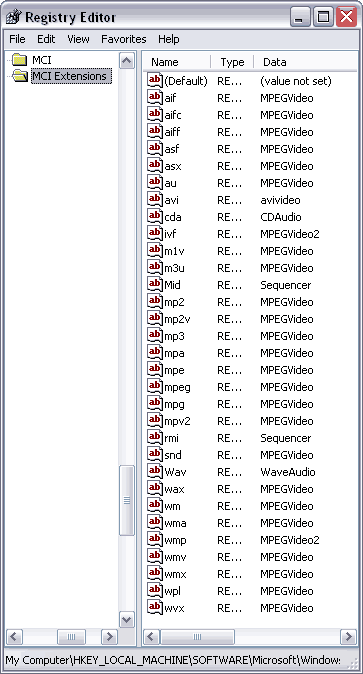
HKEY_LOCAL_MACHINE\SOFTWARE\Microsoft\Windows NT\CurrentVersion\MCI32
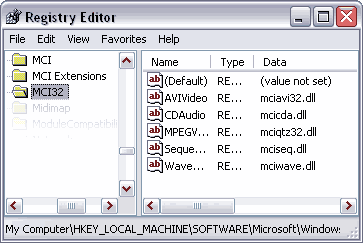
Do not edit your Registry unless you are experienced and comfortable with the task. Always export the above keys and save as separate files on your hard disk so that if you make an error you can restore your Registry to its original state. Name the files, for example, MCI_1-3-03_Reg_backup.reg and MCI32_1-3-03_Reg_Backup.reg.
You May Also Like: The Power of Story in Speaking | Dry Fruits PowerPoint Templates


Microsoft and the Office logo are trademarks or registered trademarks of Microsoft Corporation in the United States and/or other countries.
