
This is the print version of this page. All content is copyright Indezine.com 2000-2026.
This tutorial covers PowerPoint 2003 Viewer and AutoPlay Media Studio 5.
Author: Geetesh Bajaj
Product/Version: PowerPoint
Content on this page is not recent and has been retained for historical reasons.
Introduction
Requirements
Install the PowerPoint Viewer
View Hidden Folders
Install AutoPlay Media Studio 5.0
Output Presentations from PowerPoint
Create a New Project
Prepare a Layout
Let's look at a typical corporate scenario. Your company has PowerPoint presentations that have to be burned on CDs and distributed. PowerPoint 2003 has an amazing Package to CD feature, but how do you burn 15 presentations to a CD and provide a well-designed interface to the recipients of the CD?
Ideally, you'll want your created CD to autorun in any CD or DVD drive. You'll also want the audience to be presented with a professional menu splash screen which makes selecting options to view particular presentations as easy as clicking a button. The splash screen also has to reflect the corporate identity of your company. The buttons themselves should react to clicks and:
Actually, it's an easy task to accomplish. Just follow this step-by-step tutorial and you'll have created an autorun CD with all your PowerPoint presentations in no time. The same procedure can be followed for a single presentation as well.
You'll require the following software:
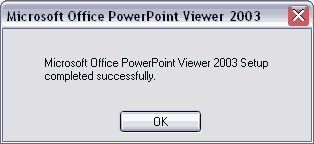
If PowerPoint Viewer is not installed on your system, install it straightaway. Download the latest version from the Microsoft site. The link below will lead you to the download page:
Microsoft PowerPoint Viewer 2003
By default, Windows Explorer does not display all files. Some file extensions are designated as hidden. These include DLL files.
To enable viewing of all files, follow instructions, as under (these are for Windows XP - other versions of Windows may slightly differ):

If AutoPlay Media Studio 5 or later is not yet installed on your system, install it now.
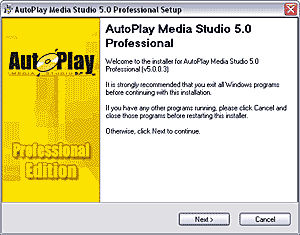
AutoPlay Media Studio is from Indigo Rose, a Winnipeg, Canada based company that also creates several other products including Setup Factory, Style Workshop and Liquid Cabaret. To learn more and to download a trial version of AutoPlay Media Studio, visit the Indigo Rose site.
You now need to place all your presentations within folders with some help from PowerPoint 2003 or the free PowerPoint 2003 Viewer.
For PowerPoint 2003: Use the Package for CD option, and place all contents within a folder rather than a CD. You'll find more detailed info here.
For PowerPoint 97, 2000, and 2002: You'll have to manually replicate the step automated by PowerPoint 2003 using instructions in this tutorial.
Whichever way you do it, you get the same results.
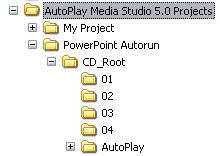
We took four of our presentations and output them with linked files and the Viewer in four separate folders that we named 01, 02, 03, and 04. So, we had four separate presentations within the four folders. We could have copied them all in the same folder but it is probably simpler to put them all in separate folders.
Here's how you could proceed:
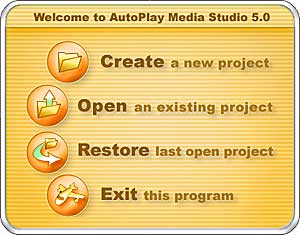
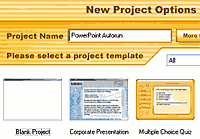
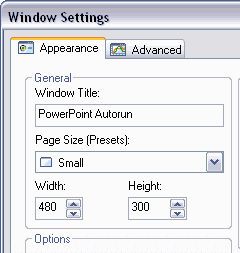
Within your My Documents folder, you'll find a folder called Autoplay Media Studio 5.0 Projects or similar. Within that folder will be a folder with the same name as your project. For instance, we named our project PowerPoint Autorun. Within the PowerPoint Autorun folder, we discovered another folder called CD_Root. This is the same folder that Autoplay Media Studio will use to burn within the root of the CD that we'll burn in the end. So, anything that's placed within this folder will become part of the final CD.
We copied all presentation folders: 01, 02, 03, and 04 to this folder.
Your directory structure should appear similar to this screenshot
You May Also Like: Someone’s Sabotaged Santa’s Sleigh 2: Conversation with Tom Howell | Thai Design PowerPoint Templates


Microsoft and the Office logo are trademarks or registered trademarks of Microsoft Corporation in the United States and/or other countries.
