PowerPoint 2003 includes the new Package for CD feature, which we'll use with a cool and undocumented Windows utility to create a standalone EXE file from PowerPoint 2003 presentations that can play on any system with Windows 98 SE or higher installed.
PowerPoint 2003's Package for CD feature is a wonderful way to create autorun CDs that contain a copy of your presentation with linked files and the Viewer engine. Often overlooked, this feature also contains the Copy to Folder option that's going to be used as the first part of the techniques illustrated on this page.
The second utility we'll use is called IExpress, a file distribution packager that has been included as part of many new Windows versions. What's more, the utility works well in older versions too. We were able to run iexpress.exe from Windows 98 SE since the utility was already installed into my other partition that dual booted to Windows XP Professional.
We need to add that this technique uses the PowerPoint 2003 Viewer and thus inherits all its abilities and limitations. For instance, it doesn't support OLE or the use of Action Settings | Run Program procedures.
Having said that, this technique outputs much more than a standalone EXE. Other benefits it offers include email, protection, ease of use for the end user, nothing permanently installed, etc.
Follow these step-by-step instructions:
- Open, create or edit a new or existing presentation in PowerPoint 2003. At all times, especially when you are creating new presentations or linking media to presentations, try using the old DOS 8.3 naming structure where the actual file name does not exceed 8 characters and the extension does not go beyond 3 characters. Save the presentation and choose the File | Package for CD option.
- In the Package for CD dialog box, give your project a name. You'll find that the active presentation has already been included as per the default options. The default also includes the new PowerPoint 2003 Viewer within the CD compilation. Choose the Copy to Folder option rather than Copy to CD. PowerPoint stores all required content including the presentation, linked files, Viewer and two text files (autorun.inf and play.bat) within a folder you choose. Exit PowerPoint.
- In Windows 2000, XP or Server 2003, go to your Start menu and choose Run. In the resultant dialog box, type iexpress. Doing so will open the IExpress Wizard, one of Windows undocumented secrets. Since IExpress is a series of wizard driven screens, each step below includes an actual screenshot.
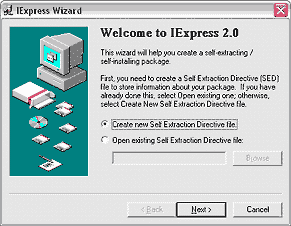
- Create a new Self Extraction Directive file in IExpress. Choose the Next button.
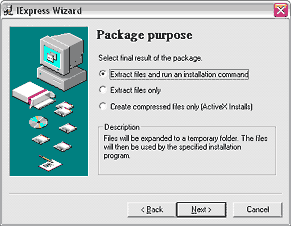
- IExpress wants to know how you would like to package your files. Choose the first option that says Extract files and run an installation command. Click the Next button.
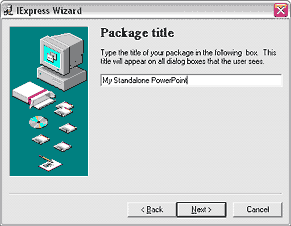
- Give your intended package a name. This could be anything descriptive you choose. Click the Next button.
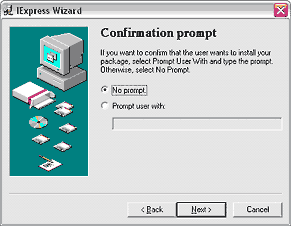
- In this screen, IExpress needs to know if we require a confirmation prompt when the end-user activates the finished package. Since we want the finished standalone EXE to function as transparently as possible, we'll choose the No Prompt option. Click the Next button.
- You can choose to display a license agreement. For this tutorial, we opted not to display a license. Click the Next button.

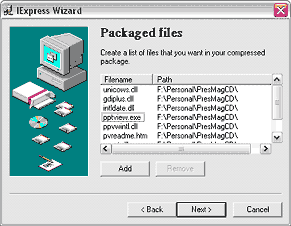
- This screen is probably the most important within the entire IExpress Wizard sequence. Click the Add button and navigate to the folder created by PowerPoint 2003's Package to CD option (See bullet 2). Add all the files within that folder and click the Next button.
- In the install program options, just type in pptview.exe sample.ppt without the quotes, where sample.ppt is the name of your PowerPoint presentation. At all times, especially when you are creating new presentations or linking media to presentations, try using the old DOS 8.3 naming structure where the actual file name does not exceed 8 words and the extension does not go beyond 3 words. Click the Next button.
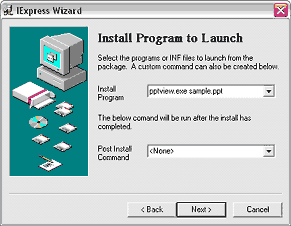
- Alternative: You might want to use the constant 'pptview.exe /L /S playlist.txt'. That will open the playlist created in Package to Folder. Less likely to have typos on the user's part if they just cut and paste. Also, the /S switch tells the Viewer to open without a splash screen. Much cleaner for a self-executing file.
Continued on Page 2 >


