
This is the print version of this page. All content is copyright Indezine.com 2000-2026.
Effectively use AutoPlay Menu Studio to autorun multiple PowerPoint presentations. Such PowerPoint presentations can run from autorun CDs.
Author: Geetesh Bajaj
Product/Version: PowerPoint
This tutorial covers PowerPoint 97 and 2000. Look here for a PowerPoint 2003 specific tutorial.
Step 7: Create Your Presentation
Step 8: Before You Save
Step 9: Rename Extensions
Step 10: Back To Our Splash
Step 11: Creating Hotspots
Step 12: Refining Your Splash
Step 13: Compiling Your Autorun
Step 14: Burn Your Autorun CD
For PowerPoint 97: Create your PowerPoint presentation. Don't use any VBA (Visual Basic for Applications) in your presentation, since the PowerPoint Viewer does not support VBA. Also, don't use any third party plug-ins for transitions or special effects.
For PowerPoint 2000: All rules specified above for PowerPoint 97 apply to PowerPoint 2000 as well.
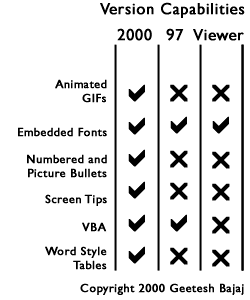
In addition, you'll have to create your presentation in the PowerPoint 97 format. Although the binary format for storing PowerPoint 97 and 2000 remained unchanged, Microsoft added a few new features to PowerPoint 2000. Unfortunately, no PowerPoint 2000 viewer has been released as yet. This means that a large number of viewers will be unable to view all the new PowerPoint 2000 features. These include:
The best way to find out which features are unsupported is to install the PowerPoint 97 Viewer on a system with PowerPoint 2000. Every time you edit your presentation, test-run it on the Viewer to find out if any significant changes take place.
For a more concise view of features supported in various PowerPoint incarnations, view the following chart:
Save all your presentations and other linked files such as video, sound, narration, animation and images in the 'present' sub folder created in Step 6.
Continuously check how your presentation appears in the PowerPoint Viewer.
Your presentation is ready for an autorun CD once it plays identically in PowerPoint itself and the PowerPoint Viewer.
BackRename all the PowerPoint presentation in your folder with the PPT extension to PPS. For example, if you have stored a presentation called Corporate.ppt in the 'present' sub folder, you would rename it to Corporate.pps
For this example, we have stored 4 imaginary presentations and their linked files in the 'present' sub folder. These are:
Open your saved project from Step 4.
Right-click and choose 'Page Properties', and select 'Bitmap Image - Tile' in the Background option.
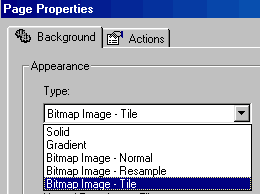
Choose any seamless tile or save this seamless tile:

For more seamless tiles, visit Ppted's Background Archive.
Anytime you want to preview your work in AutoPlay Menu Studio, press the F5 key.
Back
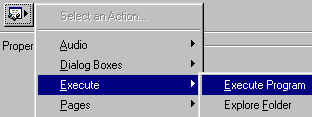
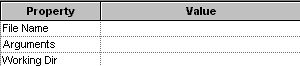
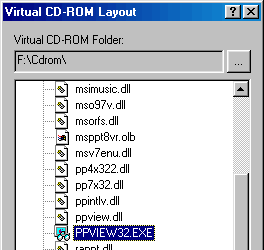

You've successfully created an autorun splash and the other files that activate from hyperlinks within that.
Now you can spend some time in fine-tuning and refining your splash to include your company logo, background music and other paraphernilia.
Save your project.
BackIn AutoPlay Menu Studio, press F7 to open the Build dialog box. We've filled in my options as under, but your options might look different.
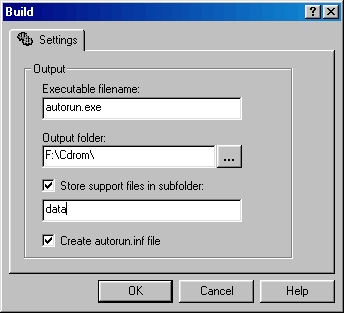
AutoPlay Menu Studio will now test run your autorun splash. Your links may not work, since we have not saved the autorun.exe to a root drive. If you copy the entire contents of your 'Cdrom' folder to the root of any drive including a hard disk, CD-R, CD-RW or Zip disk, you can test run your autorun.exe. It should work faultlessly.
BackNow, you can burn your own autorun CD which allows you to run your own splash which can activate multiple presentations, Internet URLs or any document with an associated application.
And this is just the beginning. With AutoPlay Menu Studio, you can create such splashes for multiple languages too.
You May Also Like: 4 Ideas to Help You Find The Right Story For Your Next Presentation | Denmark Flags and Maps PowerPoint Templates


Microsoft and the Office logo are trademarks or registered trademarks of Microsoft Corporation in the United States and/or other countries.
