PowerPoint 2003 to EXE
by: Geetesh Bajaj
Date Created:
Last Updated: May 6th 2009
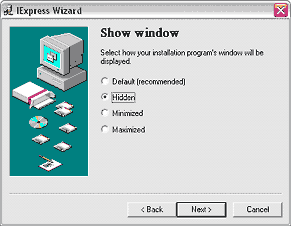
- In the next screen, opt to hide the installation program's
window. Click 'Next'.

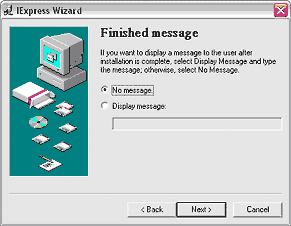
- Since we want the entire process to be as transparently invisible
to the end-user as possible, we'll opt to include no message.
Click 'Next'.

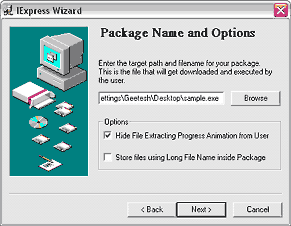
- You need to provide a path and name for your finished standalone
EXE presentation now. Place it in the same folder as the presentation
(or anywhere else) and give it a small name, preferably something
that uses the old DOS 8.3 file naming convention.
Within other options, check the box that hides the file extracting progress animation. Uncheck the other box that allows you to store files using long file names within the package, since I've suggested you already use the 8.3 file naming convention for all files in this tutorial. Click 'Next'.
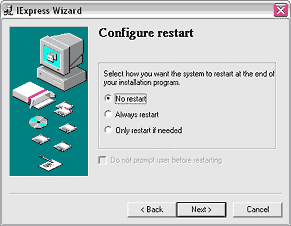
- Choose not to restart the system since we are not installing
any system files - click 'Next'.
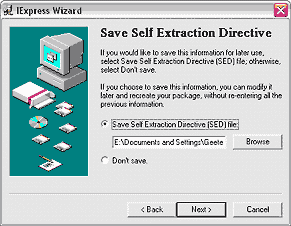
- It's a good idea to save all the wizard settings as a self
extraction directive (SED) file - choose a name and file location
before you click 'Next'.

- There's nothing to change in this screen unless you want to
go back and change any of the settings. Click 'Next'.

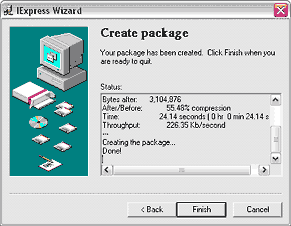
- Click the Finish button - this will activate a DOS/command
window that will compress all actual files down to almost 50%
and create a standalone EXE that contains everything - the presentation(s),
linked files and even the Viewer!