PowerPoint 2007 to EXE
Author: Geetesh Bajaj
Product/Version: PowerPoint 2007
Date Created: October 21st 2008
Last Updated: February 27th 2009
Excerpt/Capsule:
Part II: Get Started with IExpress
- In Windows XP, go to your Start menu and choose Run.
Windows Vista users can just go to their Start menu, and start typing as I show you next.
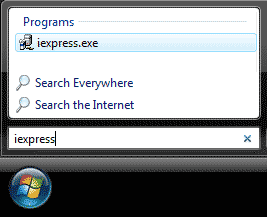
In the resultant dialog box, type 'iexpress' without the quotes as shown in Figure 4. This will open the IExpress Wizard, one of Windows' undocumented secrets. Since IExpress is a series of wizard driven screens, each step below includes an actual screenshot.

Figure 4: Launching IExpress
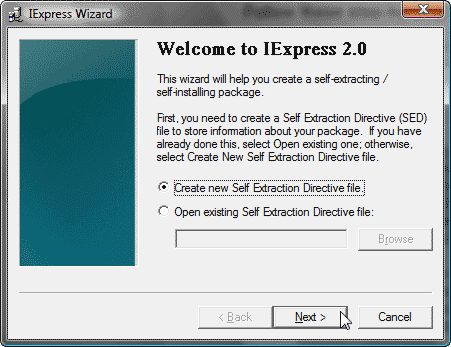
- Select the Create new Self Extraction Directive file in IExpress, as shown in Figure 5. Click
Next.
Figure 5: New self extraction directive file
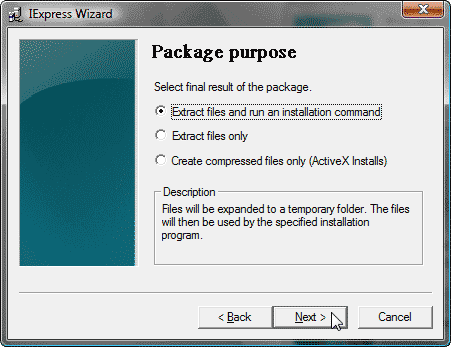
- IExpress wants to know how you would like to package your files (see Figure 6).
Choose the first option that says Extract files and run an installation
command. Click Next.

Figure 6: Extract files and run an installation command
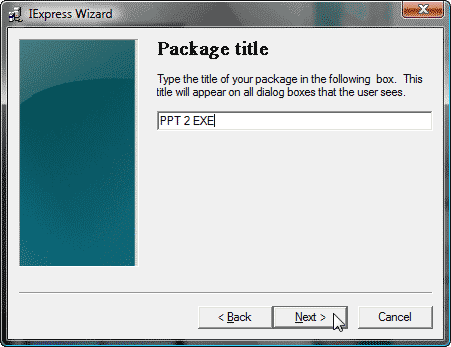
- Give your intended package a name, as shown in Figure 7 -- this could be anything
descriptive you choose. Then, click Next.
Figure 7: Package title
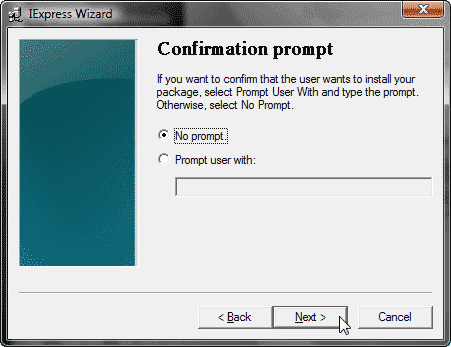
- In this screen, IExpress needs to know if we require a confirmation
prompt when the end-user activates the finished package -- since
we want the finished standalone EXE to function as transparently
as possible, we'll choose the No Prompt option, as shown in Figure 8. Click Next.
Figure 8: Confirmation prompt
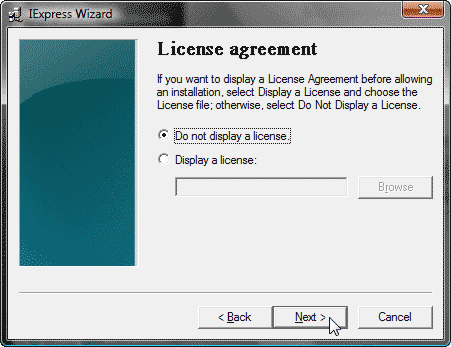
- You can choose to display a license agreement -- for this tutorial,
I have opted not to display a license (see Figure 9) -- click Next.

Figure 9: License agreement
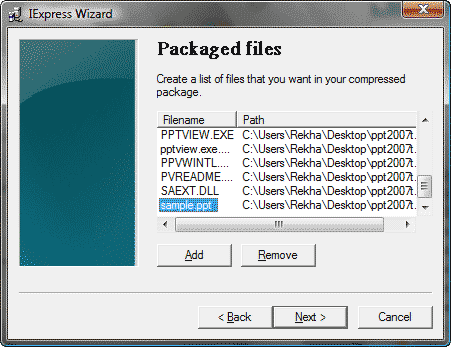
- This screen (see Figure 10) is probably the most important within the entire
IExpress Wizard sequence. Click the Add button and navigate
to the folder created by PowerPoint 2007's Package to CD option
-- refer to point 3. Add all the files within that folder and click
Next.

Figure 10: Package files