
This is the print version of this page. All content is copyright Indezine.com 2000-2026.
Learn how to insert shapes in PowerPoint 2010 for Windows. There is more than one way to add shapes in PowerPoint.
Author: Geetesh Bajaj
Product/Version: PowerPoint 2010 for Windows
OS: Microsoft Windows XP and higher
Shapes can often be combined to create more complex shapes. For instance, you can place circles of various sizes one on top of the other to create something that looks like a target diagram. Similarly you can create seemingly complicated arrangements of shapes quite easily to create something that illustrates a concept or idea so much better than just bulleted text. To create any such graphic content, you need to start by inserting common shapes. Fortunately, PowerPoint makes it easy to do so.
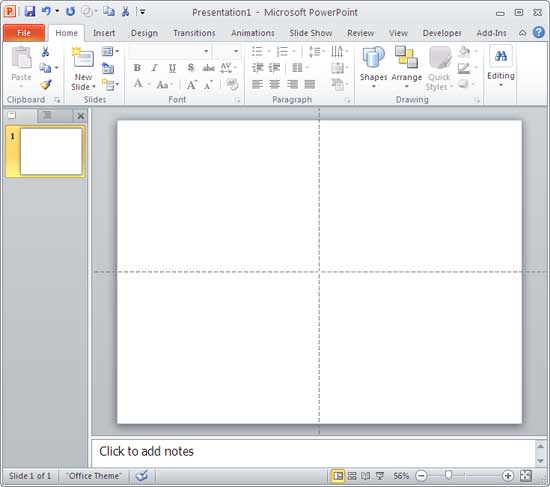
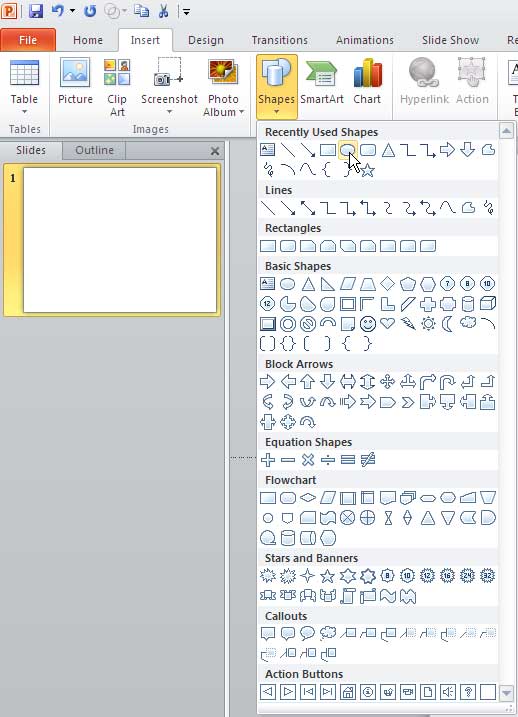
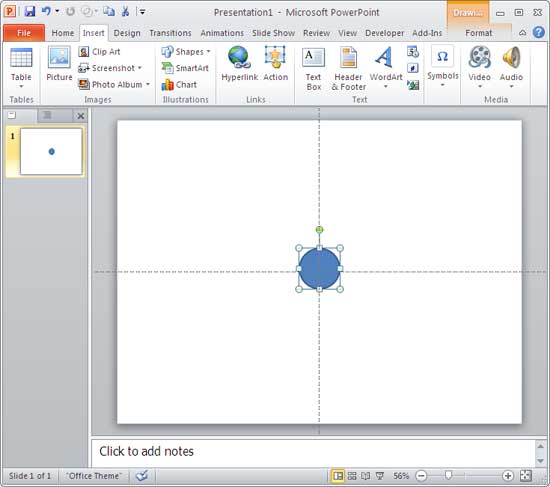
Follow these steps to insert shapes in PowerPoint 2010 for Windows:

Do you want more keyboard shortcuts?
Explore our PowerPoint Keyboard Shortcuts and Sequences Ebook that is updated for all PowerPoint versions.
06 01 02 - Basics About Shapes: Insert Shapes in PowerPoint (Glossary Page)
Insert Shapes in PowerPoint 365 for Windows
Insert Shapes in PowerPoint 365 for Mac
Insert Shapes in PowerPoint 2016 for Windows
Insert Shapes in PowerPoint 2016 for Mac
Insert Shapes in PowerPoint 2013 for Windows
Insert Shapes in PowerPoint 2011 for Mac
Insert Shapes in PowerPoint 2007 for Windows
Insert Shapes in PowerPoint 2003 and 2002 for Windows
Insert Shapes in PowerPoint for the Web
You May Also Like: NXPowerLite 6: Conversation with Mike Power | Sports PowerPoint Templates




Microsoft and the Office logo are trademarks or registered trademarks of Microsoft Corporation in the United States and/or other countries.
