
This is the print version of this page. All content is copyright Indezine.com 2000-2026.
Learn how you can combine shapes in PowerPoint 2010 for Windows. The Shape Combine command combines non-overlapping areas while removing overlapping areas of shapes.
Author: Geetesh Bajaj
Product/Version: PowerPoint 2010 for Windows
OS: Microsoft Windows XP and higher
PowerPoint has more than a hundred shapes but there are times when you want to combine two or more shapes to create your own shape. For example, we placed several basic shapes over a circle to create a smiling caricature as shown towards the left of Figure 1, below. With these shapes selected, we could use the Shape Combine command that we explain later in this tutorial to create a unified, combined shape as shown towards the right in Figure 1.

Figure 1: Sample showing use of the Shape Combine command
Once you finish reading this tutorial, do view the sample presentations embedded on the bottom of this page to see more samples of shapes that use the Shape Combine command.
The Shape Combine command is one of the four new Shape commands that are not visible by default in PowerPoint 2010 for Windows. You need to enable them as explained in Add Combine Shapes Commands to the Quick Access Toolbar (QAT) in PowerPoint 2010 Thereafter, follow these steps:
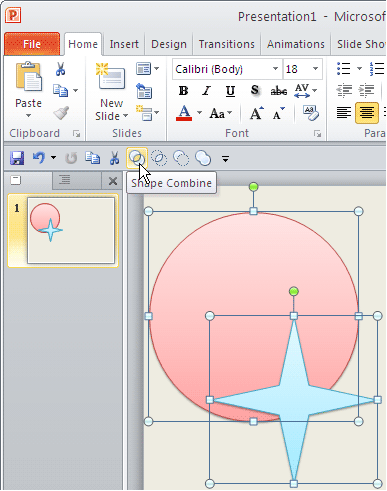
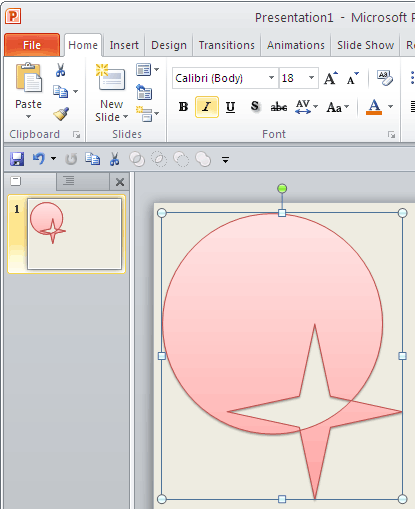
Do remember these guidelines for any tasks that involve the usage of this command. The Shape Combine command:
You will see these guidelines in use within the embedded presentations below (scroll down this page).
The sample presentations below show how we used different shapes placed next to and above each other, and then combined.
Click below to view this presentation on SlideShare
Click below to view this presentation on YouTube
See Also:
Merge Shapes: Shape Combine Command in PowerPoint (Index Page)
Shape Combine Command in PowerPoint 2016 for WindowsYou May Also Like: How to End Your Online Presentation or In-Person Speech With Impact | Goat PowerPoint Templates



Microsoft and the Office logo are trademarks or registered trademarks of Microsoft Corporation in the United States and/or other countries.
