Follow
Share
Bookmark and Share
Translate


Like This Page?
Like This Site?


Creating Half Circle in PowerPoint 2010

Author: Geetesh Bajaj

Product/Version: Microsoft PowerPoint 2010
OS: Microsoft Windows XP / Vista / 7

Date Created: March 31st 2011
Last Updated: March 31st 2011


Excerpt/Capsule: Learn to create a half circle in PowerPoint 2010.


Product Showcase


An Indezine reader asked me if he could create three circles next to each other, and make sure that they looked like this:

  • The first circle should be filled-in full (entirely)
  • The second circle should be half full
  • The third and last circle should have no fill (empty)

The first and third circles are easy -- all you need to do is ensure that the first circle has both an Outline and a Solid Fill, and that the third circle has only an outline and No Fill. The second circle (half circle) is an easy challenge that I'll teach you to create in this one page tutorial using PowerPoint 2010 -- if you are a PowerPoint 2007 user, look at the Creating Half Circles in PowerPoint 2007 tutorial page.

Follow these steps to get started:
  1. Launch PowerPoint 2010. Most of the time, PowerPoint will open with a new slide in a presentation -- PowerPoint 2010 users can change the slide layout to Blank by selecting the Home tab | Layout | Blank.

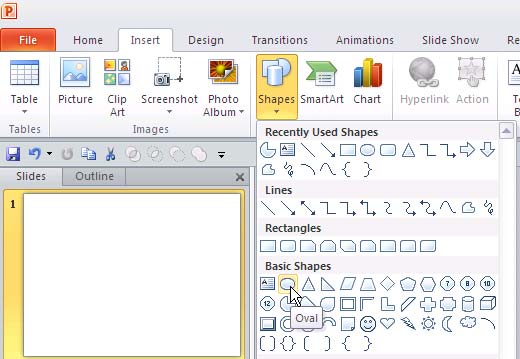
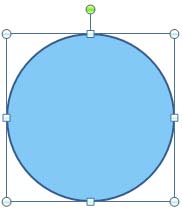
  2. Within the Home or Insert tab of the Ribbon, click the Shapes button to access the Shapes gallery that you can see in Figure 1. Select the Oval shape, and click once on the blank slide to place a perfect circle shape that looks like a circle (see in Figure 2).

    Shapes Gallery in PowerPoint 2010
    Figure 1: Shapes Gallery in PowerPoint 2010

    Oval Shape
    Figure 2: Oval Shape

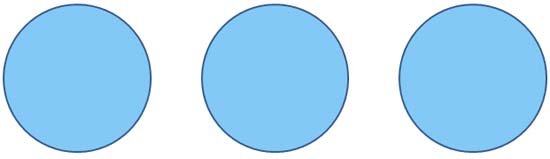
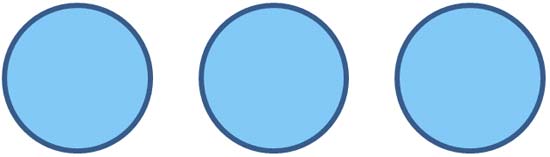
  3. Duplicate the circle to make two more copies of it as shown in Figure 3.

    Three circles with same attributes
    Figure 3: Three circles with same attributes

  4. Select all three circles, and increase the thickness of their Outline. You can also change the line color. Your circles will look similar to what you can see in Figure 4.

    Circles with thick outline
    Figure 4: Circles with thick outline

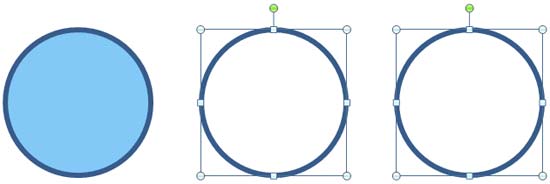
  5. Select the second and third circles, and format their fills to No Fill, as shown in Figure 5.

    2nd and 3rd circles with fill removed
    Figure 5: 2nd and 3rd circles with fill removed

  6. Now create a semi-circle on a new slide, as shown in our Creating a Semi-Circle in PowerPoint 2010 tutorial.

  7. Now, copy the shape attributes of the first circle and apply them to the new semicircle using the Format Painter. Then set the outline for this semi-circle to No Outline. Copy this semi-circle and paste it on top of the second circle so that it looks like what you can see in Figure 6.

    Paste semi-circle on the second circle
    Figure 6: Paste semi-circle on the second circle

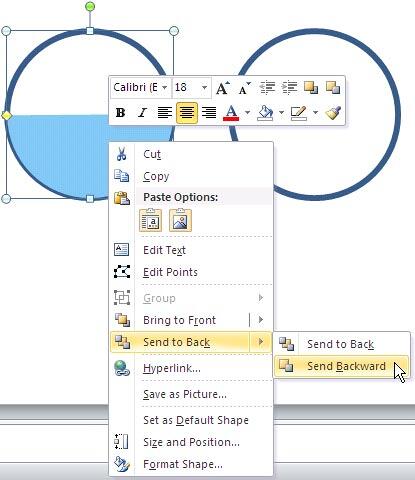
  8. Now carefully select the pasted semi-circle, right-click and choose Send To Back | Send Backward as shown in Figure 7.

    Send the semi-circle backward
    Figure 7: Send the semi-circle backward

    Tip: If you want to know more about re-ordering the shapes, go to our tutorial Reorder Shapes in PowerPoint 2010.


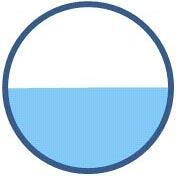
  9. Keep on selecting the Send Backward option until the semi-circle goes behind the full circle and looks like a half circle as shown in Figure 8.

    Half circle made using semi-circle and circle
    Figure 8: Half circle made using semi-circle and circle

  10. Once done, save your presentation.


Plagiarism will be detected by Copyscape


  ©2000-2012, Geetesh Bajaj. All rights reserved.

    since November 02, 2000