Home     PowerPoint     Photoshop     Photos     Other     Studio     Info

Bookmark and Share  


Outlining Toolbar

Author: Geetesh Bajaj

Product/Version: PowerPoint 2002 and 2003

Date Created: August 3rd 2006
Last Updated: February 26th 2009


Excerpt/Capsule:


Product Showcase


PowerPoint provides many toolbars, and these can be handy for one-click operations. But since there are so many toolbars, you might not have all of them visible, or maybe you have also created a customized toolbar. In this tutorial, I'll show you how to use the Outlining toolbar.

The Outlining toolbar helps organize the title and text content of the slides -- in other words, it just works with the outline of the presentation. This can be a good thing, since this makes it easier to organize your outline -- in the process, you can add or merge slides, and do much more.

Here's a quick tutorial on using the Outlining toolbar:
  1. Open any presentation in PowerPoint, or download the Indezine sample presentation...

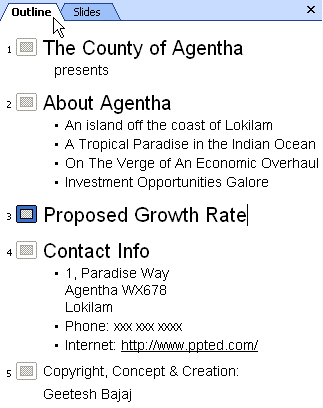
  2. Make sure that the left pane of the PowerPoint interface shows the outlining tab as you can see in Figure 1. Remember -- this screenshot uses PowerPoint 2003, and earlier versions were slightly different.

    Outline View
    Figure 1 : Outlining Tab

  3. As you can see in Figure 1, the entire outline of the presentation comprising the title and text placeholders is shown in the Outline pane. Most of the edits you make to this content in the outlining pane works best with the Outlining toolbar. Let's explore this toolbar.

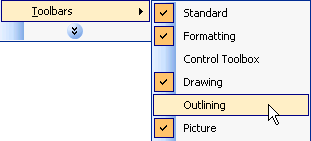
  4. If you are not able to see the Outlining toolbar, it might be hidden -- to make it visible choose View | Toolbars | Outlining as shown in Figure 2.

    To learn more, see Hide/Show Toolbars

    Toolbar

    Figure 2 : Toolbars

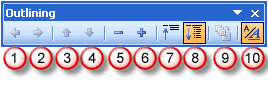
  5. Figure 3 shows you the Outlining toolbar -- remember that all the options in the Outlining toolbar works only if the Outline pane (shown in Figure 1) is visible.

    Outlining Toolbar
    Figure 3: Outlining toolbar options

    Here's what these buttons do:
  1. Promote: Changes the selected line to the previous level.
    For example, if you select the text of the second level bullet and apply promote the text will be converted to first level bullet.
    Similarly, if applied to first level bullet, it will be converted to the slide title. Naturally, if you already have a slide title in place, you'll end up with two slides.
  2. Demote: Changes the selected line or slide title to a lower level.
    For example, if you select the text of the first level bullet and click the Demote button, the text will be converted to a second level bullet.
    Similarly, a slide title gets demoted to a first level bullet.
  3. Move Up: Moves up the selected slide title to one slide above.
    Similarly, if a bullet level is selected, this options moves that bullet level above in the same slide.
  4. Move Down: Moves down the selected slide title to one slide below.
    Similarly, if a bullet level is selected, this options moves that bullet level below in the same slide.
  5. Collapse: Hides the body text of the selected slide.
  6. Expand: Displays all the body text of the selected slide.
  7. Collapse All: Hides body text of all the slides in the presentation.
  8. Expand All: Displays body text of all the slides in the presentation.
  9. Summary Slide: First select the slides that you want, and then click this button so that PowerPoint can creates a summarized slide that contains all the slide titles.
    To create a summary slide of all slides, select all them in the Outline pane (Ctrl+A), and then click this button.
  10. Show Formatting: Shows all the text formatting done in the actual presentation in outline view. For example, you can see the actual font you used.

Note: Outlining options once applied can be edited using the same options, as explained above.


Featured Story

Adobe Captivate's Edit View

In an earlier post last week, I discussed Adobe Captivate's views and compared them to PowerPoint's deafult views. I also explained about the Storyboard View. In this post, I'll look at Captivate's Edit view, which in many ways is similar to PowerPoint's Normal view. If you are not already in Edit view within Captivate, choose the View drop-down in the toolbar, and select Edit View.

Learn more here...


Featured Book

PowerPoint 2007 Complete Makeover Kit

PowerPoint 2007 Complete Makeover Kit
PowerPoint 2007 Complete Makeover Kit is out! Check the book on Amazon.com...

And here are some free excerpts...


Home |  PowerPoint |  Photoshop |  Templates |  Blog |  Notes |  Ezine |  Studio |  Advertise |  Feedback |  Info |  Site Map
Store  |  RSS |  Privacy |  Testimonials
Free PowerPoint Backgrounds | Free PowerPoint Templates | Free Christian PowerPoint Backgrounds
Page copy protected against web site content infringement by Copyscape
  Page copy protected against web site content infringement by Copyscape


  ©2000-2009, Geetesh Bajaj. All rights reserved.

    since November 02, 2000