
This is the print version of this page. All content is copyright Indezine.com 2000-2026.
Learn how to compare presentation slides manually in PowerPoint 2010 for Windows. Placing slides side-by-side can let you compare the old-fashioned way.
Author: Geetesh Bajaj
Product/Version: PowerPoint 2010 for Windows
OS: Microsoft Windows XP and higher
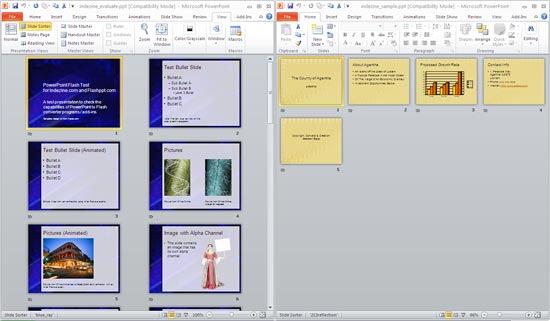
Since PowerPoint 2007, Microsoft has removed the feature that let you compare two presentations. This feature was useful if you had send your presentation to a colleague and he or she made changes you were not aware of. You can however place both presentations side by side and compare individual slides. This is not too great a workaround, but it does allow you to compare the slides.
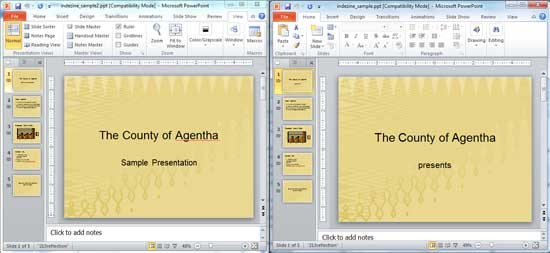
However, doing so will get you to another roadblock—viewing more than one PowerPoint presentation at the same time is little difficult because you need to keep switching between windows. Fortunately, PowerPoint does allow you to open more than one PowerPoint presentation side by side.
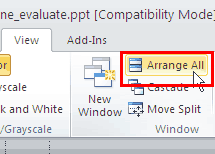
Follow these steps to manually compare two presentations in PowerPoint 2010 for Windows:
01 09 19 - Working with Slides: Compare Presentations Manually in PowerPoint (Glossary Page)
Compare Presentations Manually in PowerPoint 2016 for Windows
Compare Presentations Manually in PowerPoint 2016 for Mac
Compare Presentations Manually in PowerPoint 2013 for Windows
Compare Presentations Manually in PowerPoint 2011 for Mac
Compare Presentations Manually in PowerPoint 2007 for Windows
You May Also Like: Hide Logos with Logo Toggle in PowerPoint | Australia Flags and Maps PowerPoint Templates


Microsoft and the Office logo are trademarks or registered trademarks of Microsoft Corporation in the United States and/or other countries.
