Glow effects are quite different from other PowerPoint effects. They add a nice halo around a selected shape or most other slide objects. Once you apply a glow effect to any shape in PowerPoint 2011, you may find that the defaults just do not work for you, especially since the default glow options are limited only to Theme Colors. So, if you want to make some changes, probably change the glow color, its spread or transparency, etc. you have to step outside these defaults. In this tutorial, we'll teach you how you can access the advanced Glow Options in PowerPoint 2011, that makes all those changes doable:
- Select the shape you want to apply the glow effect to, or select a shape that already has glow effect applied that you want to edit. Then double-click the shape to activate the Format tab of the Ribbon (highlighted in red within Figure 1). Within this tab locate the Shape Styles group and click the Effects button that you can see in Figure 1 (highlighted in blue).
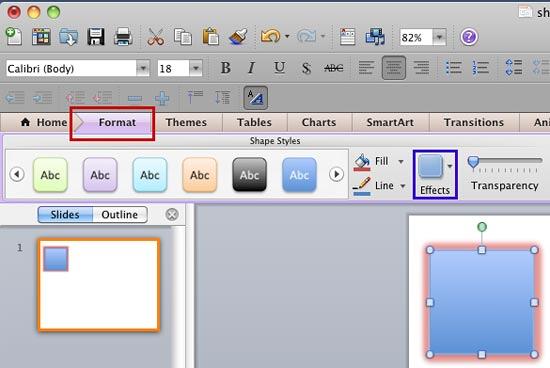
Figure 1: Effects button within the Format tab of the Ribbon Note: Format tab is a
Contextual tab. Contextual tabs are special tabs in the
Ribbon that are not visible all the time. They only make an appearance when you are working with a particular slide object which can be edited using special options.
- This brings up the Effects drop-down gallery shown in Figure 2. From this drop-down gallery, choose Glow | Glow Options (the last option).
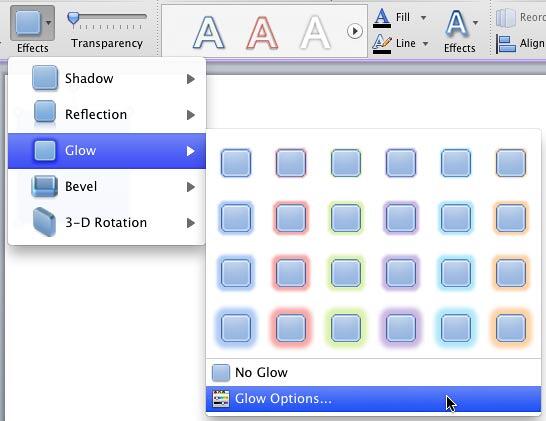
Figure 2: Glow Options within the Effects drop-down gallery - This opens the Format Shape dialog box with the Glow & Soft Edges option selected in the sidebar, as shown in Figure 3. You can see that the Soft Edges options within this tab have been faded out in Figure 3 since we are discussing only Glow options in this tutorial. You can learn more about Soft Edges options in PowerPoint for Mac here.
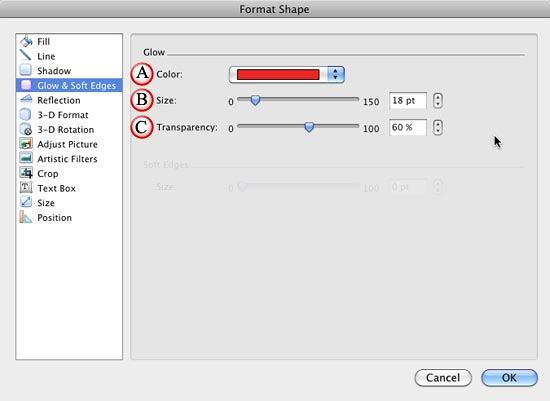
Figure 3: Glow options within Format Shape dialog box - Glow options work with certain parameters, which are explained below as marked in Figure 3:
A. Color
- Selecting this option allows you to change the glow color. Click color drop-down list to access the Color gallery (see Figure 4). Here you can choose any color for the glow.
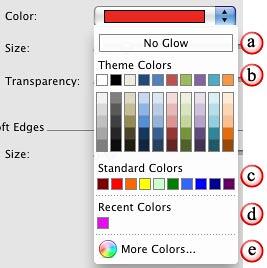 Figure 4: Glow color options
 - Let us explore the options within this gallery, one by one as marked in Figure 4:
- No Glow: This option is used to remove the pre-applied glow effect from the selected shape.
- Theme Colors: Here you can select any of the colors which are from the active Theme of the presentation. You can also select any of the 5 tints or shades for any Theme color. Learn more about Themes here.
- Standard Colors: Here you can choose from any of the ten standard colors. These ten standard colors are just choices of colors that PowerPoint believes to be widely used. You don't have to limit yourself to either the Theme colors or Standard colors, as we'll show you in the next options. It's a good design idea to use Theme colors as far as possible.
- Recent Colors: Here you can find the colors most recently used. If you have just launched PowerPoint and created a new presentation, the Recent Colors option may be entirely absent if you haven't selected any color recently!
- More Colors: This option summons the Mac OS X Color picker that you can see in Figure 5.

Figure 5: Mac OS X Color picker - In this Color picker, you can choose any color from the wheel. Thereafter adjust the selected color's luminosity within the long, thin slider on the right. Once you are happy with the color attained, you click OK to get back to Format Shape dialog box.
B. Size:
- Use the size slider or enter the glow size value in percentages to increase or decrease the size (spread) of the glow.
C. Transparency:
- This option allows you to alter the transparency of the glow. You can use the transparency slider, or type the glow transparency in percentage values.
Note: When you are making changes to the shape attributes from within Format Shape dialog box, you can see the preview of the changes in the selected shape. So, always place the Format Shape dialog box on the slide in a position that won't hide the selected shape.
- Once you achieve the glow effect you want, click OK in the Format Shape dialog box to apply the changes and get back to the slide. Figure 6, shows the selected shape (refer to Figure 1) with the edited glow effect.
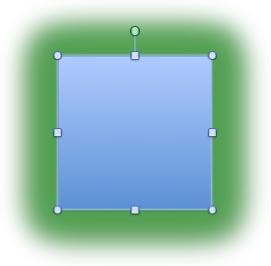
Figure 6: Rectangle shape with edited Glow effect - Remember to save your presentation often.


