Indezine Logo


Shape Fills, Lines, and Effects for SmartArt in PowerPoint 2010 for Windows

Learn about fill, line, and effect options for shapes within SmartArt graphics in PowerPoint 2010 for Windows. You can choose from several sets of coordinated colors.


Author:

Product/Version: PowerPoint 2010 for Windows

OS: Microsoft Windows XP and higher


Learn PowerPoint

Yes, there is a method. Change Case Cycles: How They Work?


As we have already explored, you can change the color for the entire SmartArt graphic. This technique applies new colors to the entire SmartArt graphic including the various shapes it contains. However, there may be times when you want one of the shapes to be colored differently.

Follow these steps to explore fill, line, and effect options for individual shapes within a SmartArt graphic in PowerPoint 2010 for Windows:
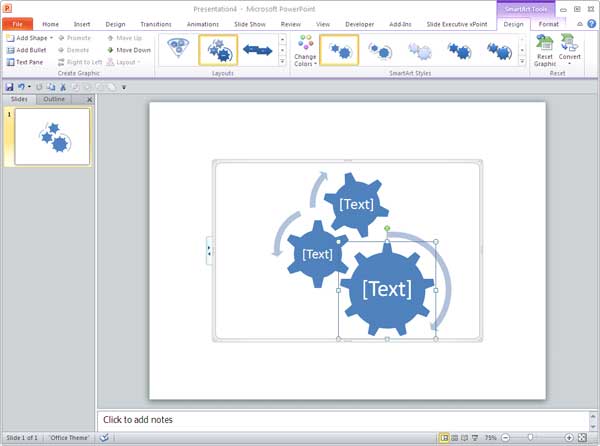
  1. Select any individual shape within your existing SmartArt graphic, as shown in Figure 1, below. As you can see, one of the gear shapes has been selected in this case.
  2. Shape is selected within Gear SmartArt graphic
    Figure 1: Shape is selected within Gear SmartArt graphic
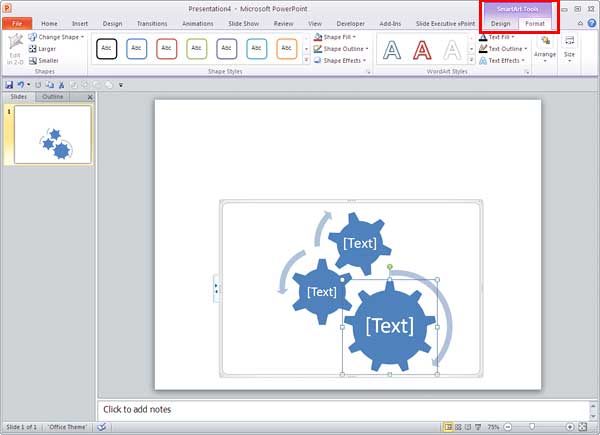
  3. Doing so will activate the two contextual SmartArt Tools tabs on the Ribbon. These are the SmartArt Tools Design and the SmartArt Tools Format tabs, as shown highlighted in red within Figure 2, below. Select the SmartArt Tools Format tab.
  4. SmartArt Tools Format tab selected
    Figure 2: SmartArt Tools Format tab selected
  5. Contextual Tabs

  6. The SmartArt Tool Design and SmartArt Tool Format tabs are contextual tabs. These tabs are special tabs in the Ribbon that are not visible all the time. They only make an appearance when you are working with a particular slide object which can be edited using special options.
  7. Within the SmartArt Tools Format tab, locate the Shape Styles group, as shown in Figure 3, below. Here, you'll find fill, line, and effect options for individual SmartArt shapes.
  8. Shape Styles group
    Figure 3: Shape Styles group
  9. These fill, line, and effect options for SmartArt graphics are explained below:
  10. A. Shape Fill

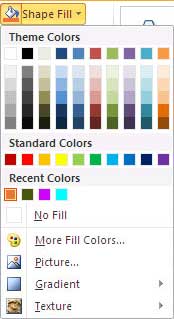
  11. Select this option to view the Shape Fill drop-down gallery, as shown in Figure 4, below. Learn more about Shape Fills here.
  12. Shape Fill gallery
    Figure 4: Shape Fill gallery
  13. B. Shape Outline

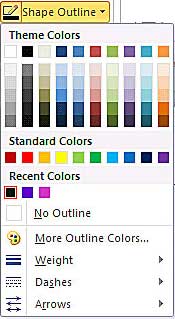
  14. Select this option to view the Shape Outline drop-down gallery, as shown in Figure 5, below. Learn more about Shape Outlines here.
  15. Shape Outline gallery
    Figure 5: Shape Outline gallery
  16. C. Shape Effects

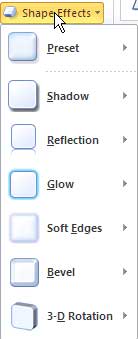
  17. Click to open the Shape Effects drop-down gallery, as shown in Figure 6, below. Learn more about Shape Effects here.
  18. Shape Effects gallery
    Figure 6: Shape Effects gallery
  19. D. Shape Styles

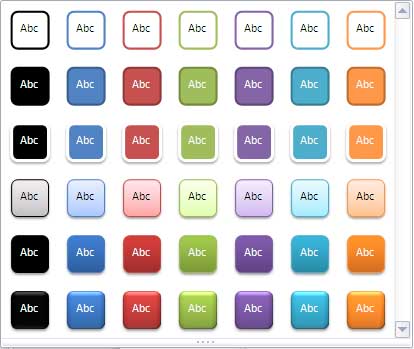
  20. Click the downward-pointing arrow, as shown highlighted in red within Figure 3, above. Doing so will bring up the Shape Styles drop-down gallery, as shown in Figure 7, below. Learn more about Shape Styles here.
  21. Shape Styles drop-down gallery
    Figure 7: Shape Styles drop-down gallery
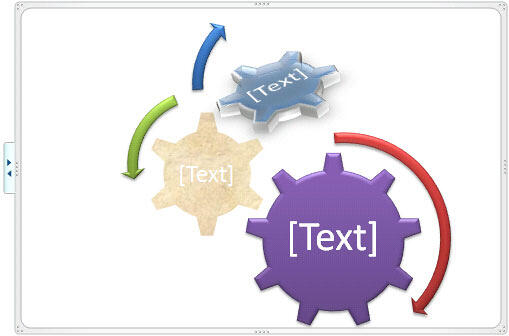
  22. Figure 8, below, shows different fills, outlines, and effects applied to individual shapes of the gear SmartArt graphic variant (compare with Figure 2, shown previously on this page).
  23. Different fills, outlines, and effect applied to individual shapes within a SmartArt graphic
    Figure 8: Different fills, outlines, and effect applied to individual shapes within a SmartArt graphic
  24. Save your presentation often.

See Also:

Working with SmartArt: Shape Fills, Lines, and Effects for SmartArt (Glossary Page)

Shape Fills, Lines, and Effects for SmartArt in PowerPoint 2016 for Windows
Shape Fills, Lines, and Effects for SmartArt in PowerPoint 2013 for Windows
Shape Fills, Lines, and Effects for SmartArt in PowerPoint 2011 for Mac

You May Also Like: How to Build Digital Signage Information Screens | Green Peas PowerPoint Templates



Popular Posts

Playing Video Across Slides in PowerPoint 2016 for Windows
Play a video clip across slides in PowerPoint 2016 for Windows.

Set Document Resolution in PowerPoint 2016 for Windows
Learn how to set document resolution in PowerPoint 2016 for Windows.

Creating Anchor Points for Connectors in PowerPoint 2010 for Windows
Learn how to create Anchor Points for connectors in PowerPoint 2010.

Working With Slide Numbers in PowerPoint 2016 for Windows
Learn how to add Slide Numbers on slides and Masters and more tricks on making them work to your will in PowerPoint 2016 for Windows.


Gears for PowerPoint (Series 01)

All these gears are native PowerPoint shapes. You can recolor them, add effects, and do more, all inside PowerPoint. Results which would have taken hours to achieve now take less than a minute! Have fun using the gear graphics, and make your audience take notice! All these gears can be rotated and resized, as required. Since they are essentially pictures, all types of edits that you can do with pictures work with them too!

Get this complete kit now, you’ll save so much time that you can use doing something else!


Microsoft and the Office logo are trademarks or registered trademarks of Microsoft Corporation in the United States and/or other countries.
Home | PowerPoint | Photoshop | PowerPoint Templates | PowerPoint Tutorials | Blog | Notes | Ezine | Media Kit | Feedback | Site Map | About Us | Contact Us

Link to Us | Privacy | Testimonials

PowerPoint Backgrounds | Christian PowerPoint Backgrounds | Business PowerPoint Presentation Templates

Plagiarism will be detected by Copyscape

©2000-2025, . All rights reserved.