
This is the print version of this page. All content is copyright Indezine.com 2000-2026.
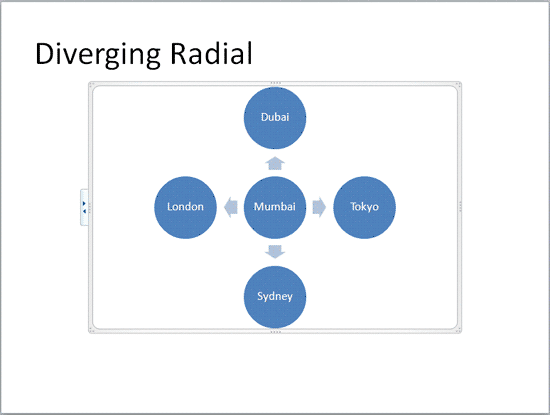
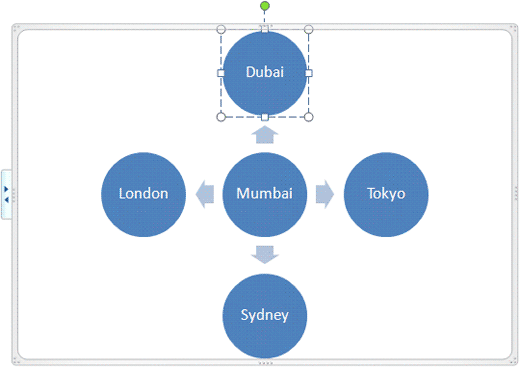
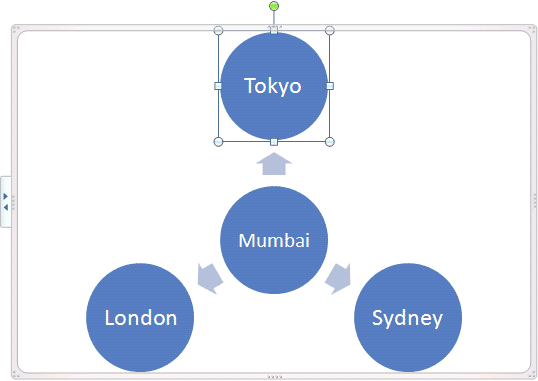
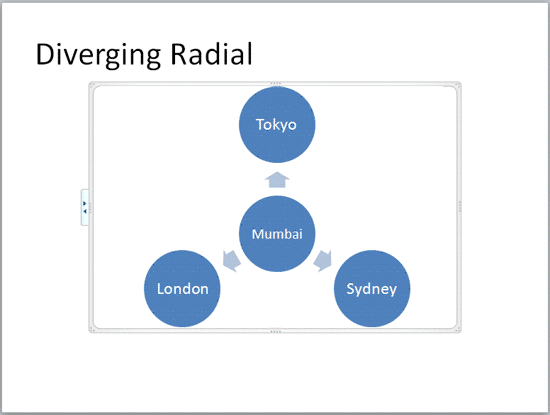
Learn how to delete shapes from existing SmartArt graphics in PowerPoint 2010 for Windows. Shapes get deleted from SmartArt graphics while retaining symmetry and spacing aesthetics.
Author: Geetesh Bajaj
Product/Version: PowerPoint 2010 for Windows
OS: Microsoft Windows XP and higher
Once you have inserted a SmartArt graphic within PowerPoint, or converted some bulleted text to SmartArt, you can easily add more shapes to your SmartArt graphics with a click or two. Similarly, you can delete shapes from any existing SmartArt graphic.
Follow these steps to delete shapes from your SmartArt graphics in PowerPoint 2010 for Windows:
See Also:
Working with SmartArt: Delete Shapes from Existing SmartArt Graphics (Glossary Page)
Delete Shapes from Existing SmartArt Graphics in PowerPoint 2016 for Windows
Delete Shapes from Existing SmartArt Graphics in PowerPoint 2013 for Windows
Delete Shapes from Existing SmartArt Graphics in PowerPoint 2011 for Mac
You May Also Like: The Importance of Screen Calibration | Doughnut PowerPoint Templates



Microsoft and the Office logo are trademarks or registered trademarks of Microsoft Corporation in the United States and/or other countries.
