Home     PowerPoint     Photoshop     Photos     Other     Studio     Info

Bookmark and Share  


Adding New Shapes to Existing SmartArt Graphics

Author: Geetesh Bajaj

Product/Version: PowerPoint 2007

Date Created: October 1st 2009
Last Updated: October 1st 2009


Excerpt/Capsule: This tutorial shows how to add extra shapes to existing SmartArt graphics in PowerPoint 2007.


Product Showcase


As you work with SmartArt within PowerPoint, you'll find that you need to add some more components to your SmartArt graphics -- maybe there's a change required in an organization chart, or you need to add a new shape within your diagram to reflect some other change. Fortunately, SmartArt lets you maintain the changes happening in the world around with just a click or two!

This is normally achieved by adding extra shapes to your existing SmartArt graphics either from within the SmartArt graphic itself, or through the Text Pane, which we have already covered in a separate tutorial. Adding a new shape to a SmartArt graphic depends entirely on the SmartArt variant that you are using. Some variants offer more options than the others -- read on to learn more.

There are two ways to access the same options that let you add extra shapes to your SmartArt graphics:

  1. Select a similar shape in the existing SmartArt graphic, access the SmartArt Tools Design tab of the Ribbon, and choose the Add Shape option (scroll down to Figure 3).
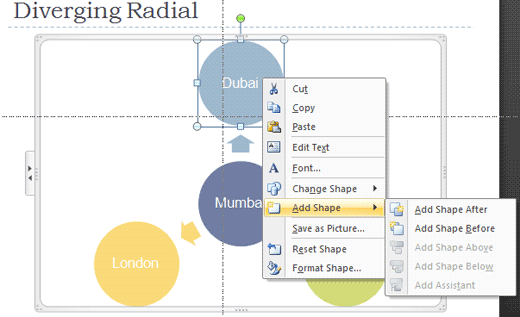
  2. Select a similar shape in the existing SmartArt graphic, right-click, and then choose the Add Shape option from the context menu (scroll down to Figure 4).

Follow these steps to get started with adding extra shapes to your SmartArt graphics in PowerPoint 2007:

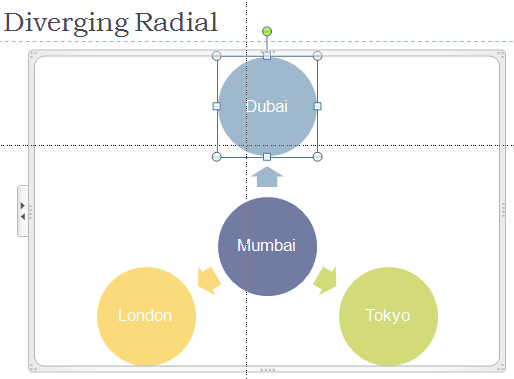
  1. Select your existing SmartArt graphic. As you can see in Figure 1, the SmartArt graphic variant that I have selected is the Diverging Radial.

    Diverging Radial
    Figure 1: Diverging Radial

    Related Link: See more SmartArt graphic samples here...

  2. As soon as you select a SmartArt graphic, you'll find that the Ribbon now has two extra SmartArt Tools tabs: Design and Format. For now, just select any individual shape within the SmartArt graphic (refer to Figure 1). Activate the SmartArt Tools Design tab in the Ribbon, as shown in Figure 2.

    SmartArt Tools Design tab of the Ribbon
    Figure 2: SmartArt Tools Design tab of the Ribbon

    Note: The SmartArt Tool Design tab is a contextual tab, These tabs are special tabs in the Ribbon that are not visible all the time -- they only make an appearance when you are working with a particular slide object which can be edited using special options.

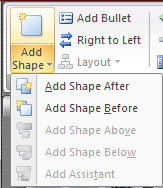
  3. Within this tab, locate the Create Graphic group, then click the Add Shape button to view the dropdown gallery that you can see in Figure 3.

    Add Shape
    Figure 3: Add Shape

    Alternatively, right-click the selected shape to get the resultant context menu, and then choose the Add Shape option as shown in Figure 4. Note that the options here are exactly the same as shown within the gallery in Figure 3.

    Add Shape
    Figure 4: Add Shape

    These options are explained below:

    • Add Shape After: To insert a shape at the same level as the selected shape but following it, click Add Shape After.

    • Add Shape Before: To insert a shape at the same level as the selected shape but before it, click Add Shape Before.

    • Add Shape Above: To insert a shape one level above the selected shape, click Add Shape Above.

    • Add Shape Below: To insert a shape one level below the selected shape, click Add Shape Below.

    • Add Shape Assistant: This option place the shape which is hierarchal lower than the selected shape. Shape Assistant is only available if you have chosen an organization chart layout.
    You'll see that last three options in Figure 3 are grayed out. This is because these options logically don't work with the SmartArt graphic variant being used (Diverging Radial). Each SmartArt graphic variant will allow some options, and gray out the others.

Related Link: My book Cutting Edge PowerPoint 2007 For Dummies covers many aspects of PowerPoint 2007. A free chapter excerpt PowerPointing with the Best of Them is available on this site.


Featured Story

Adobe Captivate's Edit View

In an earlier post last week, I discussed Adobe Captivate's views and compared them to PowerPoint's deafult views. I also explained about the Storyboard View. In this post, I'll look at Captivate's Edit view, which in many ways is similar to PowerPoint's Normal view. If you are not already in Edit view within Captivate, choose the View drop-down in the toolbar, and select Edit View.

Learn more here...


Featured Book

PowerPoint 2007 Complete Makeover Kit

PowerPoint 2007 Complete Makeover Kit
PowerPoint 2007 Complete Makeover Kit is out! Check the book on Amazon.com...

And here are some free excerpts...


Home |  PowerPoint |  Photoshop |  Templates |  Blog |  Notes |  Ezine |  Studio |  Advertise |  Feedback |  Info |  Site Map
Store  |  RSS |  Privacy |  Testimonials
Free PowerPoint Backgrounds | Free PowerPoint Templates | Free Christian PowerPoint Backgrounds
Page copy protected against web site content infringement by Copyscape
  Page copy protected against web site content infringement by Copyscape


  ©2000-2009, Geetesh Bajaj. All rights reserved.

    since November 02, 2000