
This is the print version of this page. All content is copyright Indezine.com 2000-2026.
Read an exclusive book excerpt from Powerful PowerPoint for Educators.
Author: David Marcovitz
Product/Version: PowerPoint
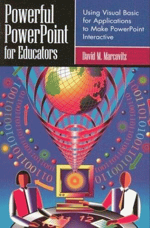 This book extract from Powerful PowerPoint for Educators is an Indezine exclusive with permission from Libraries Unlimited.
 David Marcovitz is Associate Professor in the Education Department and Director of Graduate Programs in Educational Technology at Loyola College. He received his Ph.D. in Educational Technology from the University of Illinois at Urbana Champaign where he studied support for technology in elementary schools. He has taught computer applications and computer programming at the high school level, and he has worked as a technology specialist in a high school. Prior to coming to Loyola College, he taught in the educational technology program at Florida Atlantic University. Visit David's page on the Loyola College site.
Most educators have created simple presentations with PowerPoint™. PowerPoint is a fine tool for adding media to a lecture, but it falls flat when creating interactive lessons for students to use while sitting in front of the computer. That is, it falls flat unless you use the built-in scripting features of PowerPoint.
Starting with PowerPoint version 97, every copy of PowerPoint comes with Visual Basic® for Applications (VBA). VBA can be used to add to the functionality of Microsoft Office® applications, including Microsoft PowerPoint. With the advent of PowerPoint 97, teachers can put limited interactivity into their presentations using Action Settings, Hyperlinks, and buttons. These features allow you to
While this interactivity is useful, it is also very limited. VBA extends this to nearly unlimited dimensions. With VBA, you can change the content and appearance of slides based on student input, ask for and process typed input, add additional slides, hide and show graphics, and much more.
"Wait!" I hear you cry. VBA is a sophisticated programming language. Can teachers become programmers? Certainly, many teachers can become programmers, but the goal is not to create programmers but rather scripters. A programmer learns all the subtleties of a computer language in minute detail. A scripter might learn some of the details of the language but, more important, learns a few easily modifiable scripts that can perform important tasks.
Scripting might not be a useful technique when used with a stand-alone programming language, but the real power of using VBA with PowerPoint is not merely that VBA is an accessible scripting language but that it is built into PowerPoint. One of my students created a presentation about Hawaii. It included pictures, videos, recorded voices, and links to Web sites. All of this used traditional PowerPoint technology (no scripting required). On top of that, it added an interactive menu and a quiz with feedback about how well the user did on the quiz. Building all of this from scratch with a programming or authoring tool could be an overwhelming task, but 95 percent of the presentation was done with traditional PowerPoint tools (things most teachers already know how to do or can learn within a couple of hours). When a few scripts are added on top of the traditional PowerPoint tools, the results are rich not only with media but also with interactivity.
Remember, the more you know, the more you can do. With a few scripts, you can add short-answer questions (with feedback about right and wrong answers) and keep score. Add a few more scripts and you can have a menu that keeps track of which sections of your presentation have been visited and only shows the button to take the quiz when all sections have been visited. Add a few more scripts and you can have the user type things that change the slides in the presentation. The possibilities are endless.
The more you know, the more you can do. And you can always add more traditional PowerPoint without knowing any more VBA.
I have been using this material (before writing a book about it) with my students, who are mostly teachers, enrolled in a graduate course in multimedia design for the classroom, for about four years. They have created powerful projects for their students (like the Hawaii project mentioned earlier). In addition, I have been speaking about this at conferences and workshops. The overwhelming reaction I get is, "That's great! I didn't know you could do that."
While this book is not accessible for computer novices, teachers who are beyond the level of computer beginner can use this technology to create powerful material for their students, material that goes beyond a simple page-turner.
For the professional multimedia designer, PowerPoint might not be the right choice. However, expensive and complicated tools are not common in schools. Using PowerPoint as a framework, teachers are able to add as much or as little interactivity as their skills allow and their needs require. Thus, PowerPoint is an appropriate multimedia tool for teachers and a powerful addition to a multimedia design class.
This book can be used as a stand-alone book in a multimedia design class for educators or as a companion for books like Ivers and Barron (2002) or Agnew, Kellerman, and Meyer (1996), which focus on multimedia design and using multimedia projects in classrooms but do not deal with a specific technology for implementing the projects. It also stands by itself without a class. Anyone with basic PowerPoint skills can sit down with this book and begin to create powerful educational material for themselves, their colleagues, their students, or their own children.
Chapter 1 begins the book with some important principles of instructional design, including how to design your own projects and create assignments for your students to design their projects. If this book is used in conjunction with a book about design, the first chapter will provide an overview of what you will find in the design books, but if this book is used by itself, this chapter is very important. Jumping in and creating things is fine when you are playing around, but serious projects require some planning and design work, and Chapter 1 will give you a foundation in that.
Chapter 2 begins to explore some of the traditional interactive multimedia features of PowerPoint. Adding pictures, sounds, buttons, and hyperlinks is not difficult, but many PowerPoint users have never used those features before.
Chapter 3 introduces VBA. You'll understand how VBA fits into the world of object-oriented programming and how that affects you as a scripter. As a scripter, you won't have to understand all of VBA and object-oriented programming, but understanding objects and how to manipulate them will help you understand your scripts.
Chapter 4 begins the heart of the book as you start to learn about scripting with VBA. You'll learn how VBA is connected to PowerPoint and how to write and run your first script. You'll also learn about keeping your scripts private so your students can't look for the answers in your scripts.
Chapters 5 and 6 build your bag of scripting tricks. As a scripter, you will be interested in taking scripts directly from these chapters and applying them to your own purposes.
While each chapter contains examples that you can use right away, Chapter 7 focuses on examples that you will be able to use to create quizzes and tests.
Once you have completed Chapter 7, you will have a large bag of tricks that you can use by copying scripts directly from the book and possibly creating some on your own. Chapter 8 describes some more tricks that you can use, particularly if you are ready to modify some of the ideas in the book for your own purposes. It ends with a powerful example that I use with my daughter as she is learning to read.
Once you have mastered a large bag of tricks, you might need some help correcting your mistakes. Whenever you write scripts, even if you just copy them from the book, you are likely to make a few mistakes. Fixing mistakes is called debugging, and you will learn some of the secrets of debugging in Chapter 9.
By the time you finish Chapter 9, you will be excited to create things yourself, but you might want to share your knowledge with your colleagues and your students. Some of them will share your enthusiasm and borrow your copy of this book (or better yet, buy their own copy) and dive right into powerful PowerPoint. Others won't be ready for the technical challenge. Chapter 10 describes how you can use templates, so your colleagues and students can take full advantage of the power of VBA scripting without knowing any of it. You can use what you learn in Chapter 10 to provide a template for your colleagues or students with the scripting already done for them (by you).
When you have completed the book, you might not be an expert at using VBA to create powerful interactive multimedia projects, but you will have a large bag of tricks that can help you do more with technology to make you a better educator.
You May Also Like: Tips for Using Storytelling in Presentations | Cambodia Flags and Maps PowerPoint Templates


Microsoft and the Office logo are trademarks or registered trademarks of Microsoft Corporation in the United States and/or other countries.
