
This is the print version of this page. All content is copyright Indezine.com 2000-2026.
Read the Indezine review of PowerPlugs: Templates for PowerPoint.
Author: Geetesh Bajaj
Product/Version: PowerPoint
Introduction
About PowerPlugs: Templates
Downloading Templates
Pricing and Support
Conclusion
I often think that PowerPoint templates are like fonts -- you can never have enough of them. Great presentations can be made over a plain white background using little text formatting -- yet, we all seem to require an excuse to bring in more color and design into our slides. And that's where templates help -- a well defined template can make all the difference to a presentation by imparting good background choices, sensible layouts, font choices, and color schemes.
Our product for review does provide many of these capabilities -- and it's both a product and an online service. CrystalGraphics' PowerPlugs annual subscription of PowerPoint templates allows you to choose from their large template collection for a fixed price.
BackPowerPlugs: Templates is part of a series of PowerPoint offerings from CrystalGraphics, a company based in Santa Clara, California, USA -- they create add-ins for programs like PowerPoint, Excel, Outlook, etc. You can learn more about PowerPlugs: Templates for PowerPoint at their site.
Once you sign up for an annual subscription, you will be provided with a user name and password that allows you to access these templates.
At the time of writing, PowerPlugs: Templates includes 3000 PowerPoint templates -- on an average, around 200 plus new designs are added each month.
Update on Nov 17th 2007: Presently, there are more than 6000 templates
My contact at PowerPlugs: Templates for this review was Nicole Ha - thank you, Nicole.
BackOnce you buy an annual subscription, you are provided a unique password that is sent to you by email. You sign in with your email address and the password to download unlimited templates for a year.
Follow these steps to download the templates:
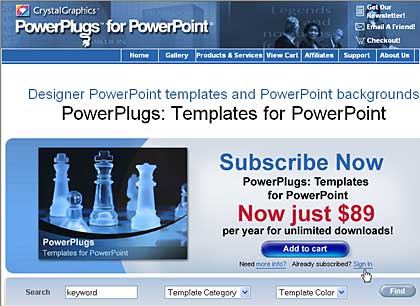
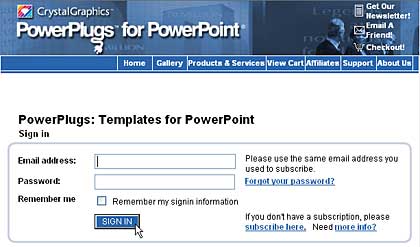
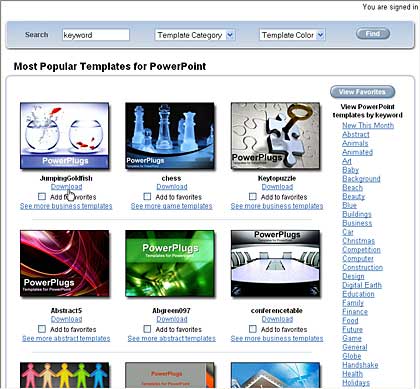
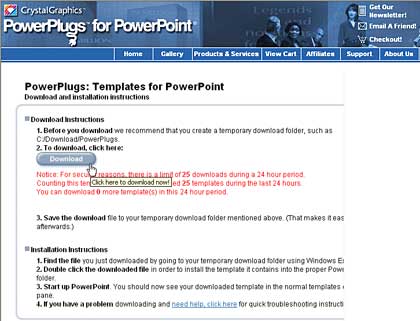
There is also an Add to Favorites option that adds selected templates to your Favorites collection -- although there's no option to download all your favorites.
BackA subscription to PowerPlugs: Templates for PowerPoint costs $89 annually. Support is through email, an online FAQ, and phone.
BackA subscription is certainly well worth the price if you like to acquire new template designs all the time. Also, there are a large number of designs that are varied enough to provide you with ample choices.
BackYou May Also Like: Gambia Flags and Maps PowerPoint Templates | Instant FX Flash Browser / Transformer




Microsoft and the Office logo are trademarks or registered trademarks of Microsoft Corporation in the United States and/or other countries.
