
This is the print version of this page. All content is copyright Indezine.com 2000-2026.
Read the Indezine review of Cinematize 2 Pro.
Author: Geetesh Bajaj
Product/Version: PowerPoint
Introduction
About Cinematize 2 Pro
Download and Installation
Using Cinematize 2 Pro
Pricing and Support
Conclusion
You probably know that PowerPoint allows you to place movie clips within a slide with a few clicks. These movies can be in several PowerPoint friendly movie formats, although if you need a movie clip from a DVD, you might not find things too easy! And Cinematize, a product I have reviewed earlier does extract movie clips from a DVD, and then it saves those extracts into different movie file formats that can be inserted in PowerPoint.
And now the folks who create Cinematize have launched a Professional version of the same product. So what does it do better than the basic version? Read on...
BackCinematize 2 Pro is from Miraizon, a company based in California, USA. You can learn more about their products from their site.
Cinematize 2 Pro allows you to extract almost any content from a DVD, be it an audio track, a video track, or a subtitle. It has the ability to batch-extract any number of segments from both DVD menus and movies, multi-channel audio extraction, subtitle decoding to QuickTime video and images. Preset settings can be saved -- and you can use the extracted movie clips in PowerPoint, QuickTime, iMovie, Final Cut Pro, Keynote, iTunes, and iPods. The product is available in both Windows and Macintosh versions.
My contact at Cinematize for this review was Naoko Miyazaki - thank you, Naoko.
BackDownload the installer, run the setup routine and follow the instructions.
You'll end up with an Miraizon program group in your Windows Start menu
(see Figure 1 below).

Figure 1: Miraizon Start menu Group
Be sure that you have a movie DVD in your drive, before using the application.
This DVD must allow decryption -- and most commercial movie DVD's don't
do that! Miraizon does mention that Cinematize can work with DVD discs
that are decrypted using decryption programs -- but Cinematize itself
won't do that for you.
Follow these steps to extract a movie clip from a DVD using Cinematize 2 Pro:
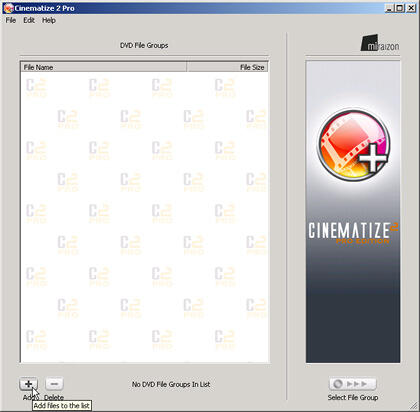
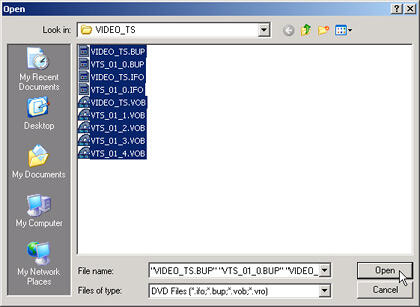
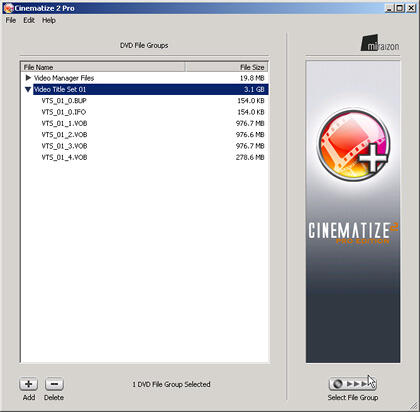
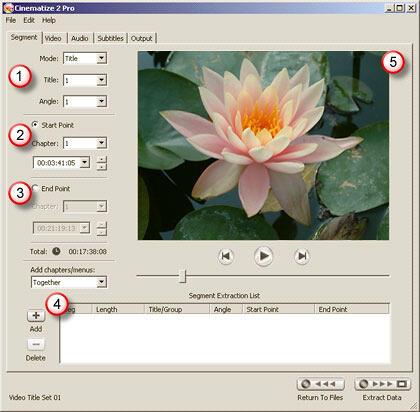
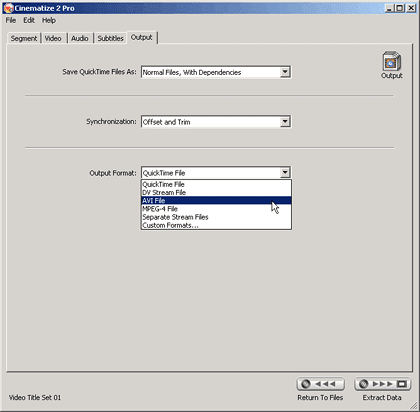
Select the location to save the extracted file -- Cinematize will start processing the extraction. Depending upon the length of the segment and extraction option settings you choose, this process can take a while.
BackCinematize 2 Pro for Windows costs $129.95 for the download version, whereas the boxed version costs $149.95.
Miraizon provides an upgrade path from Cinematize 2 to Cinematize 2 Pro for Windows (downloadable) which costs $89.95. The boxed, upgrade version of Cinematize 2 Pro costs $109.95.
Support options include e-mail, phone support, and an online FAQ.
BackCinematize 2 Pro makes easy work of a complicated job ensuring that almost anyone can extract movie clips from a DVD using a simple learning curve.
BackYou May Also Like: Lobster PowerPoint Templates | Sync Audio and Animation Timings in Adobe Presenter


Microsoft and the Office logo are trademarks or registered trademarks of Microsoft Corporation in the United States and/or other countries.
