
This is the print version of this page. All content is copyright Indezine.com 2000-2026.
Use Photoshop's Difference mode to create some amazing gradient backgrounds.
Author: Geetesh Bajaj
Product/Version: PowerPoint
Photoshop gradients are so much more than colors blending into each other. They are an amazing tool that can help you create some quick and beautiful backgrounds.
In this tutorial, we won't show you how you can create a gradient in Photoshop. Rather we'll suggest that you download many of the free and commercial gradient sets available on Photoshop-related websites. Some of the best gradient sets are available from Graphicxtras, and we used their gradients in this tutorial.
To use a third-party gradient set in Photoshop, you first need to load it. These instructions are for Photoshop CS but should work similarly for other recent versions.
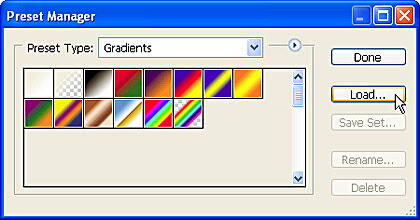
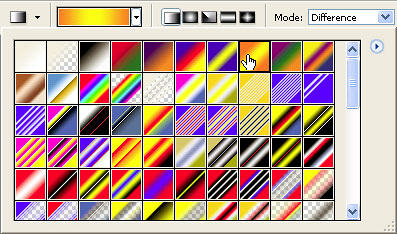
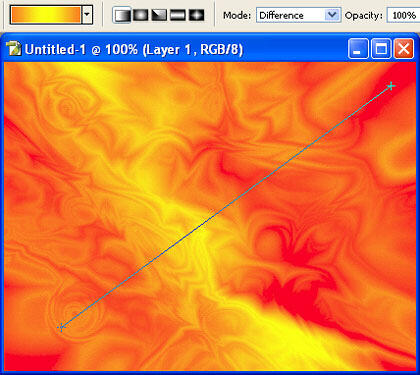
Here's how you can create some great backgrounds using gradients by using the Difference blend mode.
You May Also Like: think-cell 10: Now works on Office for Mac | Crosswords PowerPoint Templates




Microsoft and the Office logo are trademarks or registered trademarks of Microsoft Corporation in the United States and/or other countries.
