Photoshop TIFF and Alpha Channel Export for PowerPoint
Reviewed: Geetesh Bajaj
Date Created:
Last Updated: February 27th 2009
See Also: PowerPoint and Alpha Channels
In this tutorial, we will learn how to export a TIF graphic from Adobe Photoshop with an alpha channel that PowerPoint can import. I have used Adobe Photoshop 6 on Windows XP Professional.
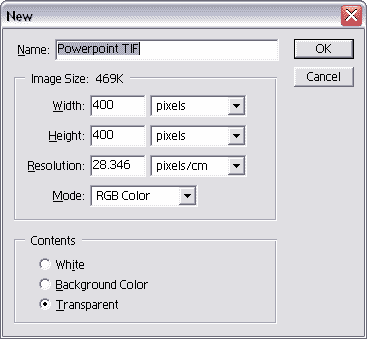
- For this example I created (File | New)
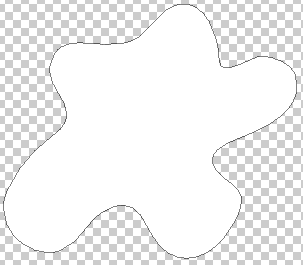
a new file in Photoshop with a transparent background.

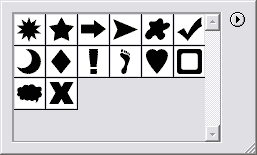
- Using Photoshop's shape tool, just draw
any shape to fill the empty document.

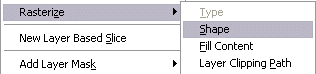
- Choose Layer | Rasterize | Shape.

- Choose any color for the foreground and
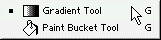
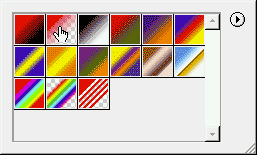
click the Gradient button from Photoshop's tools - within options
(the toolbar below the menu), choose the foreground to transparent
gradient.

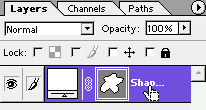
- In the Layers window, Ctrl-click
the layer that contains your shape so that all non-transparent
areas are selected.

- Press the Delete button on your keyboard
- you now have an empty screen with a selection (shown as 'marching
ants').
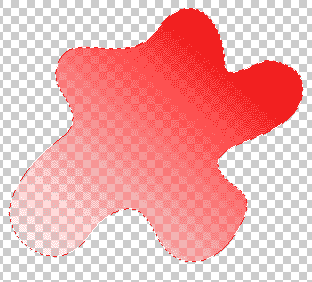
- Drag in any direction with the gradient
tool to create a fill that spans from opaque to transparent.
Alternatively, you can also use any other non-transparent gradient
or a solid fill color. Repeat and experiment until you are
satisfied.
- Press Ctrl-D to deselect everything -
Ctrl-click the layer again in the Layers tab window to select
the entire transparency gamut.
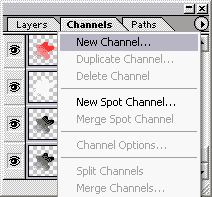
- Go to the Channels tab and select 'Create
New Channel' from the flyout menu. Click OK for the default
name that Photoshop chooses for the new channel.
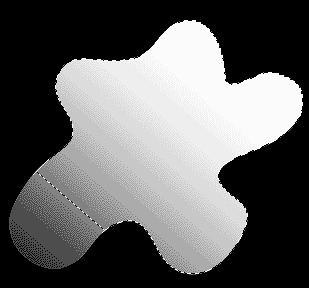
- Photoshop will present you with a black
background and a selection comprising our shape. Click Alt-Backspace
to fill the transparency gamut with white. Press Ctrl-D to
deselect.
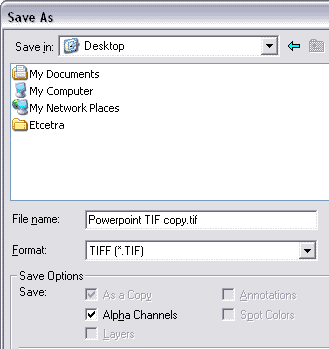
- Go back to the Layers tab and choose File | Save As...
- In the file format drop down box, choose
TIFF. Check the 'Alpha Channels' box in the Save Options if
it is disabled.

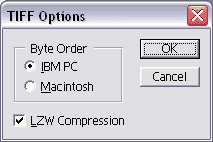
- In the next dialog box, choose IBM PC
for the Byte Order and enable LZW Compression.
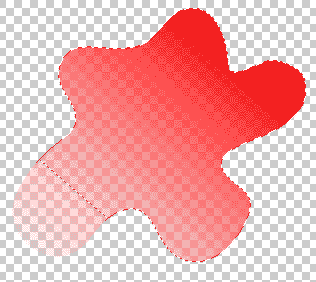
- Back in PowerPoint, just insert the exported
TIF using the Insert | Picture command - the screenshot below
shows you how the transparent areas reveal themselves.