
This is the print version of this page. All content is copyright Indezine.com 2000-2026.
Convert or realize your MIDI files into WAV files.
Author: Geetesh Bajaj
Product/Version: PowerPoint
Content on this page is not recent and has been retained for historical reasons.
Introduction
MIDI vs WAV: The Snack-Sized Sound Dilemma
Online MIDI to MP3/WAV Converter
WinGroove
MIDInight Express
Midi2Wav Recorder
Other Alternatives
Imagine you’re trying to play your favorite song—but all you’ve got is the sheet music. That’s what a MIDI file is: it’s the “instructions” for the performance, not the performance itself. A WAV file? That’s like a high-quality studio recording you can blast on any speaker, anywhere, without it sounding like a robot had a jam session in a garage.

Why are we talking about WAV files here? Who not just save the output from MIDI to the MP3 file format?
That’s because you can’t go from sheet music to a compressed audio file unless you first perform the music and capture the sound! MIDI has no actual “sound” to save—it needs to be played using virtual instruments or a synthesizer.
So, the usual workflow looks like this: MIDI (just the notes) ➡️ Performance via software ➡️ WAV (raw audio) ➡️ MP3 (compressed audio)
Making MP3 directly from MIDI is like trying to bake a cake using only the recipe and skipping the baking part. You need to mix and cook before you package it.
Here’s why converting from MIDI to WAV makes your musical life easier:
MIDI tells your computer what notes to play, how long, and how loud—but it doesn’t include the actual sounds.
So, if you bake that cake (play the MIDI) on two different ovens (computers), it might taste completely different depending on the sound card or software!
Once you've cooked up your MIDI and captured the actual sound, you get a WAV file—same flavor, every time, on any device.
WAV files don’t care what kitchen you’re using—they play exactly how they were baked.
BackLet’s say MIDI is like instant noodles: compact, quick to cook, and surprisingly versatile. WAV, on the other hand, is like a rich, slow-cooked stew—hearty, delicious, but a bit heavy on your kitchen resources.
If you're serving sound on a mysterious machine—say, a presentation PC or a visitor’s laptop—and you're unsure how fancy its audio chef (a.k.a. sound card) is, you might want to turn your MIDI noodles into WAV stew for consistency. But beware! You’ll lose some of the lightweight charm that MIDI brings to the table.
Think of your MIDI file as a magical scroll that tells musical instruments what to play—but it doesn’t play any music itself. To turn that scroll into an actual concert you can hear on any device, you need a “MIDI to WAV Realizer”—basically, a sound translator with superhero powers!
Meet the Magical Realizers! There are at least four trusty programs out there that can wave their sonic wands and turn your MIDI scroll into rich WAV music:
These converters capture the live performance from your MIDI instructions and record it into WAV format, so the music sounds the same on every sound system—like freezing your melody into an audio popsicle!
BackImagine you're craving a gourmet sound meal, but don’t want to install a full-blown kitchen (aka software) on your computer. That’s where online MIDI to WAV converters swoop in like fast food for music files—quick, no fuss, no frying pans needed.
Go to the Online MIDI to MP3/WAV Converter site.
BackPicture WinGroove as a super-talented street musician who takes your humble MIDI instructions and turns them into a full-blown concert—right on the spot! Even if your sound card is more garage band than Grammy winner, WinGroove brings that MIDI to life with finesse that rivals high-end gear.
How does WinGroove achieve this magic? It takes your plain MIDI stream—just digital sheet music—and plays it so beautifully you’d think you're hearing a soundtrack from a professional studio. But here’s the caution tape: WinGroove chews through your processor like a ravenous teenager at a pizza buffet. That’s because it converts your MIDI into a WAV stream in real time—like building a sandcastle while the tide is rising!
Want to enjoy the WinGroove magic without slowing down your computer to a yawn? Just open the MIDI file in WinGroove and convert it straight into a WAV file. After that, the WAV file behaves like any regular WAV—no more hungry processing, just smooth playback. Think of it as pre-recording your concert instead of performing live every time someone hits play.
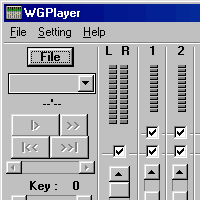
WinGroove (Softonic)
WinGroove (Site no longer exists, and this link goes to an archived page)
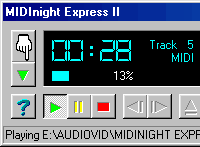
Imagine MIDInight Express from Polyhedric Software as a pocket-sized train that delivers your MIDI files straight into WAV city—all without gobbling up your computer’s fuel. It’s small, smart, and surprisingly efficient, making it the least resource-hungry of the sound transformation gang.
It plays both MIDI and WAV files—like a dual-mode jukebox. It renders your MIDI music into WAV format—turning note instructions into actual sound, just like other heavy-duty programs. And guess what? It doesn’t demand much from your system—think of it as the hybrid scooter in a race full of sports cars.
What's more? It's freeware too but read the help file thoroughly before you attempt to convert a MIDI file to WAV using MIDInight Express. This is not the easiest of applications to use. You may require PRG files (the help files explain everything) to effect a conversion.
Imagine you're turning your MIDI doodles into full-blown WAV masterpieces, and you want a tool that not only does the job—but brings a whole toolbox to the party. That’s Midi2Wav Recorder! It’s the multi-talented performer in the MIDI-to-WAV arena, and it loves showing off.
Midi2Wav Recorder (Site no longer exists, and this link goes to an archived page)
BackTimidity is a free program originated in Japan. The original developer stopped development of the program. Since it is a GNU program, an alternative developer has created a new version. Timidity is not for the faint-hearted. There's no help file, and the entire documentation is available online at the site.
BackYou May Also Like: Top 8 Presentation Design Tips for Digital Signage | How You Can Make a High Impact in Meetings




Microsoft and the Office logo are trademarks or registered trademarks of Microsoft Corporation in the United States and/or other countries.
