
This is the print version of this page. All content is copyright Indezine.com 2000-2026.
Issue 049 of PowerPoint and Presentation Stuff newsletter.
Previous Ezine Page | Next Ezine Page
I just released 8 new template designs on Indezine. With this update, there are 42 templates available! Start collecting them now.









Maps make excellent visuals and can add so much relevance to presentations that speak about anything to do with geography. You may want to:
In the rest of this article, we'll explore possibilities and implications of using maps in PowerPoint. It's important that you understand that we are discussing professional, cartographic maps here and not the other map type: route and location maps. Read more here.
All maps for the article were provided by Matton, a worldwide provider of high quality clip media. I also interviewed Chris Ferrone, Managing Partner of Matton Images LLC last week.
In this interview, Chris discusses "royalty free" and usage of images in PowerPoint. Read the interview here.
Part I of this series can be found within issue 48 of the PowerPoint Ezine.
Whenever you create a new shape, PowerPoint uses a default fill color. This color is actually specified in PowerPoint’s Color Schemes settings. Color Schemes are editable palettes inside PowerPoint that decide which color is used as the default for a fill, text, chart or hyperlink. We'll take a detailed look at Color Schemes in a future ezine issue (you might want to look at issue 29 for more info).
The advantage or disadvantage (whichever way you look at it) of using a default color from a Color Scheme is that when you change the Color Scheme, all your default fill colors change as well. If you don’t want your fill colors to change, use an absolute color value rather than a Color Scheme swatch within the Fill Color toolbar.
Also, experiment with other types of fills like gradients and pictures that can enhance the look of your slide. The following example shows how dramatic this change can be.
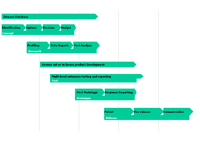

The slide on the right is identical to the slide on the left apart from its fills. The left slide uses the default fills that PowerPoint provides whereas the only changes on the right slide are the fill effects used for the background and individual AutoShapes.
To access the Fill Color toolbar, click the down arrow next to the Fill Color icon in the Drawing toolbar to open a flyout menu. Drag this menu off the Drawing toolbar to spawn a floating toolbar within PowerPoint (see screenshot).

The Fill Color toolbar provides six fill options:
Here’s how to change or apply a solid fill:
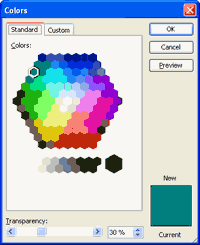
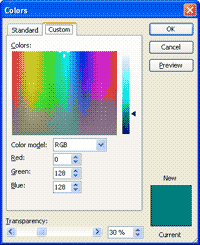
These are the two tabs of the PowerPoint color picker. In the Standard tab, you can choose from several color choices or you can opt to mix your own color using RGB values (see below).
RGB stands for Red, Green and Blue. Each color has a numeric value that ranges from 0 to 255.
Here are some samples:
| Swatch | R | G | B | |
|---|---|---|---|---|
| Blue | 0 | 0 | 255 | |
| 64 | 108 | 140 | ||
| 253 | 75 | 104 | ||
| 236 | 150 | 148 | ||
| 148 | 148 | 148 | ||
| 176 | 108 | 211 | ||
| Red | 255 | 0 | 0 |
We'll continue this series in the next issue of this ezine.
New PowerPoint memorabilia stuff has been added to my site Indezine.com. You can view pictures of the PowerPoint 1 box, some old PowerPoint and Office advertisements and a retro look at PowerPoint 2.
Making your point more powerful: "As a presenter, I like using PowerPoint. Although I don’t like having the slides in a fixed sequence, and I worry that dimming the lights will give my audience unneeded assistance in falling asleep, I do like the way PowerPoint enables me to emphasize and illustrate my points with highlighted text, graphs, and photos. There’s something about those big, fat, color letters that makes the words more interesting". Dr. Stephen Wilbers explains more.
More PowerPoint related info on the PowerPoint Blog and PowerPoint Notes. And free PowerPoint templates for all of you.
Until next time - have a nice day. And keep the feedback coming.
BackYou May Also Like: The Cognitive Load of PowerPoint: Interview with Richard E Mayer | The Discomfort Zone: Conversation with Marcia Reynolds



Microsoft and the Office logo are trademarks or registered trademarks of Microsoft Corporation in the United States and/or other countries.
