
This is the print version of this page. All content is copyright Indezine.com 2000-2026.
Learn how to repair PowerPoint file associations in Windows 11. Doing so ensures that PPTX files open correctly every time.
Author: Geetesh Bajaj
Product/Version: PowerPoint
OS: Microsoft Windows 11 and higher
You may be certain that PowerPoint is installed on your computer, yet when you double-click a PowerPoint file, it either fails to open in PowerPoint or launches in an unexpected application.
There is no cause for concern.
This behavior typically indicates that Windows is no longer correctly identifying which application should open that file type. It is similar to a delivery reaching the wrong address—the intended application is available, but the file is being directed elsewhere.
The Identity Issue
PowerPoint File Extensions
About File Associations
Fixing the Problem
Conclusion
Before addressing this identity issue—technically referred to as a file association—it is useful to take a step back and understand file extensions. These are the short suffixes at the end of file names, such as .pptx or .pdf.
Although they may appear insignificant, file extensions play a critical role. They inform the operating system which application should be used to open a file, ensuring that PowerPoint files launch in PowerPoint rather than in an unrelated program.
Without file extensions, your computer is like someone staring at unlabeled spice jars — is it sugar or salt? You don’t want to find out the hard way!
Now here’s the funny part — your computer might be playing hide-and-seek with file extensions. Yup, those important little endings like .pptx or .pdf might be completely invisible!
Why? Because newer versions of Windows love keeping things “neat and clean,” so they hide file extensions by default. It’s like putting all your condiments into identical jars—looks tidy, but suddenly you don’t know which one holds ketchup and which one holds hot sauce.
The good news? You can change this setting faster than you can say “PowerPoint.” Just flip one tiny switch and — ta-daa! — every file’s extension pops back into sight. Learn more on our Show File Extensions page.
Modern computer systems contain many different file types, and each file type is configured to open with a specific application. These file types are typically identified by their file extensions, which appear at the end of the file name and indicate how the operating system should handle the file.
| File Extension | Description |
|---|---|
| PPTX | PowerPoint Presentation, used by PowerPoint version 2007, and newer |
| PPSX | PowerPoint Show, used by PowerPoint version 2007, and newer |
| POTX | PowerPoint Template, used by PowerPoint version 2007, and newer |
Each time a file is double-clicked, Windows performs a series of background checks to determine how the file should be opened.
First, Windows examines the file’s extension to identify the file type. Based on this identification, it then selects and launches the application associated with that file type. For example, when a PowerPoint file is opened, Windows is expected to launch PowerPoint automatically.
In most cases, this process functions as expected. However, issues can occasionally arise if a file association has been altered or was never correctly established. When this occurs, Windows is unable to determine which application should open the file, resulting in the file failing to launch.
BackEach file type on a computer is linked to a specific application through a file association. For example, PPTX and PPSX files are typically associated with Microsoft PowerPoint, while DOCX files are associated with Microsoft Word.
These associations, however, are not permanent. They can change when multiple applications are capable of opening the same file type, or when newly installed software modifies existing associations during installation.
In such cases, double-clicking a PowerPoint file may no longer launch PowerPoint as expected. Instead, the file may fail to open or attempt to open in an unintended application, indicating that the file association has been altered or overridden.
In many cases, software installers modify file associations automatically during installation. These changes often occur in the background without explicit user notification, which can result in existing file associations being reassigned to newly installed applications.
The good news is that correcting file associations is a straightforward process. The following steps outline how to restore the correct associations.
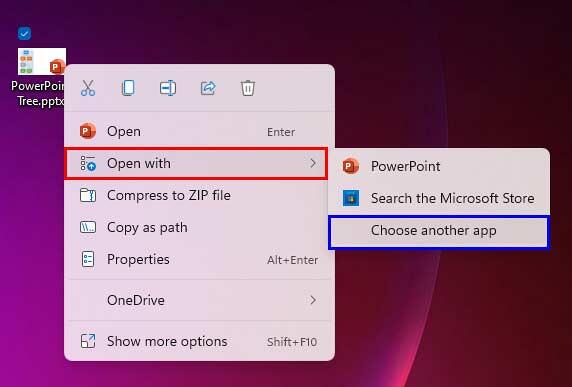
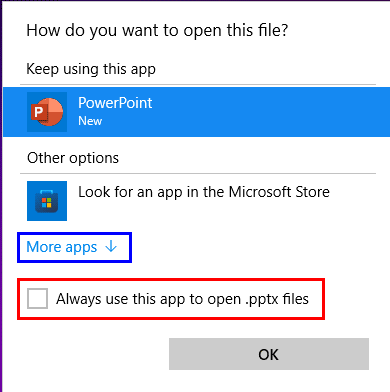
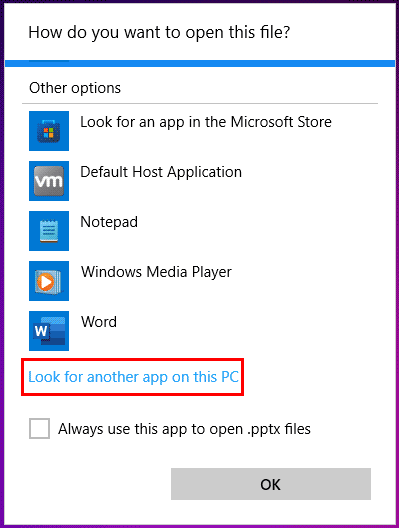
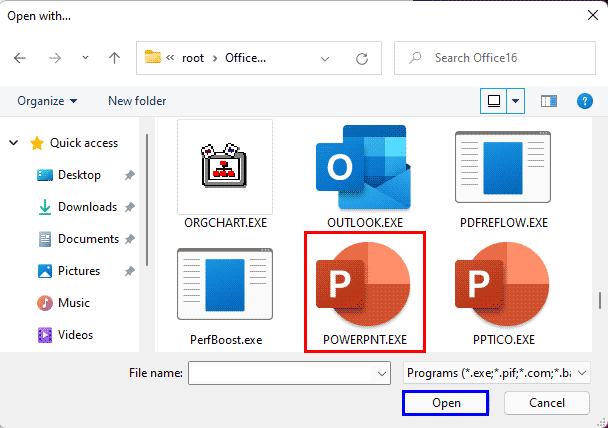
Repairing file associations in Windows 11 is a straightforward process that ensures PowerPoint files open in the intended application. By understanding file extensions and how Windows manages them, users can quickly resolve issues caused by conflicting applications or modified settings. Whether using the Open with option, selecting More apps, or manually specifying PowerPoint, these steps restore correct behavior. Once updated, double-clicking a PPTX or PPSX file will consistently launch PowerPoint, helping maintain an efficient and uninterrupted workflow.
BackImproper settings, conflicting installs, or corrupted registry keys may cause misassigned associations.
The chosen program may be incompatible, corrupted, or overridden by another application.
Yes. The Default Apps troubleshooter or system repair tools often resolve common issues.
22 02 01 - PowerPoint File Issues: Repair File Associations (Glossary Page)
Repair File Associations in Windows 10
Repair File Associations in Windows XP
You May Also Like: Essential PowerPoint Skills Everyone Needs, Especially Working from Home | Develop Your Public Speaking: A Few Thoughts on Fear




Microsoft and the Office logo are trademarks or registered trademarks of Microsoft Corporation in the United States and/or other countries.
