Indezine Logo


Repair File Associations in Windows XP

Learn how to repair PowerPoint file associations in Windows XP. Doing so ensures that PPTX files open correctly every time.


Author:

Product/Version: PowerPoint

OS: Microsoft Windows XP and higher


So, you know PowerPoint is installed on your computer, but when you double click a PowerPoint file… surprise! It either refuses to open in PowerPoint or pops open in some totally different program.

Don’t panic — this usually means your computer has mixed up which program should open your PowerPoint files. Before we fix that mix up (called a file association), let’s take a quick detour and talk about something important: file extensions.

PowerPoint's File Extensions

There are many different file types on our systems, and each individual file type is set to open in a particular application. The file types can be usually identified with their file extensions.

File Extension Description
PPT PowerPoint Presentation, used by PowerPoint versions 97, 2000, 2002, and 2003 for Windows
PPS PowerPoint Show, used by PowerPoint versions 97, 2000, 2002, and 2003
POT PowerPoint Template, used by PowerPoint versions 97, 2000, 2002, and 2003
PPTX PowerPoint Presentation, used by PowerPoint version 2007, and newer
PPSX PowerPoint Show, used by PowerPoint version 2007, and newer
POTX PowerPoint Template, used by PowerPoint version 2007, and newer

When you double-click any file, here's what Windows XP does:

  • It identifies the file type using the file extension of the file.
  • It then activates the associated application to open the clicked file.

Most of the time, this works great unless your file association gets changed, or in some cases, there may be no file associations in place.

About File Associations

As you are probably aware now, each file type is associated with a particular application on your computer. These associations can sometimes change.

So, how do these file associations get changed? This typically happens when there is more than one program on your computer for opening a particular file type or when you install a new software program that insists on changing the file associations. In PowerPoint, this could mean that you double-click a PPT or PPS file, and PowerPoint does not launch at all.

Fortunately, it is easy to repair these associations. Follow these steps to set the file associations right:
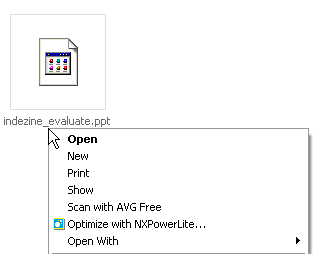
  1. Right-click on the file whose file association has gone wrong. Doing so will open a context menu, as shown in Figure 1, below.
  2. Context menu
    Figure 1: Context menu
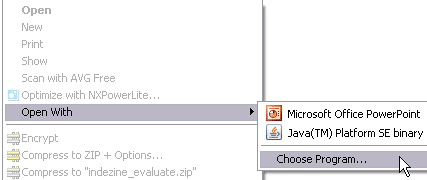
  3. From the menu, choose the Open With | Choose Program option, as shown in Figure 2, below.
  4. Choose the program to associate
    Figure 2: Choose the program to associate
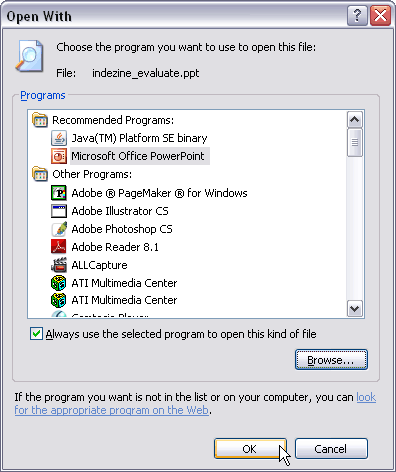
  5. Doing so opens the Open With dialog box, as shown in Figure 3, below. Select the program you want Windows to use to open files of this type and select it. If you find that the program you want (PowerPoint) is not in the list, click the Browse button, navigate to the powerpnt.exe executable on your computer, and select it.
  6. Put a checkmark next to Always use the selected program to open this kind of file. When done, click the OK button.
  7. Choose the program you want to open PowerPoint files with
    Figure 3: Choose the program you want to open PowerPoint files with
  8. The next time when you will double-click the PowerPoint file, you'll find it will open in PowerPoint itself.

Related Links

Here are some external resources that may help”

  1. You'll find a detailed explanation on repairing associations on the PowerPoint FAQ site.
  2. WAssociate is a freeware file association repairing software.

See Also:

22 02 01 - PowerPoint File Issues: Repair File Associations (Glossary Page)

Repair File Associations in Windows 11
Repair File Associations in Windows 10

You May Also Like: Presented: Conversation with Philippa Leguen de Lacroix | Covid-19 Video and Remote Working: Conversation with Richard Goring



Popular Posts

Playing Video Across Slides in PowerPoint 2016 for Windows
Play a video clip across slides in PowerPoint 2016 for Windows.

Set Document Resolution in PowerPoint 2016 for Windows
Learn how to set document resolution in PowerPoint 2016 for Windows.

Creating Anchor Points for Connectors in PowerPoint 2010 for Windows
Learn how to create Anchor Points for connectors in PowerPoint 2010.

Working With Slide Numbers in PowerPoint 2016 for Windows
Learn how to add Slide Numbers on slides and Masters and more tricks on making them work to your will in PowerPoint 2016 for Windows.


Polygon Center Circles for PowerPoint

These special circles have polygon centers: the centers are made of triangles, squares, pentagons, and hexagons! And based on the sides of the polygon, the rest of the circle has that many segments.

Download and use these Polygon Center Circles in your slides for just $4.99


Microsoft and the Office logo are trademarks or registered trademarks of Microsoft Corporation in the United States and/or other countries.

Home | PowerPoint | Photoshop | PowerPoint Templates | PowerPoint Tutorials | Blog | Notes | Ezine | Media Kit | Feedback | Site Map | About Us | Contact Us

Link to Us | Privacy | Testimonials

PowerPoint Backgrounds | Christian PowerPoint Backgrounds | Business PowerPoint Presentation Templates

Plagiarism will be detected by Copyscape

©2000-2026, . All rights reserved.