
This is the print version of this page. All content is copyright Indezine.com 2000-2026.
Learn how to Apply Slide Masters in PowerPoint 2003 for Windows.
Author: Geetesh Bajaj
Product/Version: PowerPoint 2003 for Windows
OS: Microsoft Windows XP and higher
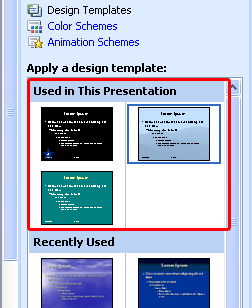
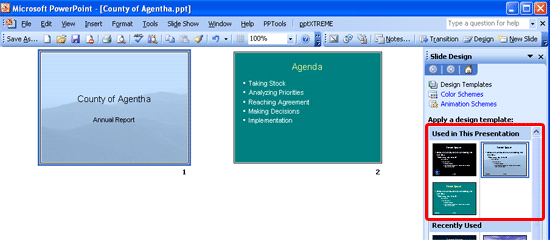
Once you have applied a template within PowerPoint 2003 that has multiple masters, you can thereafter apply different Slide Masters to the slides in your presentation. This tutorial therefore assumes that your presentation already has multiple masters available. Having said so, the reason why you want to apply multiple masters is preferably only to have sets of slides that look a we bit different rather than ending up with something that's inconsistent. Ultimately the role of masters is to ensure that your presentation remains consistent in design, layout and form.
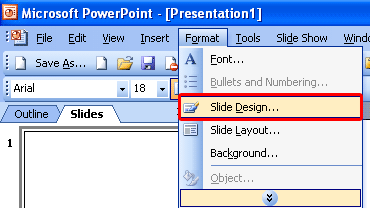
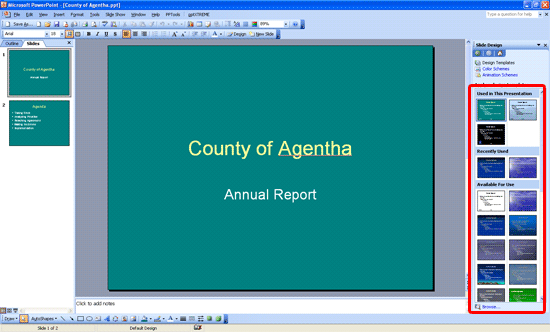
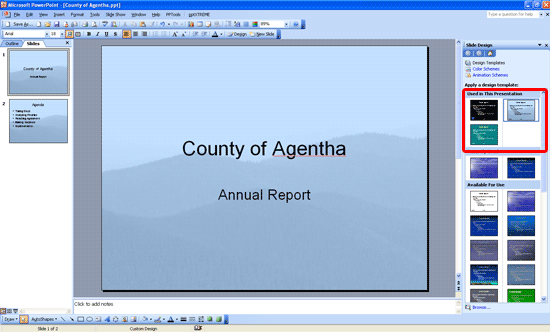
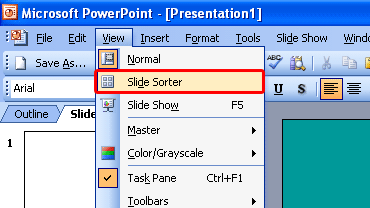
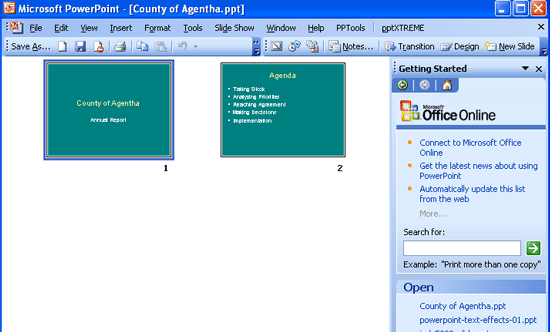
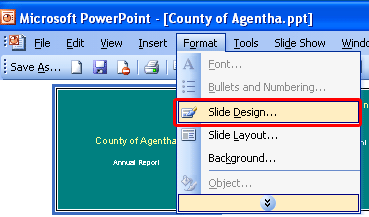
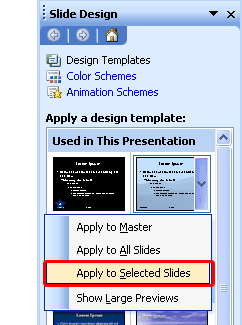
Follow these steps to apply Slide Masters to individual, all, or selected slides in PowerPoint 2003. Choose from the following two sections - the first shows how you can apply a Slide Master to an entire presentation whereas the next section explains how you can do the same to selected slides.
Follow these steps to change the master for all slides in a presentation:
If you want to apply a master to a specific set of slides in a presentation, follow these steps:
See Also:
Slide Master and Slide Layouts: Applying Slide Masters to Slides in PowerPoint (Index Page)
You May Also Like: How to Create Dashboard Software Using PowerPoint | Artists PowerPoint Templates


Microsoft and the Office logo are trademarks or registered trademarks of Microsoft Corporation in the United States and/or other countries.
