PowerPoint 2011 for Mac on the Mac continues to still use Toolbars although the Windows versions of PowerPoint got rid of them a few years ago. That's great since as a PowerPoint 2011 user, you have more options to perform the same tasks. Additionally, you can customize your Toolbars in PowerPoint 2011. This will save you time since your favorite commands will be more easily accessible, thereby increasing your efficiency and productivity. Also, your new customized Toolbars are not fixed at one position. Instead, they float, they can be dragged to any screen position. You can change their length and width by clicking and dragging the lower-right corner of the Toolbar.
Add a New Toolbar
Follow these steps to add a new Toolbar in PowerPoint 2011 for Mac:
- Launch PowerPoint and select the View | Toolbars | Customize Toolbars and Menus option, as shown in Figure 1, below.
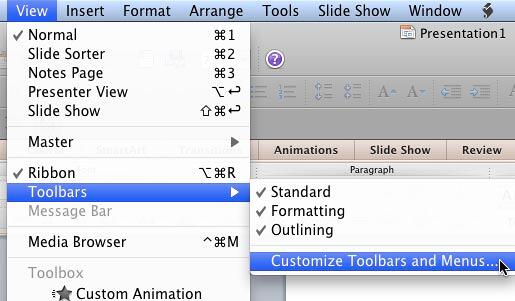
Figure 1: Select the Customize Toolbars and Menus option - Alternatively, you can right-click on the Standard Toolbar or the Formatting Toolbar and select the Customize Toolbars and Menus option from the resultant contextual menu, as shown in Figure 2, below.
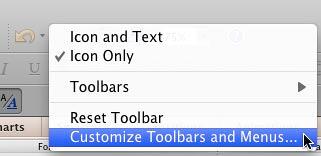
Figure 2: Select the Customize Toolbars and Menus option - Either option brings up the Customize Toolbars and Menus dialog box. Make sure that the Toolbars and Menus tab is active in this dialog box, as shown in Figure 3, below. Then, click the New button, as shown highlighted in red within Figure 3.
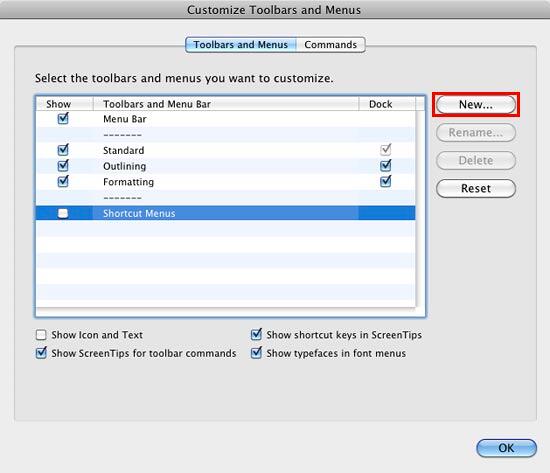
Figure 3: Customize Toolbars and Menus dialog box - Doing so opens the Add a Toolbar dialog box, as shown in Figure 4, below. Here, type a name for your new Toolbar. In Figure 4, you can see that the new name we typed is "My New Toolbar".
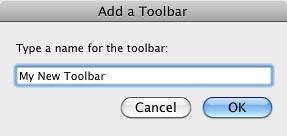
Figure 4: Customize Toolbars and Menus dialog box - After typing the name, click the OK button. This will take you back to the Customize Toolbars and Menus dialog box, where you can now see the new Toolbar's name in the list of existing Toolbars, as shown highlighted in red within Figure 5, below. Also, you can now see the new custom Toolbar, as shown highlighted in blue within Figure 5, added to your PowerPoint 2011 interface. Although this has been placed above the active dialog box, you can drag this custom Toolbar anywhere you please.
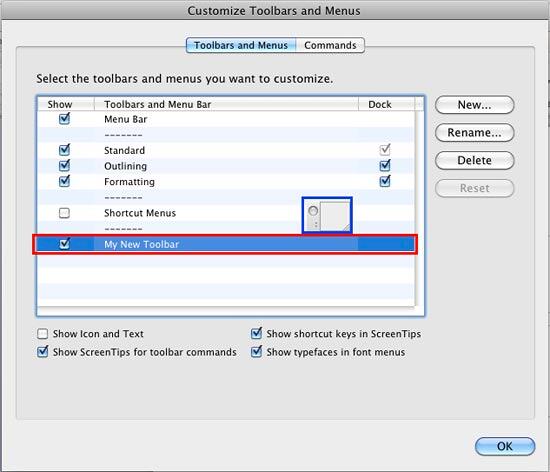
Figure 5: New Toolbar added - Do remember that even though you can place the Toolbar anywhere on the screen, it is not dockable. In Figure 6, below, you can see that we have placed the new custom Toolbar almost over the Status Bar.
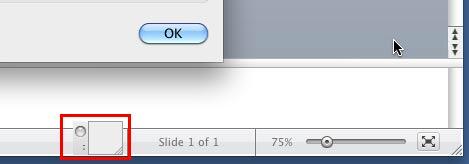
Figure 6: New Toolbar repositioned - Click the OK button to close the Customize Toolbars and Menus dialog box. Even after closing the dialog box, you can change the position of the new custom Toolbar just by dragging and dropping it in the required position.
Remove an Existing Toolbar
To remove a Toolbar, follow these steps:
- Access the Customize Toolbars and Menus dialog box, as explained in Step 1 in the preceding section of this page.
- Within the Customize Toolbars and Menus dialog box, select the Toolbar that you want to remove, as shown highlighted in red within Figure 7, below. and click the Delete button, as shown highlighted in blue within Figure 7.
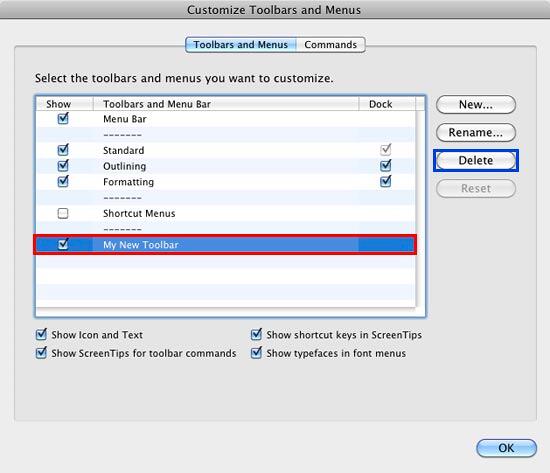
Figure 7: Delete button within Customize Toolbars and Menus dialog box - This will open a window asking for confirmation to delete the Toolbar, as shown in Figure 8, below. If you are sure you want to delete this Toolbar, click the OK button in this window.
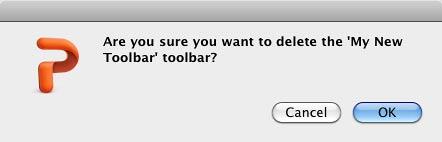
Figure 8: Are you sure you want to delete the selected Toolbar?
Note:
- Do remember that deleting a custom Toolbar will also mean that you lose all the commands placed on the Toolbar. So, exercise this Delete option with caution.
- This will remove the Toolbar from the Customize Toolbars and Menus dialog box as well as from the PowerPoint 2011 interface as shown in Figure 9, below.
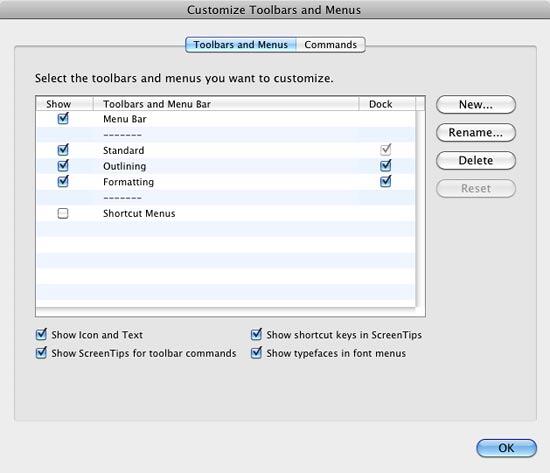
Figure 9: Toolbar removed - Click the OK button to get back to your slide.
Note:
- If you don't want to remove your custom Toolbar, but just want to hide it, then select the custom Toolbar, and click the Close button, as shown in Figure 10, below. This will just hide the Toolbar.

Figure 10: Close button within the custom Toolbar - If you want to make the custom Toolbar visible again, access the Customize Toolbars and Menus dialog box and select the Show check-box in front of the Toolbar, as shown highlighted in red within Figure 7, previously on this page.





