Customizing of a program interface is always desirable for power users, yet even if you are not a power user, you can still benefit from some basic customizing, this is akin to rearranging your office desk to whatever makes you more productive and comfortable. Within PowerPoint 2011 for Mac, you can customize the interface to a large extent based on your requirements, the ability to add and remove custom Toolbars is one such customization option. Additionally, you can also add or remove entire Menus to/from your Menu Bar, as explained in the following steps:
Adding Menus
To add a Menu to the Menu Bar in PowerPoint interface, follow these steps:
- Within PowerPoint, select the View | Toolbars | Customize Toolbars and Menus option, as shown in Figure 1, below.
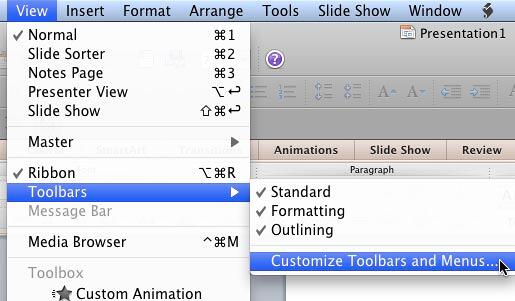
Figure 1: Select the Customize Toolbars and Menus option - Alternatively, you can right-click on the Standard Toolbar or Formatting Toolbar and select the Customize Toolbars and Menus option from the resultant contextual menu, as shown in Figure 2, below.
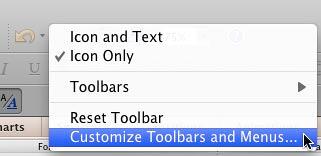
Figure 2: Customize Toolbars and Menus option within the right-click contextual menu - Either option will do two things:
- This will bring up an editable Menu Bar, as shown highlighted in red within Figure 3, below. We'll call this the shadow menu because it replicates the options available in the regular menu that's highlighted in blue within Figure 3.
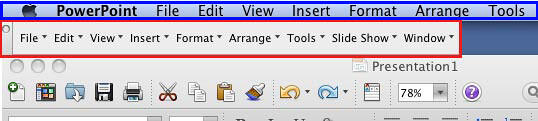
Figure 3: Editable Menu Bar - Also, this will summon the Customize Toolbars and Menus dialog box, as shown in Figure 4, below.
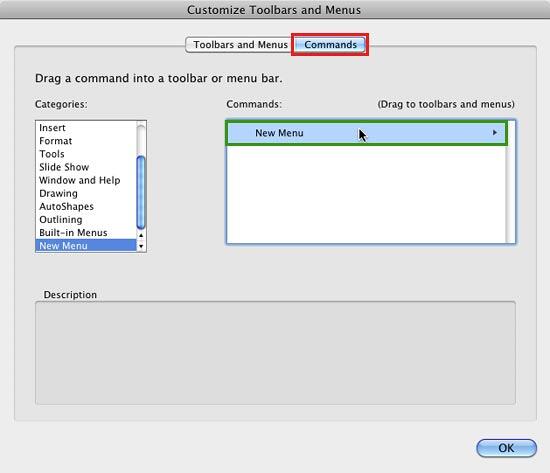
Figure 4: Customize Toolbars and Menus dialog box
- In this dialog box, select the Commands tab, as shown highlighted in red within Figure 4, above. Then, scroll down the Categories list, and select the New Menu option, as shown in Figure 4. This action will add a new menu within the Commands section. Select this New Menu option, as shown highlighted in green within Figure 4.
- Drag this New Menu on to the editable Menu Bar, as shown in Figure 3, previously this page, as shown in Figure 5, below, and drop it to let it go within the position where you can see a vertical blue line, as shown highlighted in red within Figure 5. We placed this new menu between the Slide Show and Window menus.
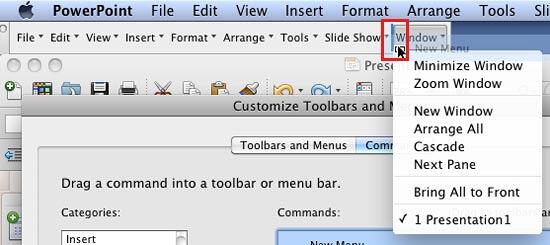
Figure 5: Drag the New Menu on to the editable Menu Bar - This action will add a new menu with the default name New Menu, into the editable Menu Bar, as shown highlighted in red within Figure 6, below. To rename the new menu, right-click (or Ctrl + click), from the contextual menu, select the Properties option, as shown in Figure 6.
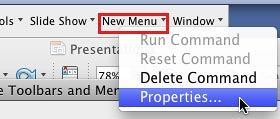
Figure 6: Select the Properties option - This will summon the Command Properties dialog box, within the Name box, type the required name for your new menu, as shown highlighted in red within Figure 7, below. When done with typing the new name, click the OK button.
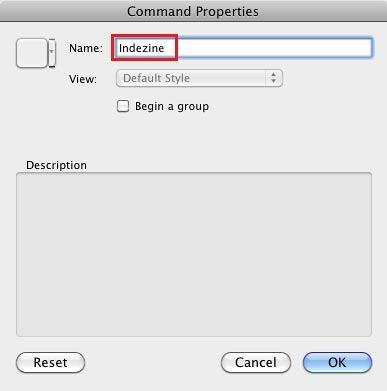
Figure 7: Command Properties dialog box - This renames your new menu, as shown highlighted in red within Figure 8, below.
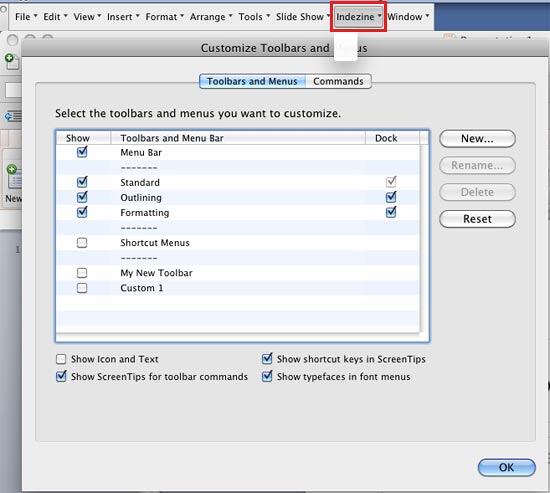
Figure 8: New menu renamed
Tip:
- At this stage, you can also reorder the menus within the editable Menu Bar. To do that, just click and drag the individual menu items that you want to change the order of, to the new position.
- Once you have added, renamed, and repositioned your new menu as required, click the OK button within the Customize Toolbars and Menus dialog box. Figure 9, below, shows our new Indezine menu, as shown highlighted in red within the Menu Bar. Notice that we have changed its position and made it as the second menu item.
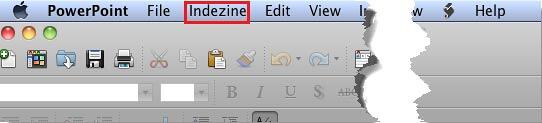
Figure 9: New Menu added
Removing Menus
To remove a Menu from the Menu Bar, follow these steps:
- Access the Customize Toolbars and Menus dialog box and editable Menu Bar, as explained in Step 1 in the preceding section of this page.
- Within the editable Menu Bar, select the menu that you want to remove, as shown highlighted in red within Figure 10, below.
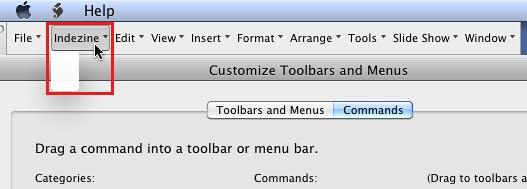
Figure 10: Select the menu to be removed in the editable Menu Bar - Drag the selected menu off the editable Menu Bar, as shown highlighted in red within Figure 11, below.
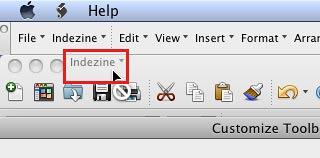
Figure 11: Drag the menu off the editable Menu Bar - This will remove the selected menu from the editable Menu Bar. Click the OK button within the Customize Toolbars and Menus dialog box. Now, you can see that the Menu Bar is no more showing the removed menu, as shown in Figure 12, below.

Figure 12: Menu removed from the Menu Bar


