Once you insert a SmartArt graphic within PowerPoint 2010, you might realize that the colors of the shapes comprising the SmartArt graphic are not exactly what you wanted. While it is possible to change colors of individual shapes within the SmartArt graphic, PowerPoint lets you change colors of everything within the SmartArt graphic at one go. Not only does this approach save your time, but this also ensures that the different colors chosen are coordinated to look good together.
Follow these steps to change colors of your SmartArt graphic in PowerPoint 2010 for Windows:
- Select your existing SmartArt graphic, as shown in Figure 1, below. The SmartArt graphic variant used here is the Horizontal Picture List. This variant is perfect for this tutorial since it comprises shapes with solid fills, shapes with picture fills, as well as text. You'll notice how each element is colored differently.
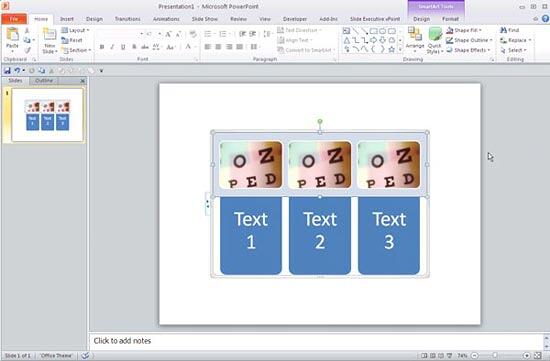
Figure 1: Horizontal Picture List SmartArt graphic - When any SmartArt graphic is selected, you'll find two contextual tabs activated on the Ribbon. These are the SmartArt Tools Design and the SmartArt Tools Format tabs, as shown highlighted in red within Figure 2, below. Select the SmartArt Tools Design tab.
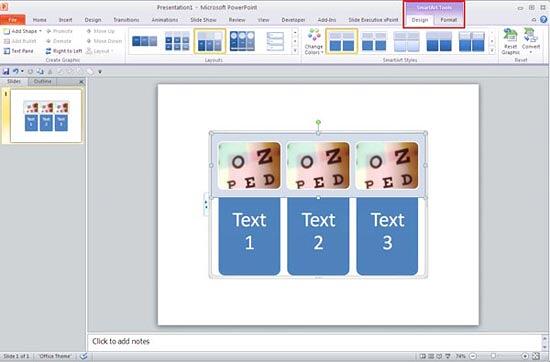
Figure 2: SmartArt Tools Design tab selected Contextual Tabs
- The SmartArt Tool Design and SmartArt Tool Format tabs are contextual tabs. These tabs are special tabs in the Ribbon that are not visible all the time. They only make an appearance when you are working with a particular slide object which can be edited using special options.
- Within the SmartArt Tools Design tab, locate the SmartArt Styles group. Then, click the Change Colors button, as shown highlighted in red within Figure 3, below.
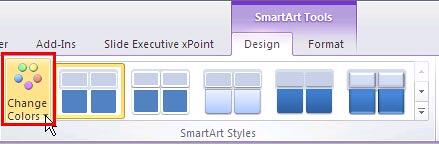
Figure 3: Change Colors button selected - Doing so brings up the Change Colors drop-down gallery, as shown in Figure 4, below. All color variations within this gallery are Theme-based.
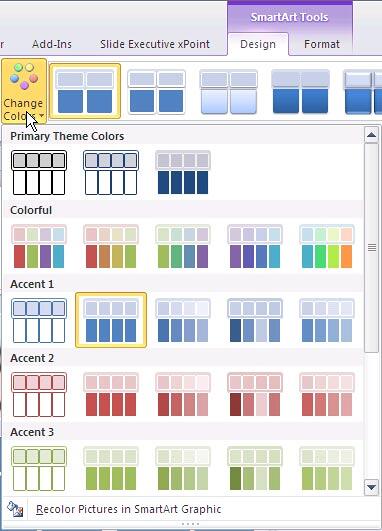
Figure 4: Change Colors drop-down gallery - Hover the cursor over any color previews in this gallery. As you hover over different previews, the selected SmartArt graphic on the slide shows you a live preview of the colors applied, as shown in Figure 5, below. Click on the preview thumbnail you like within the gallery to apply color changes to the selected SmartArt graphic.
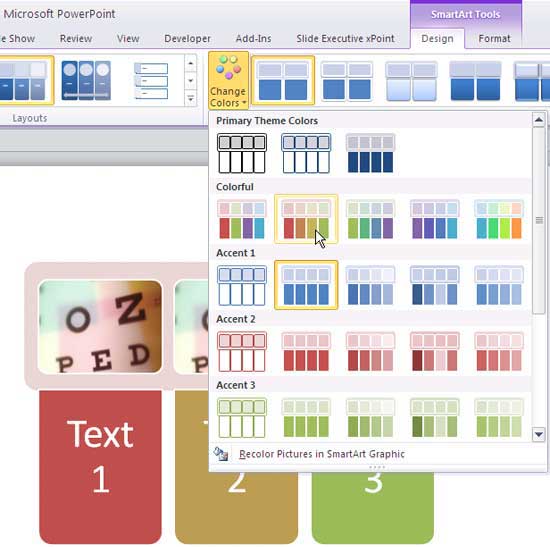
Figure 5: SmartArt graphic showing live preview of the color selected Don't Cover the Preview Area
- Place your SmartArt graphic in an area that is not covered by the Change Color drop-down gallery, so you can see the live preview.
- Figure 6, below shows the selected SmartArt graphic with changed colors.
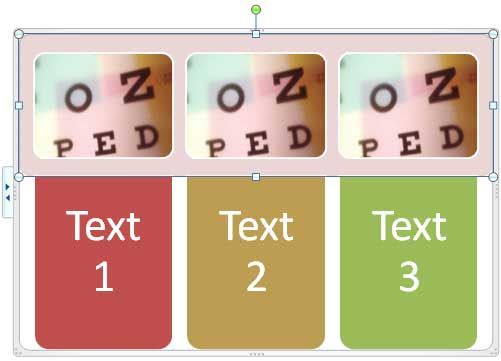
Figure 6: Color changed of selected SmartArt graphic - Within the Change Colors drop-down gallery you'll find the Recolor Pictures in SmartArt Graphic option, as shown in Figure 7, below. Select this option to recolor all picture fills within the SmartArt graphic.
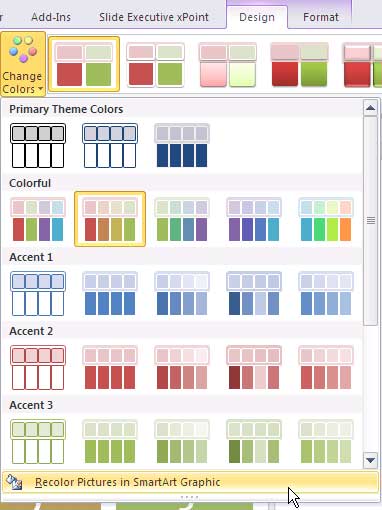
Figure 7: Recolor Pictures in SmartArt Graphic option selected - This action changes the color of the pictures, as shown in Figure 8, below (compare with Figure 6, shown previously on this page). The Recolor Pictures in SmartArt Graphic option will only work with SmartArt graphic layouts that contain pictures.
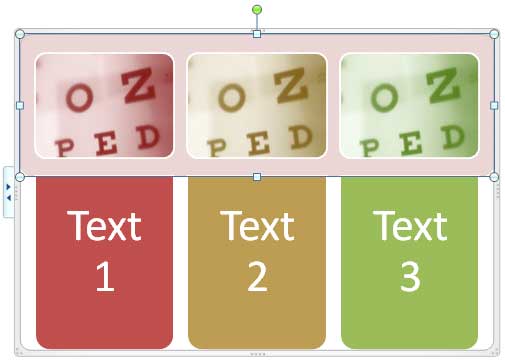
Figure 8: Color of the pictures changed to coordinate with the rest of the SmartArt graphic
Reset Colors of Pictures in SmartArt Graphics
The Recolor Pictures in SmartArt Graphic option is a toggle. Click it once to recolor and click it again to reset back to the original colors.


