Indezine Logo


Import TTML Captions with STAMP in PowerPoint 2016, 2013, and 2010 for Windows

Learn how you can import TTML caption files in the STAMP add-in in PowerPoint 2016, 2013, and 2010 for Windows. TTML is one of the standard caption file formats.


Author:

Product/Version: PowerPoint 2016, 2013, and 2010 for Windows

OS: Microsoft Windows XP and higher


Learn PowerPoint

Explore 3D Models in PowerPoint via Office Insider.


It's so easy to create and insert captions using the Caption Editor within the STAMP add-in for PowerPoint. But if your captions are already available as TTML files, you can import those captions into PowerPoint even more easily.

Follow these steps to import captions contained inside TTML XML files within PowerPoint:
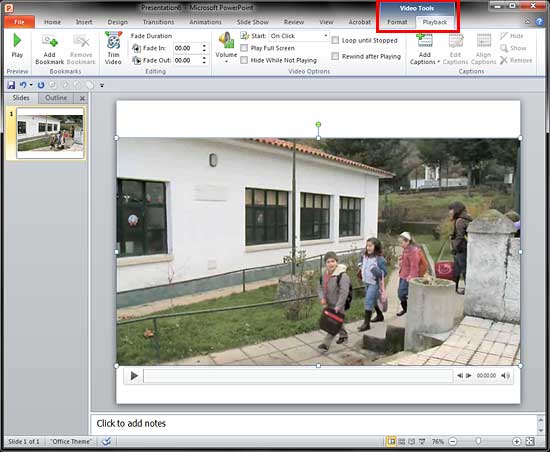
  1. Before importing any captions, you need a slide that has a video clip inserted. Select the inserted video, and you'll activate the Video Tools tab of the Ribbon. Then click the Playback tab, as shown highlighted in red within Figure 1, below.
  2. Select the Playback tab
    Figure 1: Select the Playback tab
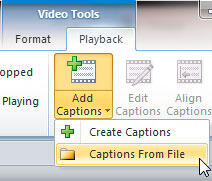
  3. Within the Captions group, click the bottom part of the Add Captions button to bring up the menu, as shown in Figure 2, below. Then choose the Caption From File option.
  4. Click the Captions From File option
    Figure 2: Click the Captions From File option
  5. No Caption Options?

  6. Don't see the Add Captions button? You need to install the free STAMP add-in for PowerPoint.
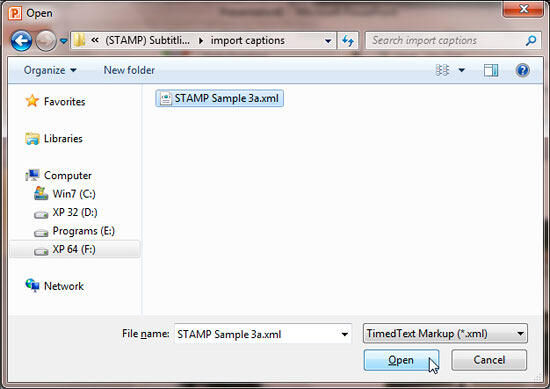
  7. Doing so brings up the Open dialog box, as shown in Figure 3, below. Locate the folder where your TTML XML file is saved, select it, and click the Open button.
  8. Open dialog box
    Figure 3: Open dialog box
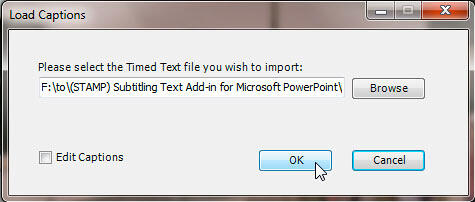
  9. This action will open the Load Captions dialog box, as shown in Figure 4, below. Click the OK button to import the captions.
  10. Load Captions dialog box
    Figure 4: Load Captions dialog box
  11. Edit Captions

  12. Choose the Edit Captions checkbox within the Load Captions dialog box if you want to edit the captions after they have been imported into your presentation. By selecting the Edit Captions checkbox, you'll get the Caption Editor window where you can edit the imported captions.
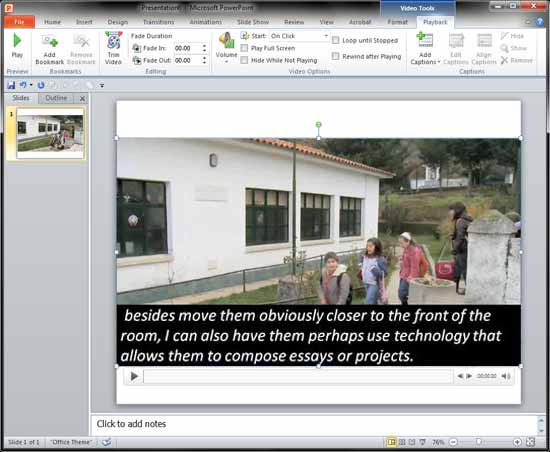
  13. This imports the captions into PowerPoint for the selected movie clip, as shown in Figure 5, below.
  14. Captions imported into PowerPoint
    Figure 5: Captions imported into PowerPoint
  15. Play the slideshow to see all the captions playing.
  16. Save your presentation.

Captions Not Linked

The imported TTML XML file is not linked to the presentation or the selected video clip, so if you make any changes to the captions within the TTML XML file, you need to re-import it into PowerPoint again to update the captions.


People Also Ask:

How do I import TTML caption files into PowerPoint using the STAMP Add-In?

To import TTML captions, insert your audio or video file into the desired slide. Select the media object. Navigate to the Playback tab under Audio Tools or Video Tools. In the Captions group, click on Add Captions, then choose Captions From File. Browse to locate and select your TTML file, then click Open. This process will synchronize the captions with your media playback.

Are there specific formatting requirements for TTML files to be compatible with the STAMP Add-In?

TTML files should adhere to the W3C's standard specifications to ensure compatibility. It's essential that the timing, structure, and syntax are correctly formatted. If you're converting from another caption format, ensure that the TTML file is properly structured to avoid import errors.

Is the STAMP Add-In compatible with the latest versions of PowerPoint, including Microsoft 365?

The STAMP Add-In was initially developed for earlier versions of PowerPoint, such as 2010 and 2013. While some users have reported success using it with Microsoft 365, experiences may vary. It's advisable to test the add-in with your specific version of PowerPoint to ensure full functionality.

18 03 05 - STAMP: Import TTML Captions with STAMP in PowerPoint (Glossary Page)

You May Also Like: Lean Presentation Design: Conversation with Maurizio La Cava | Pop Art PowerPoint Templates



Popular Posts

Texture Fills for Slide Backgrounds in PowerPoint 2013 for Windows
Use texture fills for slide backgrounds in PowerPoint 2013 for Windows.

Adding More Guides in PowerPoint 2016 for Windows
Learn how to add more guides in PowerPoint 2016 for Windows.

Notes Page View in PowerPoint 2016 for Windows
Learn about Notes Page view in PowerPoint 2016 for Windows.

Christmas PowerPoint Presentation
This presentation is a great introduction to why we celebrate Christmas for both Christian and non-Christian audiences.


Gears for PowerPoint (Series 01)

All these gears are native PowerPoint shapes. You can recolor them, add effects, and do more, all inside PowerPoint. Results which would have taken hours to achieve now take less than a minute! Have fun using the gear graphics, and make your audience take notice! All these gears can be rotated and resized, as required. Since they are essentially pictures, all types of edits that you can do with pictures work with them too!

Get this complete kit now, you’ll save so much time that you can use doing something else!


Microsoft and the Office logo are trademarks or registered trademarks of Microsoft Corporation in the United States and/or other countries.

Home | PowerPoint | Photoshop | PowerPoint Templates | PowerPoint Tutorials | Blog | Notes | Ezine | Media Kit | Feedback | Site Map | About Us | Contact Us

Link to Us | Privacy | Testimonials

PowerPoint Backgrounds | Christian PowerPoint Backgrounds | Business PowerPoint Presentation Templates

Plagiarism will be detected by Copyscape

©2000-2025, . All rights reserved.