After you have installed the STAMP add-in, you can find captioning options within the Video Tools Playback tab on the Ribbon. Do remember though that the Video Tools Playback tab is a contextual tab which appears only when you have a video clip selected in your presentation. Before adding captions, you need to insert a video clip in PowerPoint.
Follow these steps to add new captions to a video clip in your presentation:
- Select the inserted video. This action will activate the two Video Tools tabs in the Ribbon. These two tabs are Format and Playback. Click the Playback tab, highlighted in red within Figure 1, below.
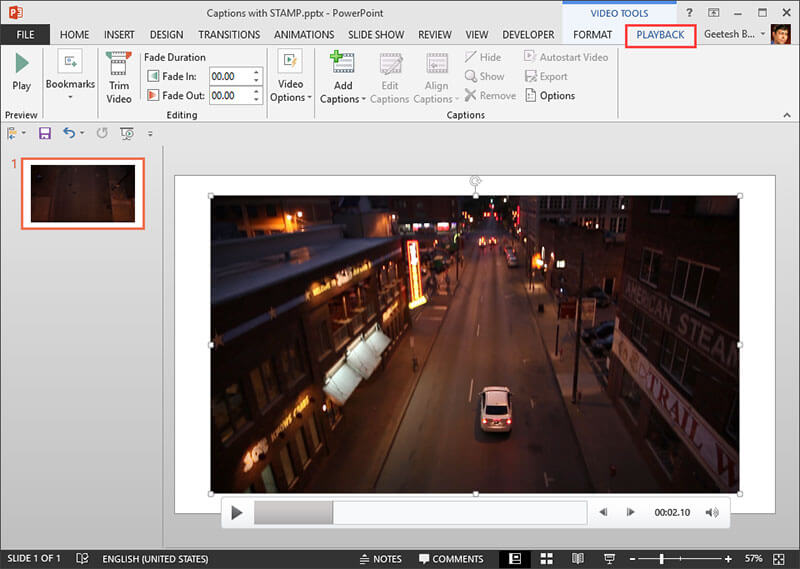
Figure 1: Select the Playback tab- If you don’t have an inserted video, you can insert one now. Immediately after you insert the video, you might see the Caption Editor window, which we see later on this page in Figure 3. If you have an existing video on your slide, or if you don’t see the Caption Editor, you can bring it up manually by accessing the Captions group of this tab. Click the bottom part of the Add Caption button to bring up the menu, as shown in Figure 2, below. Then, choose the Create Captions option.
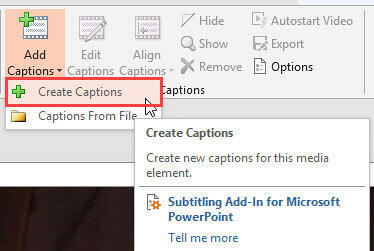
Figure 2: Create Captions option selected- Doing so opens the Caption Editor window, as shown in Figure 3, below.
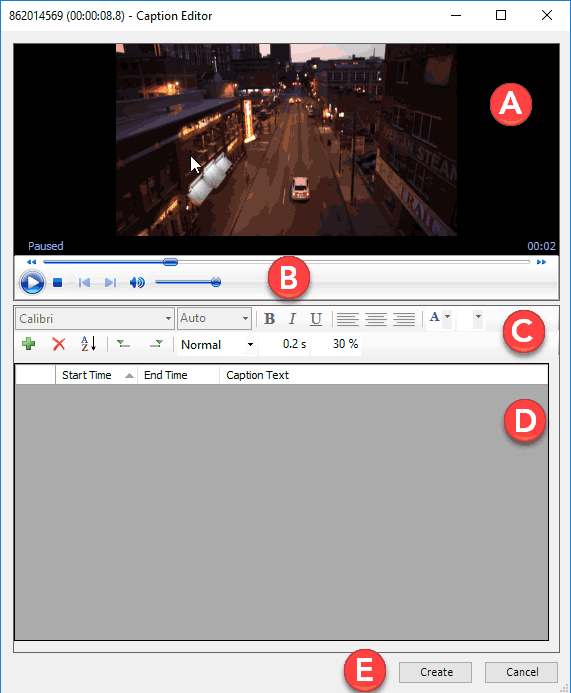
Figure 3: Caption Editor window- The options within the Caption Editor window are explained below:
A. Preview
- In this area, the video previews and plays. If you want a larger preview area, you can resize this part of the dialog box to end up with a larger preview area, as shown in Figure 4, below.
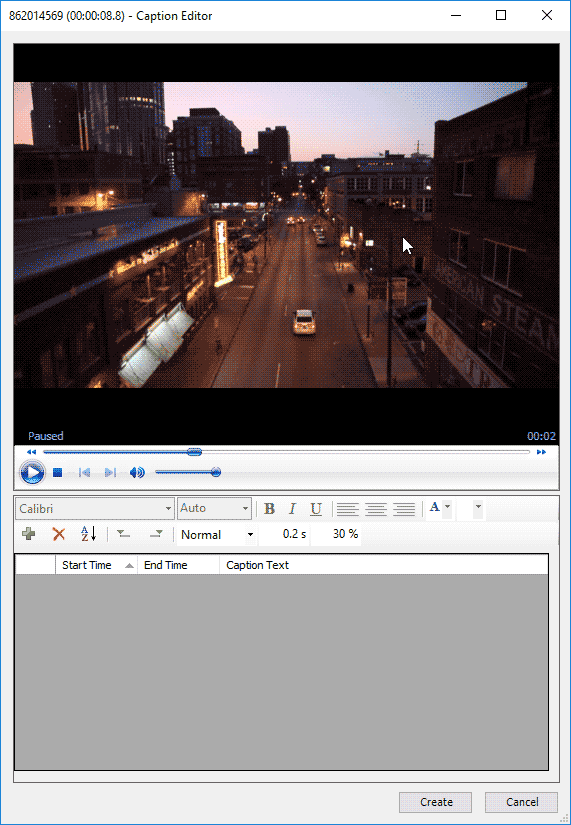
Figure 4: A larger preview areaB. Play Controls
- Click the Play button to play the video. You'll also find the Stop, Rewind, Forward, and Volume controls in this area. The Scrub Bar is located above these controls.
C. Toolbar
- The Toolbar area lets you work with new and existing captions. You will find options to change the font and font size. There is also a convenient Auto option for font size that allows PowerPoint to decide the best font size for a caption.
- You can also apply bold, italics, and underline formatting. Plus, you can align your caption text left, center, or right. Finally, you can choose the font and font background colors.
- The lower part of the toolbar sports the Plus and Cross buttons that let you add and delete captions. You can sort captions, and set start and end times. You can choose the caption playback speed and alter the fade and transparency value of the caption text.
D. Caption Area
- This is the area where your captions show up. To add a caption, you can play the video in the Preview area, or scrub it, and pause/stop at a time where you want to add a caption.
- To add the caption, you can click the Plus icon on the toolbar, or click the Set the caption start time icon on the same toolbar (fifth icon from left). You can also manually type in a time in the Start Time fields. To add an end time, you can again pause/stop your video, and click the Set the caption end time icon on the same toolbar (sixth icon from left). You can also manually type in a time in the End Time fields.
- Finally, type in your caption text in the Caption Text fields. You can see that we added two captions, as shown in Figure 5, below.
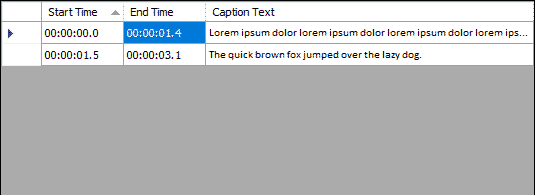
Figure 5: Captions added- To delete an existing caption, select the caption and click the Cross button, located second from left in the toolbar to remove the caption.
- You don't have to create captions in order. To add a new caption between two existing captions, click the Sort button, located third from left in the toolbar to put them into time sequence order.
E. Create Captions
- When done with adding, editing, and deleting captions in Caption Editor window, click the Create button to get back to the PowerPoint interface with all the captions inserted for the video. Alternatively, you can click the Cancel button to get rid of all changes made.
- This action will take you back to PowerPoint with all the captions added to the video, as shown in Figure 6, below.
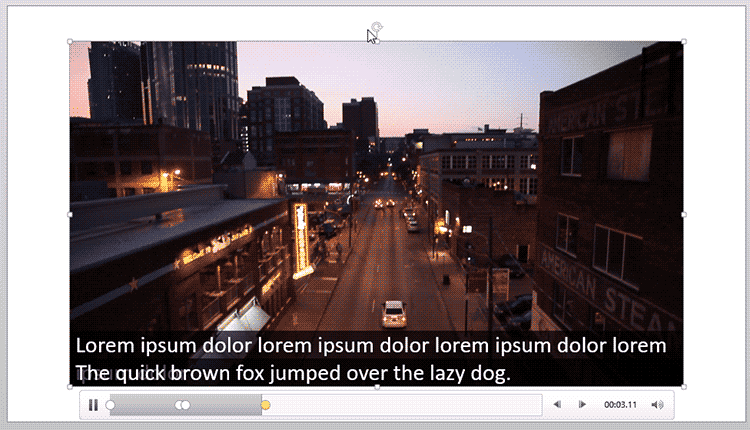
Figure 6: Video with captions in PowerPoint- Play the slideshow to see all the captions playing. Save your presentation.


