
This is the print version of this page. All content is copyright Indezine.com 2000-2026.
Edit and create new captions with the Caption Editor within the STAMP add-in for PowerPoint 2016, 2013, and 2010 for Windows.
Author: Geetesh Bajaj
Product/Version: PowerPoint 2016, 2013, and 2010 for Windows
OS: Microsoft Windows XP and higher
We have already explored how you can create new captions for movies inserted in PowerPoint, using the STAMP Caption Editor. Once these captions have been added, you may want to edit them, or add new captions, by following these steps:
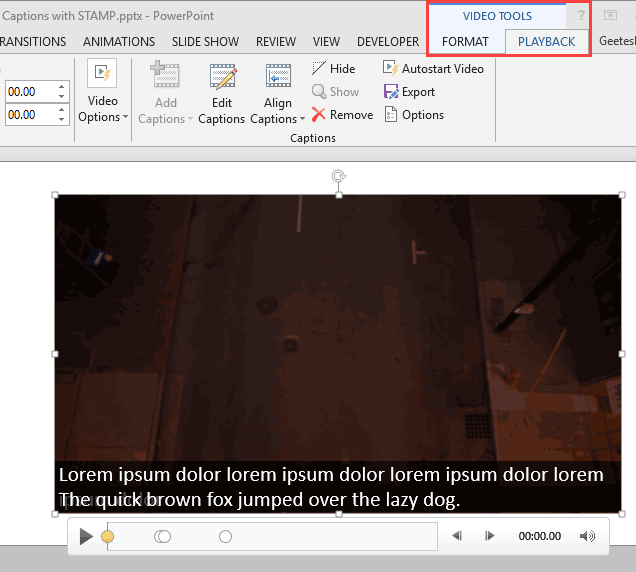
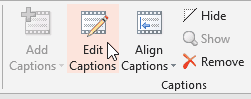
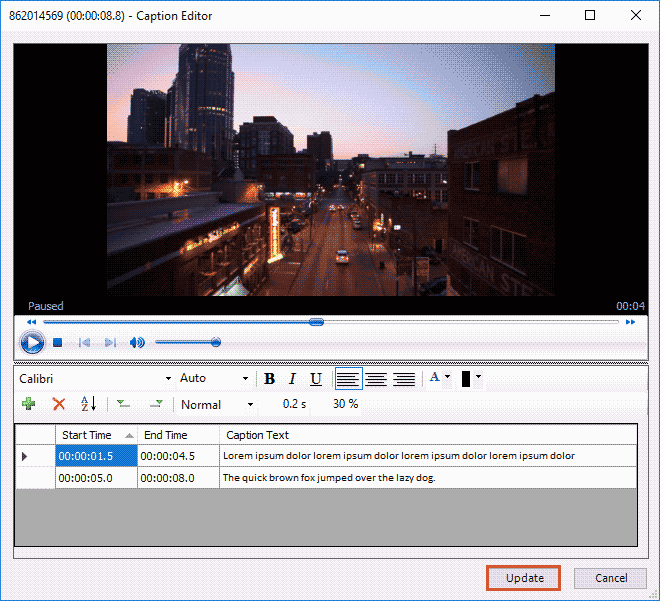
To edit captions, select the audio or video file in your PowerPoint slide. Navigate to the Playback tab under Audio Tools or Video Tools. Click on Edit Captions. In the caption editor, select the caption you wish to modify. Make the necessary changes to the text or timing. Click Update Captions to save your changes.
Yes, you can adjust the timing. Open the caption editor by selecting Edit Captions on the Playback tab. Select the caption whose timing you want to modify. Edit the start and end times to align with the audio or video. Click Update Captions to apply the changes. This ensures that your captions are properly synchronized with your media.
Yes, you can import captions. Select the media file in your presentation. Navigate to the Playback tab. Click on Add Captions and choose Captions From File. Browse to select your TTML file and click Open. To edit, use the Edit Captions feature as described above. This functionality allows you to import existing captions and make necessary adjustments within PowerPoint.
18 03 06 - STAMP: Edit Captions - STAMP Add-in in PowerPoint (Glossary Page)
You May Also Like: How to Make Your Feedback Inspiring | Snapdragon PowerPoint Templates



Microsoft and the Office logo are trademarks or registered trademarks of Microsoft Corporation in the United States and/or other countries.