
This is the print version of this page. All content is copyright Indezine.com 2000-2026.
Explore switching between touch and mouse modes in PowerPoint 365 for Windows. Switching can prevent touch-enabled enhancements or even enforce them.
Author: Geetesh Bajaj
Product/Version: PowerPoint 365 for Windows
OS: Microsoft Windows 10 and higher
PowerPoint has the Touch/Mouse Mode command, a feature designed to enhance usability across various devices. By toggling between touch and mouse interfaces, users can optimize their experience whether they're on a touchscreen tablet or a traditional desktop. This adaptability not only improves navigation but also contributes to accessibility, making PowerPoint more user-friendly for individuals with diverse needs.
Touch and Mouse Modes
Why Can You Use Touch Mode on a Non-Touch Device?
Turn on Touch Mode in PowerPoint 365
Enabling Touch Mode
Within the PowerPoint 365 for Windows interface, take a closer look at the Customize Quick Access Toolbar drop-down menu, shown in Figure 1, below. Here, you’ll find the Touch/Mouse Mode option, highlighted in red within Figure 1. This handy toggle button lets you switch effortlessly between touch mode and mouse mode.

Figure 1: Touch/Mouse Mode option
So how are Touch and Mouse modes different? Let us understand them better:
Here’s the big question: Why on earth can you switch to Touch mode when your device doesn’t even have a touchscreen? If you're working on a desktop computer, that has no touch-enabled display, what’s the point of Touch mode?
Well, the answer is simpler than you think! Touch mode isn’t just for tapping on a touchscreen. It’s also great for making everything bigger and more spaced out—like larger buttons, menus, and icons—so it’s easier to view them before clicking with a mouse. Think of it as giving your desktop a little extra breathing room for your clicks.
Take a look at Figure 2, below. It shows the PowerPoint 365 interface with Mouse mode turned on. This screenshot was taken on a non-touch device—no swiping or tapping here, just good old-fashioned mouse clicks!

Figure 2: PowerPoint 365 interface with Mouse mode active
Now, look at Figure 3, below. This time, PowerPoint 365 is in Touch mode. See how the Ribbon and Quick Access Toolbar are bigger? Plus, there’s extra space around the buttons and commands, making it much easier to tap them.
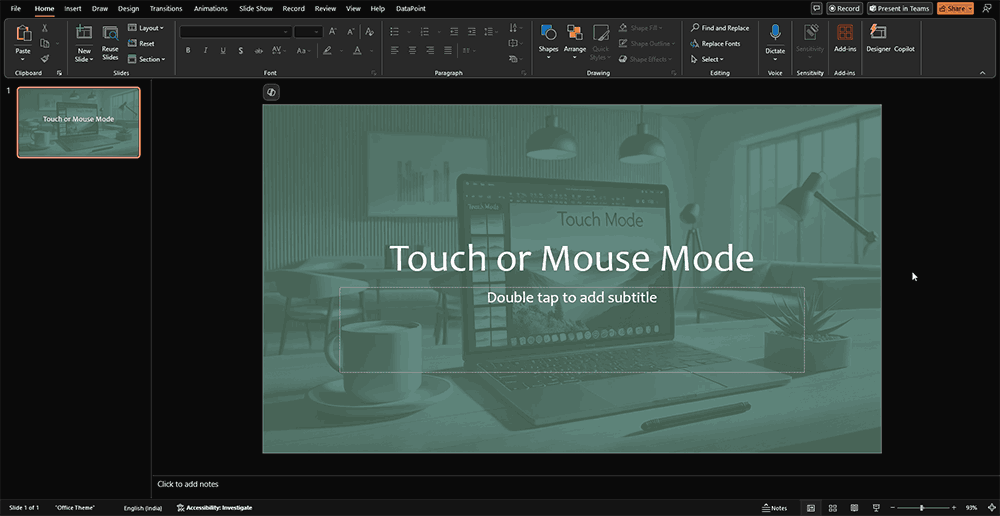
Figure 3: PowerPoint 365 interface with Touch mode active
Notice something else? The placeholder on the slide shown in Figure 3, above, says Double tap to add title—compared to Click to add title visible in Figure 2, shown previously on this page. But don’t worry—if you’re using a mouse, you can still just click and start typing as usual. Touch mode is flexible like that!
Here’s a neat perk: Even on devices without Touch-enabled hardware, turning on Touch mode makes all the buttons and options bigger. And guess what? That can be a game-changer for accessibility. Larger buttons and more spaced-out option are easier to see and click, making life a little simpler for everyone.
BackWant to enable Touch Mode? It’s super easy!

The steps explained in the preceding section add the Touch/Mouse Mode button to the Quick Access toolbar, as shown highlighted in red within Figure 5, below. Clicking this button brings up a drop-down menu with Mouse and Touch options, shown highlighted in blue within Figure 5.

Figure 5: Touch/Mouse Mode button added to the Quick Access toolbar
Now, you can switch the interface between Touch and Mouse mode.
Want to know more about the Touch options in PowerPoint 2016? Explore our PowerPoint (and Microsoft Office) on Touch Devices page for more tutorials.
Touch Mode adjusts the spacing of buttons on the Ribbon, increasing the distance between them to facilitate easier tapping on touch-enabled devices.
Yes, activating Touch Mode on non-touch devices increases the spacing between ribbon buttons, which can enhance accessibility and ease of use for some users.
No, enabling Touch Mode primarily increases the spacing between buttons for easier interaction on touch devices; all functionalities remain the same.
18 02 01 - Touch-Access: Touch or Mouse Mode in PowerPoint (Glossary Page)
Touch or Mouse Mode in PowerPoint 2016 for Windows
Touch or Mouse Mode in PowerPoint 2013 for Windows
You May Also Like: Hide Logos with Logo Toggle in PowerPoint | Pansy PowerPoint Templates


Microsoft and the Office logo are trademarks or registered trademarks of Microsoft Corporation in the United States and/or other countries.
