Yes, you can draw spirographs in any version of PowerPoint, just like you can chop veggies with a butter knife. But if you’re using PowerPoint 2007 or later versions (Windows or Mac), you’ve basically been handed a professional chef’s knife and a cutting board that doesn’t slide all over the place.
Why? Because newer versions of PowerPoint brought in two magical upgrades:
1. The Selection pane
Think of the Selection pane as X-ray goggles for your slide. Once you open that Selection pane, you unlock a superpower most PowerPoint users don’t even know exists—like becoming a slide sensei!
2. Non-modal dialog boxes
A fancy way of saying, “You can tweak your settings without being locked out of the rest of your slide.” It’s like texting while keeping one eye on a movie—multitasking bliss! Essentially, you do not have to click the OK or Cancel buttons or even close the dialog box to access objects on the slide. Such dialog boxes are not in the way and save you the extra effort needed to close and summon the same dialog boxes repeatedly.
So, if you’re planning to dazzle with hypnotic loops and spiraling shapes, PowerPoint is your smooth-riding bicycle—no more trying to sketch with training wheels on.
What’s a Spirograph?
A spirograph is a drawing tool that lets you create mesmerizing, looping patterns that look like they belong in a kaleidoscope’s sketchbook. It works using a set of plastic gears—think of it as a dance between a big ring and a smaller wheel, as shown in Figure 1, below. You pop a pen through a hole in the smaller wheel, spin it around inside (or outside) the ring, and voilà: you’ve drawn a hypnotic design without lifting your pen.
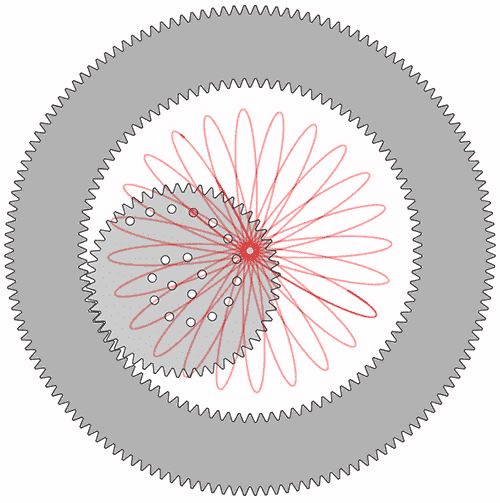
Figure 1: Spirograph drawn with plastic gears
Mathematically speaking, the beautiful loops made with a spirograph are known as hypotrochoids and epitrochoids—fancy names for what happens when circles go for a joyride around (or inside) other circles with a pen in tow.
As for the toy, it was developed by British engineer Denys Fisher, who unveiled it to the world in 1965. Fisher had a background in precision engineering—his earlier work included parts for NATO—which inspired his fascination with gear-based mechanisms.
Fun twist: While he didn’t literally sketch tank blueprints with it, his engineering know-how shaped the clever design that would become a children’s art staple. Think of it as a perfect collision of math, mechanics, and childhood wonder.
Spirograph is a registered trademark of Hasbro, Inc., for a geometric drawing toy, but unlike many other trademarks, it has entered the common speech as a drawing style.
The slide shown in Figure 2, below, shows a spirograph created entirely within PowerPoint:
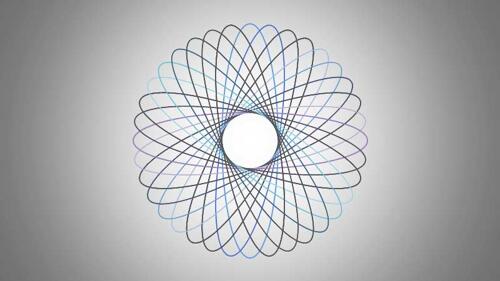
Figure 2: Spirograph created in PowerPoint
In this tutorial, we'll show how you can create a basic round spirograph. You can download the finished spirographs here:
- When you open PowerPoint, it usually starts with a blank slide. If it doesn't—or if you want to add more slides—just insert one manually. The keyboard shortcut Ctrl + M quickly adds a new slide. Mac users can use the ⌘ + Shift + N keyboard shortcut. This shortcut key works in both new and existing presentations, so you don’t have to go digging through menus each time.
-
- Before you start spinning virtual spirals, you’ll want a clean surface—like a fresh sheet of paper. In PowerPoint, that’s called the Blank slide layout. You’ll have to click on the Home tab of the Ribbon. Then, look for the Layout button—clicking on this button summons the Layout gallery, as shown in Figure 3, below. Choose Blank—no text boxes, no placeholders, just wide-open space to doodle your designs.
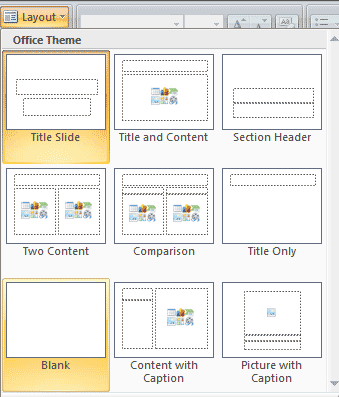
Figure 3: Slide layout
Blank Layout has no Title
Think of the Blank slide as a digital sketchpad with no lines and no labels—just room to swirl those spirals without bumping into a text box begging for a title. The idea of a “blank canvas” dates back centuries to artists priming their boards before painting. Even Picasso had to start with a bare surface—so you’re in good company.
Sure, that Blank layout in PowerPoint is like the rebel of the slide family—no title, no placeholders, just a wide-open dance floor. But here's a little secret: even when you don't want a title box cramping your design, it's still smart to include a title behind the scenes. Yes, there is merit in all slides having a title, especially for accessibility reasons, even if it is not visible on the slide itself. To know more, read our Hiding Slide Titles in PowerPoint tutorial.
- Ready to sketch the first piece of your spirograph magic? Let’s grab a shape that looks like it’s been through a stretching machine at the gym. Head to the Home tab—think of it as PowerPoint’s main control panel. Click on the Shapes button to open the gallery (it’s like a toolbox full of geometric goodies). Choose the Oval tool—it's your go-to for anything circular or oval-ish. Now, click and drag to draw a long, skinny oval—kind of like a stretched balloon or a digital jellybean on a diet, as shown in Figure 4, below.
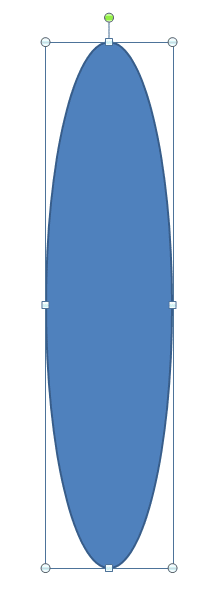
Figure 4: Oval-
Fun Fact: Ovals
The oval (or ellipse, if you’re feeling fancy) has been a favorite of architects and artists for centuries. Even ancient Roman amphitheaters were built in oval shapes to help sound carry better. You're basically channeling your inner Da Vinci—just with PowerPoint.
- Spirograph designs are like stained-glass outlines without the glass—just beautiful curves made from nothing but lines. So, before we start duplicating and spinning, we’ll need to make sure our oval isn’t filled in. First, click your Oval shape to select it. Then, head to the Drawing Tools Format tab of the Ribbon—think of this as your shape’s styling salon. Within this tab, click on Shape Fill—a little paint bucket icon that opens a small gallery, as shown in Figure 5, below. Then, pick No Fill from the menu.
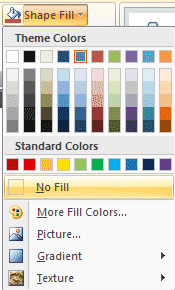
Figure 5: Shape Fill gallery-
Contextual Tabs
The
Drawing Tools Format tab is a
contextual tab. Contextual tabs are special tabs in the
Ribbon that are not visible all the time. They only make an appearance when you are working with a particular slide object which can be edited using special options.
- Now that you’ve got your outline-only oval looking sharp, it’s time to make a whole bunch of copies—like cloning your drawing. To do so, press Ctrl + D eight times to get nine total ovals—one original and eight enthusiastic duplicates, as shown in Figure 6, below. Mac users can press the ⌘ + D keyboard shortcut to achieve similar results.
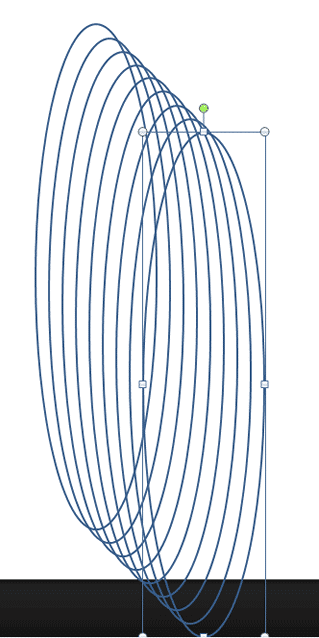
Figure 6: Duplicated ovals- Wonder why you cannot paste one object exactly over the original in PowerPoint? Here's something you should read.
-
Fun Fact: More than Duplicate
That D stands for “Duplicate,” not “Do it again,” though it might as well—because it’s one of the simplest ways to repeat shapes, animations, even slides.
PowerPoint doesn’t just duplicate the shape—it often remembers the last move or nudge you made. So, if you reposition your copy just once, the next Ctrl + D can follow that pattern like a digital conga line. Mac users can press the ⌘ + D keyboard shortcut to achieve similar results.
- Now that your oval clones are ready to swirl, it’s time to tidy up—think of it like stacking pancakes before pouring syrup. You want everything lined up just right before the real design magic begins. Hit Ctrl + A (Windows) or ⌘ + D (Mac) to select all the ovals at once. Yes, it’s like using a magnet on a pile of paperclips—instant group hug!
- Next, go to the Drawing Tools Format tab. Click Align to open the Alignment gallery—like a GPS for geometric accuracy. Finally, click on both the Align Left, and then Align Top options, as shown in Figure 7, below.
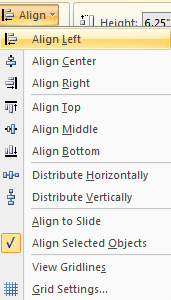
Figure 7: Align left and top - After all that duplication and alignment, you might look at your slide and think, “Wait… did PowerPoint just eat my ovals?” Fear not! What you're seeing is a perfectly stacked bunch of shapes that are huddled together so tightly, they masquerade as a single oval.
- Here’s the deal: you’ve got nine ovals, but since they’re all aligned top-left, they’re playing hide-and-seek—stacked like pancakes with no syrup in sight. It might look like just one shape, but trust the process—they’re all there, layered like onion rings in perfect formation.
- Click on an empty area of your slide to deselect everything, as shown in Figure 8, below. Think of it like stepping back from a jigsaw puzzle so you don’t accidentally move a piece before it’s ready to fit.
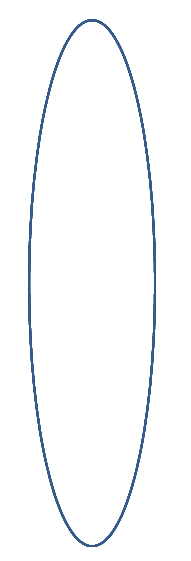
Figure 8: Overlapping ovals- Now, it’s time to peek behind the curtain using one of PowerPoint’s coolest backstage tools: the Selection and Visibility task pane. Think of it as your shape detective kit—it helps you find and organize every object on your slide, even the ones playing hide-and-seek.
- Here’s how to summon it. Go to the Home tab—your PowerPoint dashboard. Click on Select (usually hanging out at the far right). From the dropdown, choose Selection Pane, as shown in Figure 9, below.
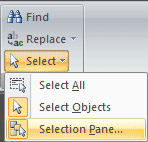
Figure 9 : Select- You’ll see the Selection and Visibility task pane, shown in Figure 10, below. Think of it like the command center at an airport: every object on your slide is listed, tracked, and ready to take off or land (okay, hide or show). You can dock the pane to the side—like pinning your clipboard to the wall or let it float around like a window on wheels, moving it wherever you want on your workspace.
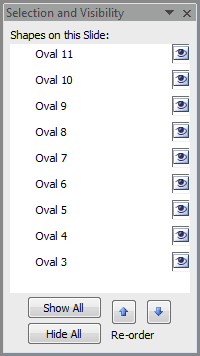
Figure 10: The Selection and Visibility task pane- Okay—this is the part where we start turning our neatly stacked ovals into a spiral-worthy masterpiece. Think of the pile like a stack of plates: you leave the bottom one alone (no wobble!) and start adjusting from the second plate upward.
- Ignore the bottommost oval—it’s your sturdy base. Think of it as the anchor of your spirograph: solid, centered, and untouched. Select the oval just above it—top-down view in the Selection Pane makes this easy. It's like tapping the second pancake in the stack—it’s there, just layered invisibly on top. Once selected, go to the Drawing Tools Format tab on the Ribbon. Find the Size group on the far right and click the tiny arrow in the corner (called the dialog launcher), shown highlighted in red within Figure 11, below.
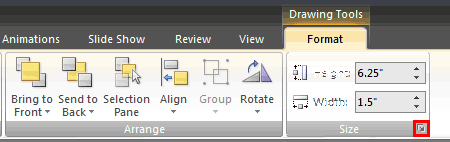
Figure 11: Size dialog launcher- This little arrow may look small, but it opens up the Size and Position dialog box, as shown in Figure 12, below. In this dialog box, switch to the Size tab. Find the box labeled Rotation and type in 10. That’s degrees, by the way—like angling a picture frame just slightly off-center to create some intrigue. Don’t click Close! That dialog box is your control center—leave it open. Instead, press the Tab key to shift focus, and gently move the box out of the way so you can see your ovals.
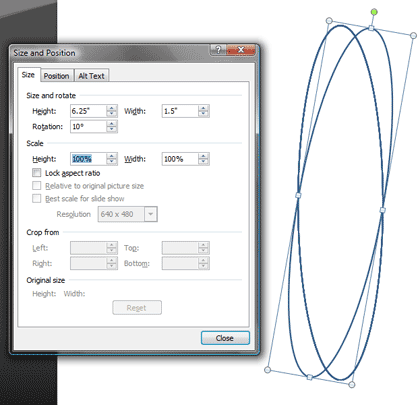
Figure 12: Size and position- You’ll immediately see your selected oval do a tiny turn—it’s not breakdancing yet, but the spiral choreography has begun! Meanwhile, this Size and Position dialog box is “non-modal,” meaning you can leave it open while you continue working—just like keeping your toolbox nearby while adjusting other parts of your project.
-
Fun Fact: Modal vs. Non-modal
“Modal vs. non-modal” is UI speak for whether a dialog locks you out or lets you multitask. The non-modal upgrade in PowerPoint 2007 was like switching from a single-track train station to a multi-platform hub—you could finally move, adjust, and explore freely.
- You're officially in spirograph territory—each oval gets its own little turn, and this next one’s ready for a 20° spin. We’re building momentum like stacking books with a tiny tilt on each to create an artful curve.
- Here’s what to do: in the Selection Pane, pick the third-last oval from the bottom. Head to the Size and Position dialog box that’s still open. In the Rotation box, type 20. Preview the shape as soon as you type. You’ll start seeing the spiral bloom like a digital flower petal curling outward.
- Now that your first few ovals have taken a spin, it’s time to rotate the rest—just like turning the hands of a clock, each pointing in a slightly different direction. For each oval above, open the Size and Position dialog box and enter a Rotation value that increases by 10 degrees each time:
- The second oval gets 10
The third gets 20
Keep adding 10°
- Until the topmost oval finishes the act with a stylish 80 degrees. What you'll see on your slide? A mesmerizing, pinwheel-like layout of overlapping ovals—just like shown in Figure 13, below. It’s the blueprint for your very own digital spirograph.
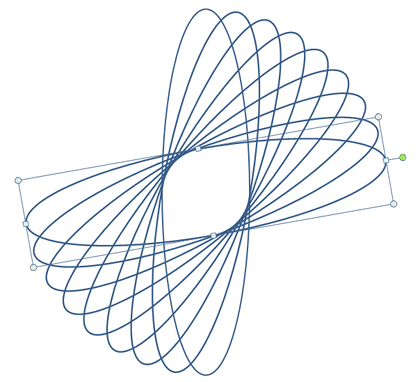
Figure 13: Rotated ovals- Your spiraling ovals have been patiently waiting for this moment—time to bring them together into a single, well-behaved unit. It’s like herding kittens into a basket... only easier (and less fuzzy). Press Ctrl + A (Windows) or ⌘ + A (Mac) to select all the ovals on your slide. Then, right-click(or Ctrl + click on a Mac)—but do it gently! You don’t want to accidentally shift the artwork you’ve so carefully rotated. Think of this as tiptoeing onto a dance floor without bumping into anyone.
- In the menu that pops up, choose Group | Group, as shown in Figure 14, below.
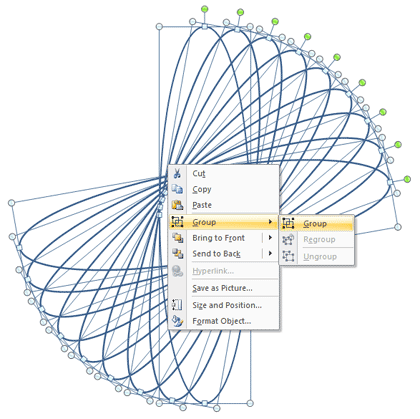
Figure 14: Grouped ovals-
Fun Fact: Grouping
Grouping is like wrapping all your shapes in a single gift box: you can move, resize, or copy them together without losing their formation.
The Group command has been around in PowerPoint since the early days—but got a usability boost when right-click menus were simplified in newer versions. It’s a classic example of “less clicks, more control.”
- Now that your oval group is all wrapped up like a neat burrito of geometry, it’s time to make a copy—so you’ve got two identical spiro-goodies to play with. With the oval group still selected, hit Ctrl + D (Windows) or ⌘ + D (Mac) to duplicate the entire set. It’s like cloning your spiral masterpiece—same swirls, twice the wow.
- Now, press Ctrl + A (Windows) or ⌘ + A (Mac) to select both groups—the original and the doppelgänger. Head to the Drawing Tools Format tab, click Align, and choose both Align Left and Align Top, similar to what we did in step 6, as shown in Figure 7, previously on this page.
- Alright—this is the grand finale. Your ovals are aligned, grouped, and stacked like champions. Now it’s time to give that top group a 90° spin, and voilà—a full spirograph takes center stage.
- Here’s the move. Click on an empty area of the slide to deselect everything. It’s like stepping away from a puzzle so you don’t nudge any pieces by accident. In the Selection Pane, click on the top group—your second batch of perfectly grouped ovals. Open the Size and Position dialog box again (yes, that trusty little launcher in the Drawing Tools Format tab). In the Rotation box, type 90. It’s like flipping the group like a pancake—giving it a quarter turn for symmetry deliciousness. What you see, as in Figure 15, below, is a beautifully layered spiral pattern—your spirograph is complete and ready to impress.
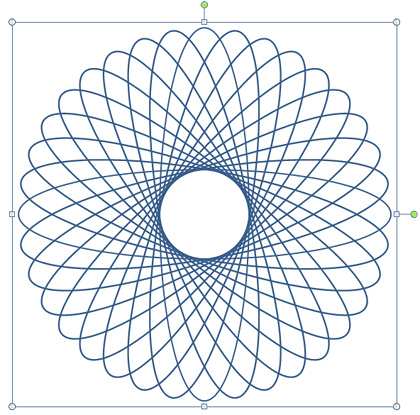
Figure 15: Completed spirograph-
Fun Fact: Kaleidoscopic Design
Rotating groups like the one we used to create the spirograph mimic the technique used in kaleidoscope designs. Those repeated, rotated shapes create visual harmony, and PowerPoint pulls it off like a geometry-powered magic show.
- Want to jazz up your spirograph with colorful outlines or snazzy animations? Time to crack open that grouped masterpiece—like taking a cake out of its mold so you can frost each slice.
- Here’s your easy ungrouping recipe. Hit Ctrl + A (Windows) or ⌘ + A (Mac) to select all shapes—yes, every swirling oval you’ve crafted. Now, carefully right-click—like handling a delicate stack of teacups. You don’t want any shapes to shift or wobble. Finally, choose Group → Ungroup from the subsequent menu to end up with what, as shown in Figure 16, below.
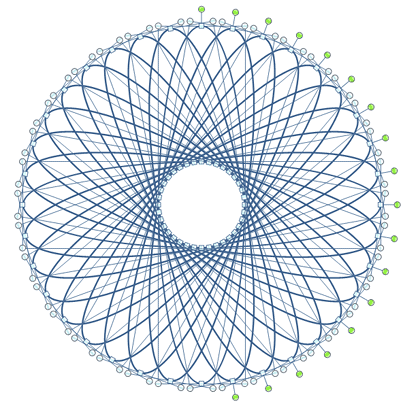
Figure 16: Ungrouped spirograph
Change Rotation Values
Want your spirograph to look even more intricate—like a digital snowflake or a geometry-inspired fireworks display? Try shrinking your rotation steps.
Instead of rotating each oval by 10°, go with 5-degree increments. That means:
- First oval, 5°
- Next, 10°
- Then, 15° and so on.
Analogy time: Think of it like slicing a pizza into more pieces. Smaller slices = more detail = fancier spiral. It’s perfect if you’re aiming for those tighter, smoother curves that look like they belong in a kaleidoscope.
Spirographs Beyond Ovals
So, you've built a spirograph with ovals—why stop there? PowerPoint lets you trade those basic loops for something funkier. It's like swapping out tires on a car for flaming hover-wheels. (Okay, not literally—but you get the idea.)
Here’s the shape-swapping game plan:
- Ungroup your spirograph first (see step 17)—you’ll need access to the individual pieces, like separating puzzle pieces before repainting them.
- Hit Ctrl + A (Windows) or ⌘ + A (Mac) to select all shapes—round up the whole shape squad.
- Go to the Drawing Tools Format tab on the Ribbon—your creative control panel. Click on the Edit Shape → Change Shape to open the Shapes gallery.
- Pick any shape that’s symmetrical top to bottom—stars, diamonds, even arrows (if you’re feeling adventurous).
Think of this process like changing cookie cutters—same dough, wildly different results. Your spirals will suddenly have zigzags, points, petals, or whatever flair you choose. PowerPoint doesn't care what shape you use—if it can rotate, it can spiral! Some spirograph remixes look so stunning, people might think you used Photoshop, Illustrator, or alien geometry software. But nope—just good ol’ PowerPoint.
Figures 17 and 18 show you some of these variations:
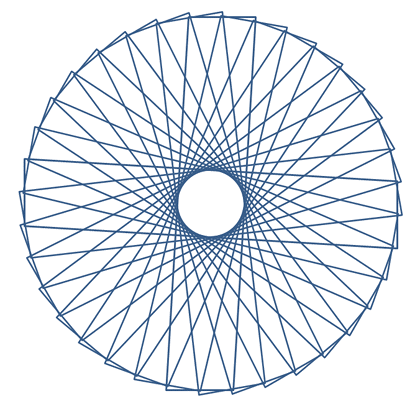
Figure 17: Spirograph with a changed shape
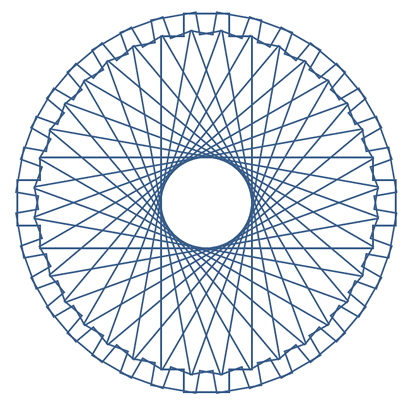
Figure 18: Another spirograph variation




