Indezine Logo


Using Access Content in PowerPoint 2007, 2003, and 2002 for Windows

Integrate a Microsoft Access database in PowerPoint 2007, 2003, and 2002 for Windows.


Author:

Product/Version: PowerPoint 2007, 2003, and 2002 for Windows

OS: Microsoft Windows and Mac OS X


Learn PowerPoint

Export Word Documents to PowerPoint Slides


Archived Content

Content on this page is not recent and has been retained for historical reasons.

Imagine you’ve got a big pile of important data sitting in Microsoft Access, and now you need to show it off in PowerPoint without manually copying and pasting everything. Sounds like a headache, right? Well, good news—PowerPoint and Access can actually work together! In this guide, we’ll walk you through an easy way to bring your Access data into PowerPoint.

Naresh Nichani

Naresh Nichani is a Most Valuable Professional (MVP) for Microsoft Access based in Chennai, India. Naresh runs a software development firm that specializes in Visual Basic development and Office integration.

He enjoys programming with Microsoft technologies as they are fairly easy to use and developers can build fairly complex solutions for customers with visually appealing interfaces quickly. Naresh does custom development.

First of all, this is not a tutorial. Rather, it is a walkthrough that shows proof of concept of integrating a Microsoft Access database within a PowerPoint slide. What's more? The sample presentation that has been provided lets you use any Access database as the source for your presentation slides!

You can download the sample presentation and database files here. You will need to have both Microsoft Access and PowerPoint installed on the same system for this tutorial to work. Also, this works best if versions of both the products are identical, as in PowerPoint 2003 and Access 2003 or PowerPoint 2007 and Access 2007.

You May Also Like: Linking PowerPoint to Microsoft Access Databases for Real-Time Presentations

In this proof-of-concept example, I have created an Access database called Inventory.mdb. The database contains two tables Product and ProductFeatures, details as below:

  • Product table is a listing of products.
  • ProductFeatures is a listing of features for each product. Each product can have many features.
  • The Product and ProductFeatures are joined on the ID field in the Product table, and on the MasterID field in the ProductFeature table.

Follow these steps:

  1. Unzip the ZIP file you downloaded. You'll find two files: a PowerPoint PPT file, and an Access MDB file.
  2. Start PowerPoint and open the PPT from MS-Access.ppt file within the unzipped archive.
  3. PowerPoint 2003 users may see a warning message window while opening the file. Click the Enable Macros option, and continue opening the file. Also set your security level to Medium using the Tools | Macros | Security option.
  4. PowerPoint 2007 users will see a warning within a bar below the Ribbon. Click the Options button and select the Enable this content option in the resultant dialog box.
  5. Play the presentation in slide show mode (or press F5).
  6. In slide show mode, click the prominent button that says Generate PPT from Access.
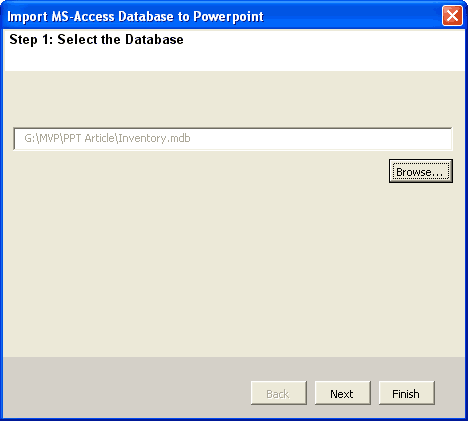
  7. This will summon Step 1 of the wizard, as shown in Figure 1, below.
  8. Importing an Access database
    Figure 1: Importing an Access database
  9. Select the sample Access database called Inventory.mdb within the unzipped archive, as shown in Figure 2, below. This tool also works with any other Microsoft Access database. The sample database is just for the demo to get you started.
  10. Select a sample database
    Figure 2: Select a sample database
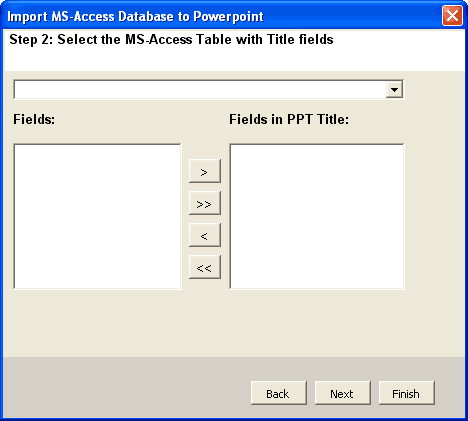
  11. Click the Next button, and you are prompted to select data for the Title (slide title), as shown in Figure 3, below. The Title is what will appear in the header of each slide.
  12. Choose content for your slide titles
    Figure 3:Choose content for your slide titles
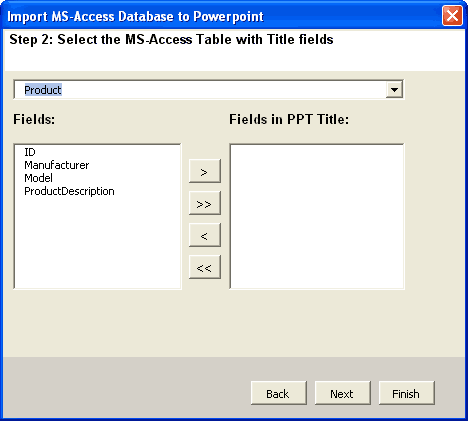
  13. We want data from the Product table in the Title header, so we select Product from the dropdown, as shown in Figure 4, below.
  14. Choose a source table for the slide titles
    Figure 4: Choose a source table for the slide titles
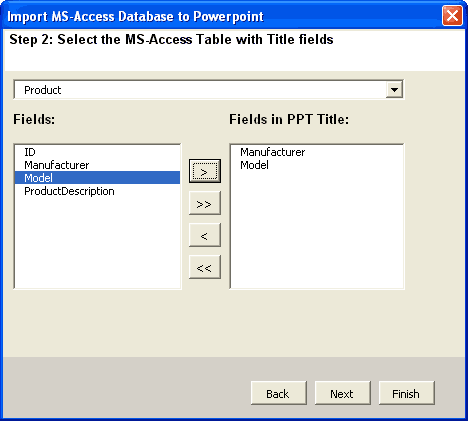
  15. The wizard now displays all fields in the Product table, as shown in Figure 5, below. We must select which of these fields from the Product table will show in the Title. Since we want to show both the Manufacturer and the Model, I added these to the list on the right.
  16. Choose fields for the slide titles
    Figure 5: Choose fields for the slide titles
  17. Click the Next button, and you are prompted to select the Detail table (source for the text bullets), as shown in Figure 6, below. The Detail table is a bulleted list for each slide. Here we select the ProductFeatures table.
  18. Choose a source table for the bulleted lists
    Figure 6: Choose a source table for the bulleted lists
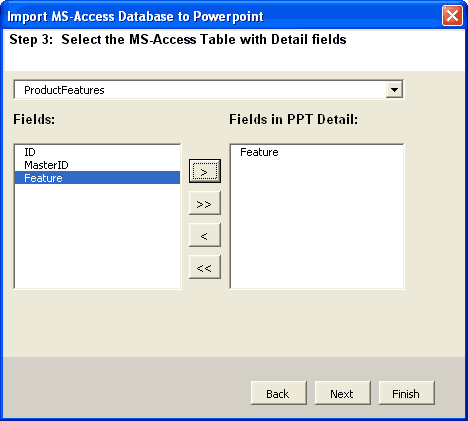
  19. Next, we select Feature as the field to show in PowerPoint's bulleted list area, as shown in Figure 7, below.
  20. Choose fields for the bulleted lists
    Figure 7: Choose fields for the bulleted lists
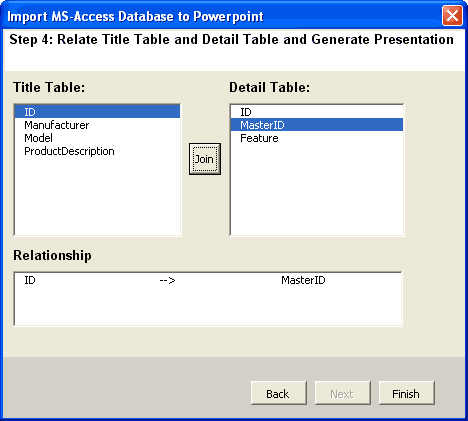
  21. Click the Next button, and you must tell the Wizard how to relate Title Table and Detail Table. Here, I choose to relate on ID and MasterID as these are the fields on which these two tables are related, as shown in Figure 8, below.
  22. Relate fields
    Figure 8: Relate fields
  23. We basically clicked on ID and MasterID, and clicked the Join button, as shown in Figure 8, below.
  24. Now, click the Finish button, and PowerPoint will generate a presentation from the Access database.

People Also Ask:

Is it possible to embed Access data directly into a PowerPoint slide?

Yes, you can embed data from an Access database into a PowerPoint slide. One approach is to export the data from Access to Excel and then create charts or tables in PowerPoint that link to this Excel data. This method allows you to update the data in Excel, which will automatically reflect in your PowerPoint presentation. Alternatively, using VBA (Visual Basic for Applications) code, you can establish a direct connection between PowerPoint and Access to retrieve and display data dynamically.

Can I automate the update of PowerPoint slides with data from an Access database?

Yes, automating updates is feasible. By utilizing VBA within PowerPoint, you can write scripts that pull data from your Access database and update your slides accordingly. This approach is particularly useful for generating regular reports or dashboards, ensuring that your presentation always reflects the most current data without manual intervention.

What are the benefits of linking PowerPoint to an Access database?

Linking PowerPoint to an Access database offers several advantages: First, you have real-time data updates. Your presentation reflects the most current information without manual updates. Secondly, consistency ensures that all stakeholders view the same up-to-date data. Finally, you get efficiency with the reduction in time and effort required to update presentations, especially those with frequently changing data.

19 05 04 - More Cool Ideas: Using Access Content in PowerPoint (Glossary Page)

You May Also Like: PowerPoint Presentation Design Deep Dive 2021: Conversation with Amy Balliett | Fall / Autumn PowerPoint Templates


Popular Posts

Types of Animation in PowerPoint 2010 for Windows
Learn about different animation types in PowerPoint 2010 for Windows.

Restoring Earlier Versions of Presentations in PowerPoint 2010 for Windows
Learn how to restore earlier versions of your current presentation in PowerPoint 2010.

What is Animation in PowerPoint?
Learn what animations is and how to effectively plan animation for PowerPoint.

Apply Bevel Effects to Shapes in PowerPoint 2016 for Windows
Learn how to apply bevel effects to shapes in PowerPoint 2016 for Windows.


Polygon Center Circles for PowerPoint

These special circles have polygon centers: the centers are made of triangles, squares, pentagons, and hexagons! And based on the sides of the polygon, the rest of the circle has that many segments.

Download and use these Polygon Center Circles in your slides for just $4.99


Microsoft and the Office logo are trademarks or registered trademarks of Microsoft Corporation in the United States and/or other countries.

Home | PowerPoint | Photoshop | PowerPoint Templates | PowerPoint Tutorials | Blog | Notes | Ezine | Media Kit | Feedback | Site Map | About Us | Contact Us

Link to Us | Privacy | Testimonials

PowerPoint Backgrounds | Christian PowerPoint Backgrounds | Business PowerPoint Presentation Templates

Plagiarism will be detected by Copyscape

©2000-2025, . All rights reserved.