Introduction
About PPTmovie
Download and Installation
Using PPTmovie
Pricing and Support
Conclusion
Introduction
It's very often that users ask for an option to save their PowerPoint presentations to a movie format. And with media distribution
options multiplying each day, this is one area that's a sore point with PowerPoint users since PowerPoint for Windows does not provide
this ability unlike its versions on the Mac.
PPTmovie, a new product that I am reviewing today allows you to convert any PowerPoint presentation to one of the several video
formats it supports -- these output formats allow you to:
- Burn your presentation to a CD or DVD and and play it back on a DVD player.
- Make your presentation-movie available on YouTube or another video sharing site
- Transfer your presentation to a portable device such as iPod, or mobile phone.
- Copy your presentation to a game console like the PSP.
Back
About PPTmovie
PPTmovie is from PPTexpert, a company based in London, UK. You can learn more about their
products, and download a trial version of PPTmovie here (link no longer exists).
PPTmovie is user friendly application which converts a PPT file to AVI, MPEG-1, MPEG-2, MP4 and even allows to add your narration
or record the background music.
My contact at PPTmovie for this review was Natalia Lukicheva - thank you, Natalia.
Back
Download and Installation
Download the installer, run the setup routine and follow the instructions. You'll end up with a PPTmovie program group in your
Windows Start menu (see Figure 1 below).

Figure 1: PPTmovie Start menu Group
Note: The trial version of the application adds a watermark on the output file.
Back
Using PPTmovie
Follow these steps to get started with PPTmovie:
- Go to your Windows Start menu and choose All Programs | PPTmovie | PPTmovie (see Figure 1 above).
- This opens PPTmovie interface, as shown in Figure 2.
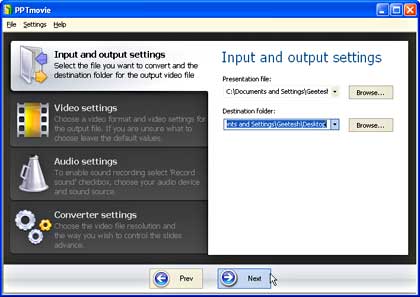
Figure 2: PPTmovie interface- Choose the presentation which need to converted, and choose a destination folder to save the output file.
- This is a wizard based interface -- press the Next button to move to the next step.
- This opens the Video Settings window of the interface as shown in Figure 3. Here you
can select the output video format, codec, and frame rate.
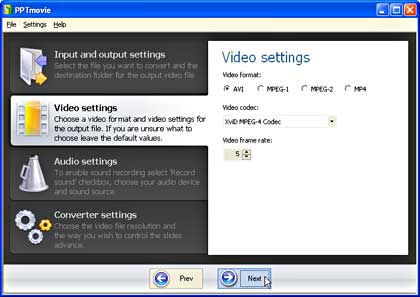
Figure 3: Video Setting- When done, click the Next button.
- This opens the Audio Settings screen of the application (see Figure 4). Check
Record Sound checkbox to enable sound recording if your presentation contains sound. Alternatively, you can also
use a microphone as a sound input source.
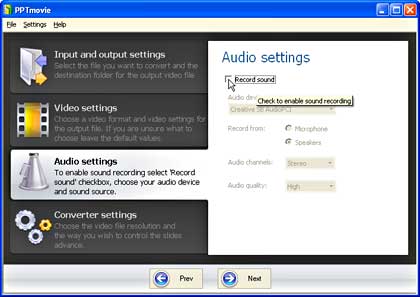
Figure 4: Audio Settings- Click on Next button.
- This brings up the Converter Settings window, as shown in Figure 5.
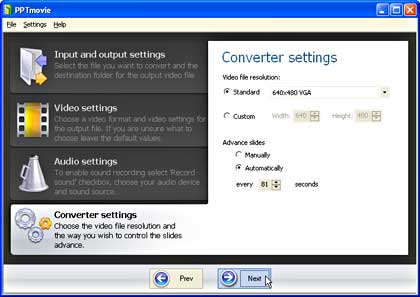
Figure 5: Converter Settings- Here, there are essentially two options:
- Video file resolution allows you can set output file dimensions in pixels:
- Standard video resolution: Choose from the PPTmovie's built-in list of common video resolutions.
- Custom video resolution: Here you can set the custom resolution for your video file.
- Advance Slides lets you set the default behavior for progressing slides:
- Manually: You'll have to press the Next button every time you want to go to the next slide
during the conversion. Useful when you record narrations, or if you want precise control -- or even if your presentation doesn't have
automatic slide timings.
- Automatically: Select the number of seconds you want the slide to appear on the screen.
- In the subsequent window, the presentation loads. It may take a while depending upon the size of presentation
(see Figure 6).
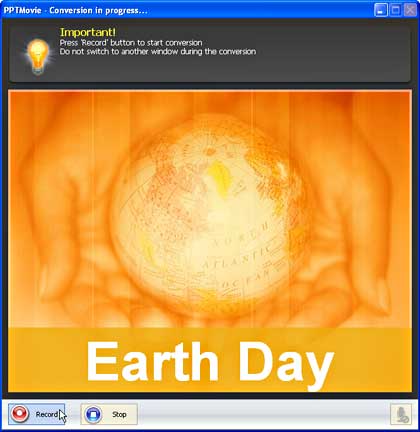
Figure 6: Conversion in progress- Press the Record button to convert the presentation into the selected file format.
- While recording do not switch to another window. Figure 7 shows the recording in progress -- notice
the Pause and Stop buttons are available since I chose Automatic timings. If I had chosen Manual
timings, I would see a Next button.
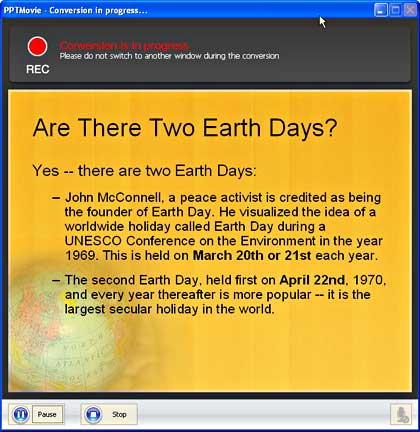
Figure 7: Recording- Once the recording is over, PPTmovie will compress the resulting file -- depending on the output size, this may take
a while. When the conversion is done, you'll see a window, as shown in Figure 8.
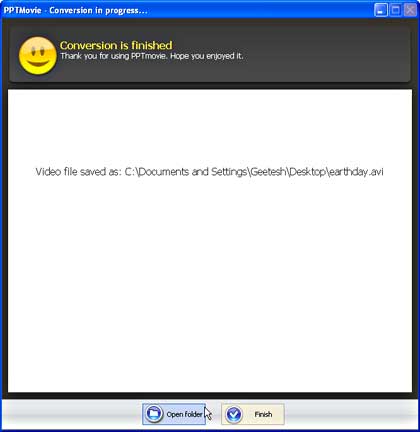
Figure 8: Conversion finished- Thereafter, click the Open folder button to open the output folder, and play the output movie.
Back
Pricing and Support
PPTmovie is available in two versions: the Personal version costs $49.95 and the Business version costs $79.95. Both the versions
are identical -- the Personal version is for home use while the Business version is required for commercial use.
Support is through email and an online FAQ.
Back
Conclusion
You do need a computer with a higher end graphic card to attain good results with PPTmovie. Beyond that limitation, the product
does make the process of converting PowerPoint presentations to movies as painless as possible.
Back


