Indezine Logo


Package Option in Adobe Presenter

Explore the Package option within Adobe Presenter.


Author:

Product/Version: PowerPoint


Learn PowerPoint

Exploring Neuxpower Slidewise


Adobe Presenter provides various publish options -- and these work great if you have control over how your users will work with the eLearning content you create. However, there may be times when you do not have an idea about how and where the content will be used or distributed. In such scenarios, you can use the Package option that lets you publish the entire eLearning presentation along with all the assets and media within a single package. Do note though that this option essentially shares your entire content in an editable format. This option is especially useful if you need to work on the presentation from multiple computers or multiple authors need to work on it. The package file is easy to distribute to users as it converts all the required files into a single file.

Follow these steps to learn how the Package option works:
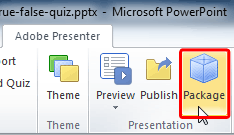
  1. Open the eLearning presentation which you want to pack. Thereafter access the Adobe Presenter tab of the Ribbon, and click the Package button, as shown highlighted in red within Figure 1.
  2. Package button within the Presentation group
    Figure 1: Package button within the Presentation group

  3. Note: If you don't have the Adobe Presenter tab within the Ribbon in PowerPoint, that may indicate you haven't installed it. This tab is not built-in within PowerPoint and is installed as part of a PowerPoint add-in from Adobe called Presenter.
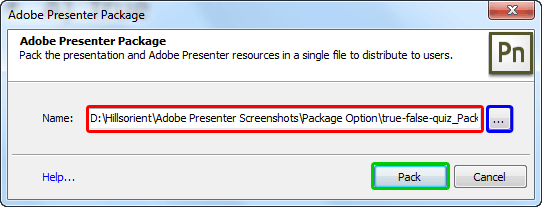
  4. This opens the Package dialog box, as shown in Figure 2.
  5. Package dialog box
    Figure 2: Package dialog box
  6. Adobe Presenter provides a default path where the presentation is saved, as shown highlighted in red within Figure 2, above. You can choose your own location by clicking the browse icon, as shown highlighted in blue within Figure 2, above.
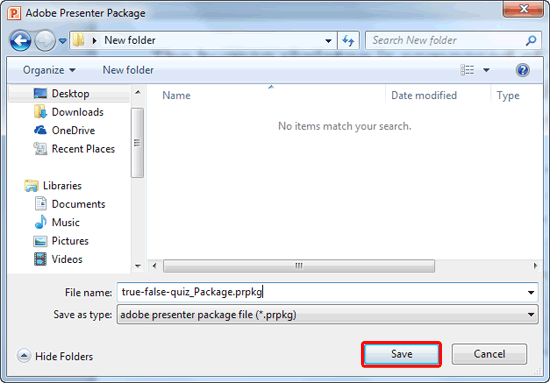
  7. This brings up the Adobe Presenter Package dialog box, as shown in Figure 3. Here you can choose the location and specify the name for the package. When done, click the Save button as shown highlighted in red within Figure 3.
  8. Adobe Presenter Package dialog box
    Figure 3: Adobe Presenter Package dialog box
  9. This will take you back to the Package dialog box. Here click the Pack button, as shown highlighted in green within Figure 2, earlier on this page.

You can open a packaged presentation in one of the following ways:
  1. Browse to the location where you have saved the package using Windows Explorer, and double-click the.prpkg file.
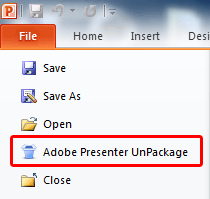
  2. Click the File menu in PowerPoint, and click Adobe Presenter UnPackage option, as shown highlighted in red within Figure 4.
  3. Adobe Presenter UnPackage option
    Figure 4: Adobe Presenter UnPackage option
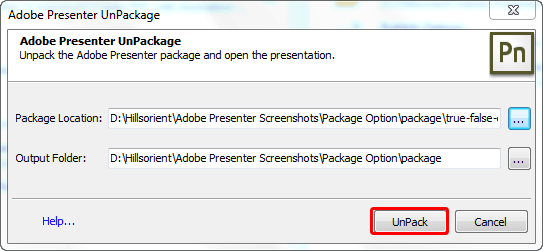
  4. This brings up the Adobe Presenter UnPackage dialog box, as shown in Figure 5. Here specify the Package Location and the Output Folder where Adobe Presenter needs to unpack the contents, and click the UnPack button (highlighted in red within Figure 5).
  5. Adobe Presenter UnPackage dialog box
    Figure 5: Adobe Presenter UnPackage dialog box

You May Also Like: Antigua and Barbuda Flags and Maps PowerPoint Templates | MeetingPlace iCreate - Page 3


Popular Posts

Create Animated GIFs from PowerPoint Slides
Explore ways to create animated GIFs from PowerPoint slides.

PowerPoint Tutorials
These PowerPoint tutorials have many screen shots that show you exactly what you see in your computer!

Use Safe Fonts Available on All Systems in PowerPoint
Learn about using safe fonts in PowerPoint.

10 Tips for Pecha Kucha
Read 10 amazing Pecha Kucha tips that will help you create and deliver a better Pecha Kucha presentation.


Feature List 01 (Layout with Tabs)

The Feature List Layout comprises three sample PowerPoint presentations: one each to create a visual list for 4 features, 5 features, and 6 features. These work great when you have too much information to fit within one slide. This solution lets you use multiple slides, but the visual result is still that of one single slide!

Buy and Download Feature List 01 (Layout with Tabs) for $4.99+ (671 kb)


Microsoft and the Office logo are trademarks or registered trademarks of Microsoft Corporation in the United States and/or other countries.

Home | PowerPoint | Photoshop | PowerPoint Templates | PowerPoint Tutorials | Blog | Notes | Ezine | Media Kit | Feedback | Site Map | About Us | Contact Us

Link to Us | Privacy | Testimonials

PowerPoint Backgrounds | Christian PowerPoint Backgrounds | Business PowerPoint Presentation Templates

Plagiarism will be detected by Copyscape

©2000-2026, . All rights reserved.