Indezine Logo


AKVIS Frame Suite 2.6

AKVIS Frame Suite 2.6 is a Photoshop compatible plug-in that provides collection of frames, edge and texture effects. These are suitable for the decoration of photos and other image compositions.


Author:

Product/Version: PowerPoint


Introduction

AKVIS Frame Suite 2.6 is a Photoshop-compatible plug-in with an impressive collection of frames, edge and texture effects suitable for the decoration of photos and other image compositions.

Frame Suite 2.6 provides 12 basic effects that can be further customized to create your own presets and libraries.

Frame Suite 2.6 is a new version of the same plug-in that we reviewed in the past. The updated version has several new and improved features.

The new features are:

  • New frames and edges has been added for the holiday season.
  • All the new frames and edges can be found in the Pattern Library.

Frame Suite is from AKVIS, a company based in Russia that specializes in graphics programs. Apart from Frame Suite, AKVIS also creates other Photoshop-compatible plug-ins like Retoucher, Chameleon, Stamp, Sketch, Enhancer, Decorator, and Coloriage.

You can download a free 10-day trial version of Frame Suite from the AKVIS site.

My contact at AKVIS for this review was Kat Kharina. Thank you, Kat.

Back


How To Use

Here’s how you can typically use Frame Suite 2.6 on an image.

  1. Open any image in an image editor such as Adobe Photoshop.
  2. Choose the Filter | AKVIS | Frame Suite option, as shown in Figure 1, below.
  3. AKVIS Frame Suite
    Figure 1: AKVIS Frame Suite
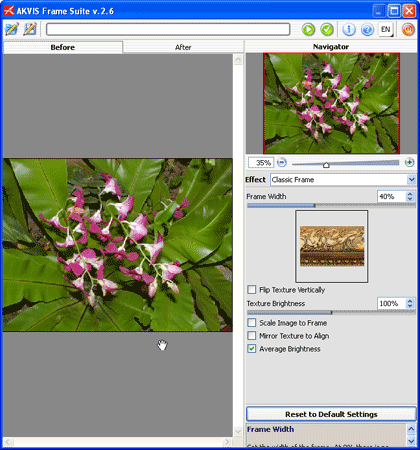
  4. Doing so will open the Frame Suite 2.6 interface that you can see in the Figure 2, below.
  5. AKVIS Frame Suite 2.6 Interface
    Figure 2: AKVIS Frame Suite 2.6 Interface
  6. The interface is divided into two parts: the left side is the preview window where you can see the picture and the changes made, the right side of the interface has the list of Effects and their settings.
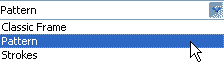
  7. Select the Effect list provided as show in Figure 3, below, and choose the Pattern option.
  8. Effect list
    Figure 3: Effect list
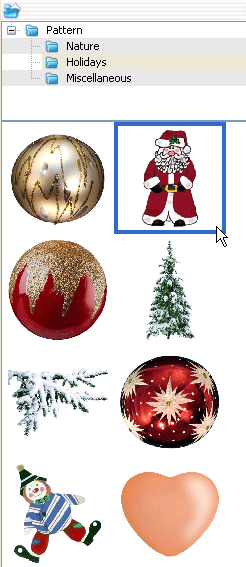
  9. From the Pattern Library choose Holidays. see Figure 4.
  10. Holidays
    Figure 4: Holidays
  11. This opens a panel with festive holiday patterns, double-click the pattern you want to select.
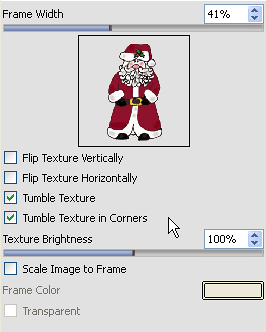
  12. This opens the properties for the chosen pattern, as shown in Figure 5, below.
  13. Pattern properties
    Figure 5: Pattern properties
  14. If you want to use another pattern, double-click on the thumbnail to open the pattern library.
  15. After selecting the pattern, click the Run icon (see icon below).
  16. Run icon
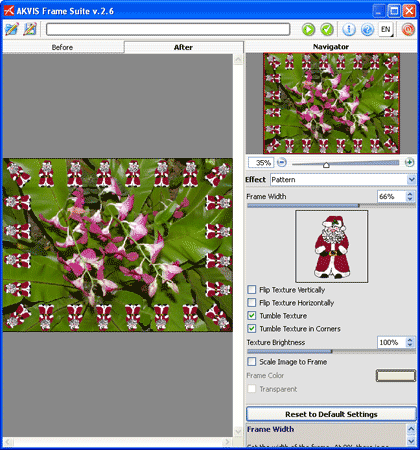
  17. This applies and creates a preview of the image. If you want to make more changes, you can select another pattern as required. You can preview the changed image in the After tab, as shown in Figure 6, below.
  18. The Before and After tabs
    Figure 6: The Before and After tabs
  19. Once you’re done with the applying the pattern, apply the result to the image by pressing the Apply icon (see icon below) to return to the image editor.
  20. Apply icon
Note: Although the instructions above showed how you can use AKVIS Frame Suite as a Photoshop plug-in, the product also works in the same way in standalone mode. Just launch the application through its icon in the AKVIS Frame Suite group in your Windows Start Menu.

Back


Specifications

Photoshop Versions: 5+
Platforms: Windows, Mac
Site: AKVIS
Price: US$49 and above
Trial Version: 10 days

Back


Photoshop: AKVIS Plug-ins (Glossary Page)

You May Also Like: Myths of Public Speaking Debunked! | Middle East PowerPoint Templates


Popular Posts

Snow Effect in PowerPoint
Create a snow fall effect inside PowerPoint using animation techniques.

PowerPoint Transitions: Curtains
Explore the Curtains transition effect in PowerPoint.

Pivot Tables in PowerPoint: by Kasper Langmann
One of the most commonly used features in Microsoft Excel is the Pivot Table. A Pivot Table simply allows you to make better sense of data by giving you different options of how to view that data.

Get More SmartArt Graphics
Learn how you can get more SmartArt graphic variants.


Pictures in Presentations

Is a picture is worth a thousand words? You probably have heard this adage so often that we decided not to repeat this phrase throughout this book! Now here’s some more info: the human brain uses a larger part of its area to store visual information rather than textual content. And that’s possibly because a picture describes so much more than text.

Go and get a copy of our Pictures in Presentations ebook.


Microsoft and the Office logo are trademarks or registered trademarks of Microsoft Corporation in the United States and/or other countries.

Home | PowerPoint | Photoshop | PowerPoint Templates | PowerPoint Tutorials | Blog | Notes | Ezine | Media Kit | Feedback | Site Map | About Us | Contact Us

Link to Us | Privacy | Testimonials

PowerPoint Backgrounds | Christian PowerPoint Backgrounds | Business PowerPoint Presentation Templates

Plagiarism will be detected by Copyscape

©2000-2026, . All rights reserved.