
This is the print version of this page. All content is copyright Indezine.com 2000-2026.
AKVIS Frame Suite 2.5 is a Photoshop compatible plug-in that provides umpteen frames, edge effects, and textures.
Author: Geetesh Bajaj
Product/Version: PowerPoint
AKVIS Frame Suite 2.5 is a Photoshop-compatible plug-in that provides umpteen frames, edge effects, and textures. All these can be customized and you can then create your own presets and libraries.
AKVIS Frame Suite 2.5 is a new version of the same plug-in that we reviewed in the past. The updated version has several new and improved features.
The new features are:
Frame Suite is from AKVIS, a company based in Russia that specializes in graphics programs. Apart from Frame Suite, AKVIS also creates other Photoshop-compatible plug-ins like Retoucher, Chameleon, Stamp, Sketch, Enhancer, Decorator, and Coloriage.
You can download a free 10-day trial version of Frame Suite from the AKVIS site.
My contact at AKVIS for this review was Kat Kharina. Thank you, Kat.
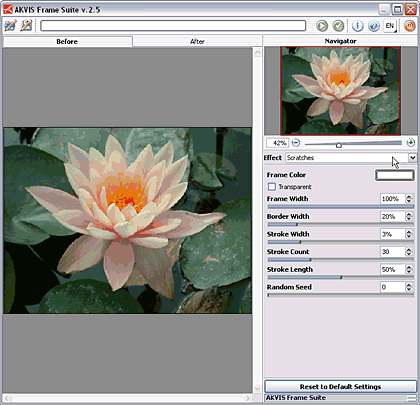
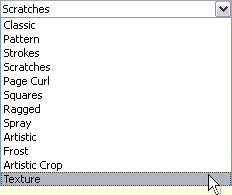
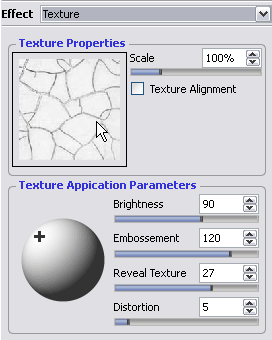
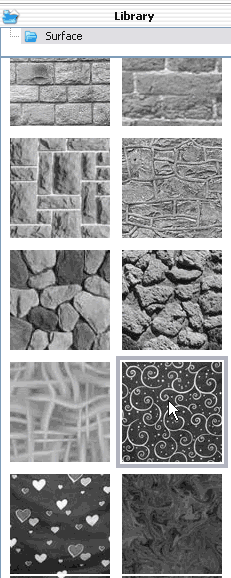
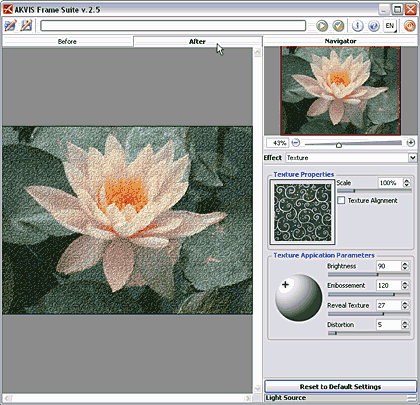
Here’s how you can use the new Texture feature in Frame Suite 2.5 on a image.



| Photoshop Versions: | 5+ |
| Platforms: | Windows, Mac |
| Site: | AKVIS |
| Price: | US$49 and above |
| Trial Version: | 10 days |
Photoshop: AKVIS Plug-ins (Glossary Page)
You May Also Like: Hypersay with Live Subtitles: Conversation with Brian Daly | Latin America PowerPoint Templates


Microsoft and the Office logo are trademarks or registered trademarks of Microsoft Corporation in the United States and/or other countries.
