
This is the print version of this page. All content is copyright Indezine.com 2000-2026.
Learn how you can bring Visio content within Microsoft Word.
Author: Geetesh Bajaj
Product/Version: PowerPoint
Introduction
Shapes, Stencils and Drawings
Inserting Visio Drawings in Word - 1
Inserting Visio Drawings in Word - 2
Inserting Visio Drawings in Word - 3
Insert Visio Shapes in Word
More Info
It's easy to bring in your Visio content into Word. Depending upon what you want to import, you can choose a procedure that suits you best. While we're using Word for these examples, the same techniques can be used to insert Visio content in Excel, Publisher, or PowerPoint as well.
The PowerPoint and Visio page might be helpful too, especially If you are looking for more detailed information on using Visio and PowerPoint together. For instance, you might want to animate Visio content within PowerPoint.
Basically, you can import two types of Visio content: shapes and drawings.
Shapes are individual building blocks that comprise finished Visio drawings. In Visio parlance, shapes are collectively stored in libraries called Stencils. Visio ships with an impressive collection of stencils suitable for block diagrams, building plans, databases, engineering (electric, mechanical, and process) models, flowcharts, forms and charts, maps, visual networks, organization charts, project schedules, software structures, and web diagrams.
The stencils that you can view within your Visio interface (see File | Shapes) are actually all individual stencil files that are recognizable with the VSS extension. Visio is completely extensible and any other third-party stencil that you place within the designated stencil folder (usually Program Files\Microsoft Office\Visio11\1033 for Visio 2003. For other versions, do a search on your system for *.vss) shows up within Visio itself.
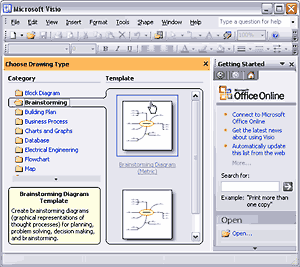
Drawings are the Visio creations you create by dragging shapes from these stencils into the document window to place an instance. More often than not, these shapes are connected to each other using Connectors so that meaningful relationships can be identified between linked shapes. Templates are readymade drawings with some shape instances already placed and relevant stencils open so that you can achieve professional results in a snap.
There are many ways you can insert Visio content into Word. The easiest of them all is to copy from Visio and paste into Word. Although this is not suitable for all purposes, it certainly is the easiest way. Double-clicking the drawing in Word will automatically launch Visio and you can also carry out edits as required within Visio itself and all changes are visible within Word as well. However, this can cause problems if the Word file is moved to another system that has no Visio installed.
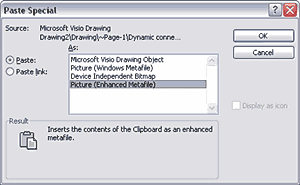
To counter that, you can choose Paste Special in Word rather than Paste and choose either Paste (Windows Metafile) or Picture (Enhanced Metafile). Doing so pastes a scalable drawing into Word that has no link with its original content.
Sometimes, it is a better idea to export the drawing from Visio to a graphic format that Word can understand and then bring it into Word using the Insert | Picture route.
Off-Topic: If you need to send your Visio content to a high-end printer or page layout program, you could have chosen the AI/EPS file type in the File | Save As... in Visio 2002 or earlier. Unfortunately, this ability is no longer available in Visio 2003.
You can export to the SVG format which Adobe Illustrator opens natively.
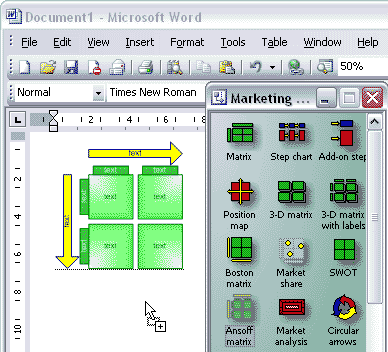
To insert Visio shapes into Word, you don't even need to open Visio. You can open VSS Visio Stencil files even without invoking Visio. VSS files are typically stored in a designated folder (see above - Shapes, Stencils and Drawings).
Double-click any VSS file in Windows Explorer to open it in a separate compact window if Visio is not already open. Click any shape and drag it into an open Word document window. That's all you need to do! This trick works with PowerPoint too.
You May Also Like: Complex Data-driven PowerPoint Dashboard | Federated States of Micronesia Flags and Maps PowerPoint Templates




Microsoft and the Office logo are trademarks or registered trademarks of Microsoft Corporation in the United States and/or other countries.
