This is the print version of this page. All content is copyright Indezine.com 2000-2025.
Learn about PowerPoint and Visio.
Author: Geetesh Bajaj
Product/Version: PowerPoint
Content on this page is not recent and has been retained for historical reasons.
Introduction
About Visio
Visio's Repertoire
Between Visio And PowerPoint
Inserting Visio Content
Visio - PowerPoint Caveats
PowerPoint has always had umpteen features for diagrams, such as charts, AutoShapes with connectors, organization charts, and more. PowerPoint 2002 upped the ante with the new Office XP diagram tools, making it possible to create several new types of info-graphics natively within the program. Yet, it is not uncommon to use Microsoft Visio or Project as a source for detailed and specialized diagrams respectively. Both Visio and Project are part of the Office family of application products—and as expected, they work seamlessly with PowerPoint.
We'll examine Project some other time. Now, let us take a closer look at using Visio content within PowerPoint, specifically using Visio 2002/03 and PowerPoint 2002/03 although most of the ideas should work with version 2000 products as well. Even before that, let us take a look at Visio itself.
Until 1999, Visio was a product from Visio Corporation. In September that year, Microsoft acquired the company in a move to equip its office productivity business with a technical drawing and diagramming application. The actual merger was ratified by December that year. Since then, Visio's transformation has been spectacular. The product now integrates with the Office family of products to transparently provide business users a much better way to incorporate business info graphics into Word, PowerPoint or elsewhere. In addition, Visio also aids as a conceptualization tool with database integration. This facilitates its use in environments like networking, engineering and construction. The program thus integrates in some way or the other with almost all Microsoft products, sometimes as a tool to spawn creativity and at other times as a medium to display inspired info-graphics.
By itself, Visio is a fairly easy program to use—successfully hiding its more powerful features under a basic interface to make beginners feel at home. If you use Word or PowerPoint often, you'll be productive with Visio almost immediately. There can be no denial to the fact that Visio is far more powerful in its diagramming capabilities than anything PowerPoint can natively offer. However, many of you would like to know what types of diagrams Visio can create. That's precisely what we'll examine next.
Visio repertoire is vast, to say the least, and it certainly lives to its claim of being a full-featured diagramming tool. As soon as you launch Visio, you are presented with a range of drawing choices that include block diagrams, building plans, databases, engineering (electric, mechanical, and process) models, flowcharts, forms, charts, maps, visual networks, organization charts, project schedules, software structures, and web diagrams.
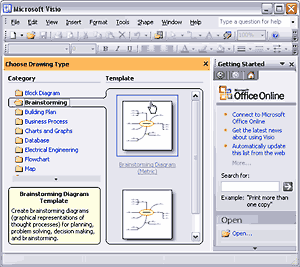
These were only the default choices. Visio's abilities can be expanded with many more Microsoft and third-party extensions that are based on stencils, templates, and drawings. Like other Office programs, Visio is also completely VBA-enabled.
Getting back to basics, assistance within Visio is available from its excellent help system, which also includes six lessons that get you started with beginning a diagram, moving and resizing shapes, adding text, connecting and formatting shapes, and putting it all together. Needless to add, the lessons are highly recommended.
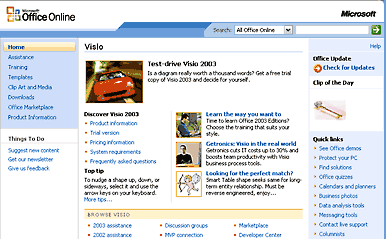
In addition, Visio itself has several wizards, which make tasks easier for beginners. There are also several web sites where you can get more info:
Now is a good time to decide if you would rather use Visio or PowerPoint's own visual abilities. As a rule of a thumb, this decision is easy. If PowerPoint can cope with the type of diagram you need, using Visio is going to be an overkill. You will find that PowerPoint is well suited for most types of charts, organization diagrams, venn diagrams and related info-graphics. So, when does one use Visio? Read on for some thoughts.
Suppose you want all your drawings to be on scale with industry-standard measurements or if you are importing a CAD drawing you want to edit later. In such cases, Visio will provide you with all these features and more. You'll also find that Visio content can be reused, which is significant in reasoning if you require a diagram that's going to be used in all sorts of media like presentations, websites, documents, e-mail, page layout, spreadsheets, etc. You might also choose Visio as your tool of choice if your drawings need to be database-aware and connected, or if you are creating a building plan or route map. Of course, Visio provides you with many more possibilities but you need to need to remember that PowerPoint is quite capable on its own. So, use Visio only if the advantages are obvious. Having said that, let's proceed with inserting Visio content into PowerPoint.
You cannot insert Visio content into PowerPoint in Visio's native drawing format. You'll need to link to an existing or newly-created Visio drawing as an object, or export from Visio to a graphic format and thereafter import it into PowerPoint. Between the two methods, you'll have to choose the latter if you want to transport your presentation to a system without Visio installed. Let's examine the Insert | Object route:
The second method is more straight-forward. Although you cannot edit the original drawing this way, the resultant presentation will be more compact and portable:
There's also a third method although, it merely automates the second method:
Of course you can also emulate the first method by simply dragging a drawing from a Visio window into a PowerPoint slide.
After importing a Visio diagram into PowerPoint, you might want to animate elements sequentially or recolor some shapes. Microsoft has several tutorials on their site which discuss just that and more:
Be aware that what may look fine within Visio may seem too crowded or loaded with information in a PowerPoint slide.
Both PowerPoint and Visio are designed to be viewed and printed differently. For example, a Visio network diagram printed on large size paper may look fine, but the same image in PowerPoint could be jumbled and any fine lines on the drawing will disappear altogether on the PowerPoint slide. This issue needs to be avoided by making the same information more presentable in Visio itself even before inserting it within PowerPoint. Within Visio itself, you can do some housekeeping by using layers to hide the extra information or by using VBA to isolate parts of the drawing.
You May Also Like: Presentation Management: Why Executives are Starting to Care? | Meetings PowerPoint Templates



Microsoft and the Office logo are trademarks or registered trademarks of Microsoft Corporation in the United States and/or other countries.