
This is the print version of this page. All content is copyright Indezine.com 2000-2026.
Explore the new web options in PowerPoint 2003 and 2002 for Windows. PowerPoint now exports web-compatible presentations that can play in a web browser.
Author: Geetesh Bajaj
Product/Version: PowerPoint 2003 and 2002 for Windows
Introduction
The 'General' Tab
The 'Browser' Tab
The 'Files' Tab
The 'Pictures' Tab
The 'Encoding' Tab
The 'Fonts' Tab
In Conclusion
The new PowerPoint 2002 confers the title of 'presentation browser' on Internet Explorer. Yet, to effect a faithful PowerPoint HTML incarnation, one needs to closely understand and apply various configurations hidden within the Web Options dialog box of PowerPoint 2002.
Access to these configurations is not as easy or obvious as expected. First, choose Tools, then, select Options. This opens the Options dialog box with its various tabs. Choose the General tab, where you'll click a button called Web Options. The same options are also available from the Options button in the Save As HTML dialog box.
The Web Options box opens with its own slew of six tabs - General, Browsers, Files, Pictures, Encoding and Fonts. Let's take a closer look at the specific configurations that underly each option.
Back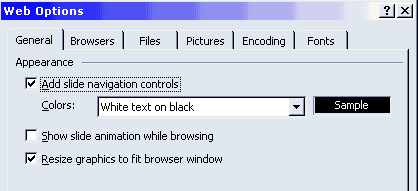
The first tab is the 'General' tab, consisting of options pertaining to the appearance of finished HTML presentations. The first option is to enable slide navigation controls and choose a specific colour combination like white on black. You can opt to show slide animations while browsing. You may need to have the Office Animation Runtime component installed for this to work. You can download Office Animation Runtime from:
Microsoft PowerPoint 2002 Add-in: Office Animation Runtime
Finally, you can choose to resize graphics to fit a browser window. It goes without saying that all the three options in the 'General' tab should be ticked to allow a faithful PowerPoint HTML conversion.
Back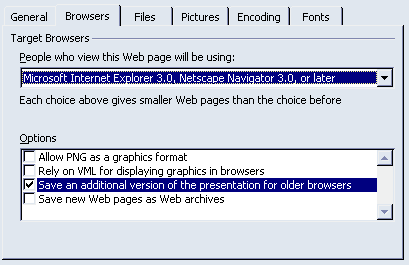
The 'Browser' tab contains the most significant yet simple options related to PowerPoint's web use. There are basically two ways to configure your PowerPoint HTML output here - either you can opt for one of the preset browser profiles or choose to create your own profile from the four options below the browser drop down box. First let's look at the browser profiles. These include:
You'll find Netscape 6.0 conspicious by its absence! Coming back to our subject of browser profiles, you'll find that a few of the four options below get automatically selected or deselected depending upon the browser profile you choose. Let's take a closer look at these four options
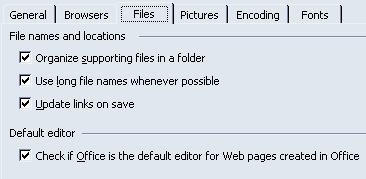
The 'Files' tab has simple options. You could choose to organize supporting files in a folder as opposed to storing them within the presentation folder itself. You can also opt to use long file names as opposed to the earlier 8:3 Microsoft DOS convention. The 'Update links on save' option is again self-explanatory.
Finally, you can select an option to check if the Microsoft Office XP components are default editors for web pages created witin the suite. Choosing this option will enable you to edit a PowerPoint HTML presentation in PowerPoint itself rather than the default web editor. Anyway, this option is checked by default - don't change it unless you're a professional and sure about the consequences.
Back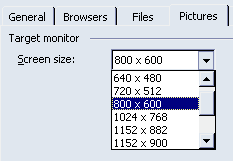
Amazingly, the 'Pictures' tab doesn't pertain to visuals. It actually allows you to configure your intended screen size or resolution. The default choice is set to 800 x 600 pixels, the most widely used resolution these days. Again, use your discretion to choose a resolution you require.
Back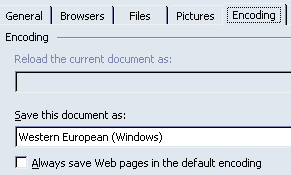
This is among the least used configuration options. Since this should be preconfigured as per your system's actual language encoding options. Nevertheless, if you're certain about your results, go ahead and change the encoding. You can also change the default encoding here.
Back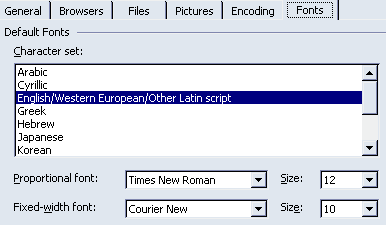
Again, the 'Fonts' tab allows you to use the default font character set as well as a default proportional and fixed-width type-style along with their point sizes.
BackWe've just examined each web option available within PowerPoint 2002 and yet, this is hardly an attainment of any sort. Rather, it's more of a beginning and the best way to learn to make these options work for you is through trial and error.
It goes without saying that we're discussing PowerPoint HTML presentations here - not the conventional PowerPoint PPT presentations. PowerPoint 2002 introduced a great new round-trip feature, wherein you can easily convert between both the HTML and PPT formats without losing any information.
As you create your presentation, keep a browser window open simultaneously. After every few minutes, do save the presentation within PowerPoint. After every such save, go to the browser and refresh the already open presentation and view it for any incompatibilities.
BackYou May Also Like: The Elephant | Costa Rica Flags and Maps PowerPoint Templates




Microsoft and the Office logo are trademarks or registered trademarks of Microsoft Corporation in the United States and/or other countries.
