
This is the print version of this page. All content is copyright Indezine.com 2000-2026.
Learn about PowerPoint and SmartDraw.
Author: Geetesh Bajaj
Product/Version: PowerPoint
Introduction
About SmartDraw
Why Use SmartDraw with PowerPoint?
Working with SmartDraw
Copy and Paste SmartDraw Content into PowerPoint
Exporting SmartDraw Content
How to Download SmartDraw
In any presentation, visuals play an important role. Well-designed visuals can make information easy to grasp and understand. On this page, we'll look at how SmartDraw, a drawing application works with PowerPoint to help create quick and effective infographics for presentations.
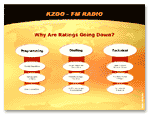
Here are some examples of SmartDraw content used within PowerPoint:

SmartDraw is available for a free 30-day trial download. You can configure the trial to any edition of SmartDraw. Click here to download.
The above visuals SmartDraw.com
SmartDraw is developed by SmartDraw.com, a company based in San Diego, CA, United States. SmartDraw, their flagship product is available in four different versions: Standard, Professional, Professional Plus, and the SmartDraw Suite.
You'll find more info about SmartDraw products on their website.
Our contact at SmartDraw for this review was Jason Hardy. We wish to thank him for responding to our every question.
PowerPoint already has several drawing features built-in. Many users would want to ask why should they look at SmartDraw rather than use PowerPoint's own drawing features. Here's what Jason has to say:
As you can see, SmartDraw is being positioned as an easy drawing tool to supplement PowerPoint and other Microsoft Office applications.
The SmartDraw interface looks very similar to the PowerPoint or Word interface. If you choose to create a new drawing, you are prompted to select the drawing type (see screenshot). You can also view examples and opt to create a drawing based on the example (or template).
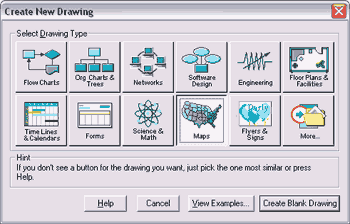
SmartDraw is easy to work with and you can probably be productive within 15 minutes of using it for the first time. That's because you really don't need to do much - an impressive library of readymade shapes and drawings allows you to drag shapes from the library onto the document area.
With the SmartDraw Image Plug-In, which is included with SmartDraw Suite, you can even fill shapes with images - you could probably create an organization chart of people working in the office that included a picture of every person (see screenshot).
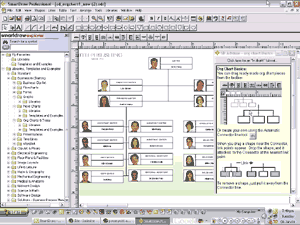
Whenever you are working with SmartDraw, the program will offer helpful tips and ideas. This feature can be turned off if you don't require it anymore.
SmartDraw's power lies in its connectors - these connectors can snap and link to shapes - this means that if you move a shape, connecters move with it.
SmartDraw has won the SIA's People's Choice award twice, most recently in 2003.
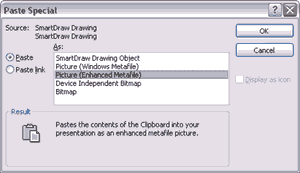
The easiest way to use SmartDraw content in PowerPoint is through cut and paste:
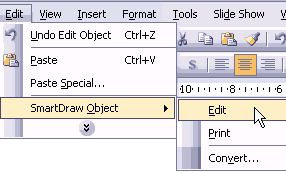
When you paste a SmartDraw drawing within PowerPoint, you actually embed a copy of the drawing within your presentation. PowerPoint can remember that the drawing originated from SmartDraw. You can also edit and update the drawing using SmartDraw.
To edit a SmartDraw drawing in PowerPoint (or any Microsoft Office program):
You'll find more info on using SmartDraw with Microsoft Office applications including PowerPoint on the SmartDraw Website.
You might want to export your SmartDraw drawing to a graphic format like EMF or WMF and then insert the drawing within PowerPoint. This is helpful if:
To export a drawing from SmartDraw:
There's also another method - although it merely automates the above method:
SmartDraw is available for a free 30-day trial download. You can configure the trial to any edition of SmartDraw. Click here to download.
You May Also Like: Nine of the Best Props to Add Impact to Your Presentation | Bicycle PowerPoint Templates



Microsoft and the Office logo are trademarks or registered trademarks of Microsoft Corporation in the United States and/or other countries.
