
This is the print version of this page. All content is copyright Indezine.com 2000-2026.
Learn about using PowerPoint with Director, a multimedia program.
Author: Geetesh Bajaj
Product/Version: PowerPoint
See Also: Getting PowerPoint Into Director
First Things First
Two Ways
Look At Formats
Import Into Director
The DCR Format
Director In PowerPoint
Shockwave ActiveX
Before You Begin
Step-by-Step
New 8.5 Abilities
Director Again
Disclaimer
Macromedia Director has a strange yet undisclosed association with Microsoft PowerPoint. Director was always a multimedia program. Now, it is a web and 3D content tool as well. PowerPoint has always been a presentation program, and now its capabilities are blurring distinction lines between presentation and multimedia applications. Still, there are many other facts to consider: while PowerPoint doesn't even come close to Director's multi-faceted abilities, its widespread use and reach coupled with ease of use is miles ahead of Director's repertoire.
Somewhere along the way, you'll find professionals and teams who use both tools. Many of their problems stem from the fact that it is so difficult for both programs to exchange elements and co-exist.
BackBetween two programs, there are usually two ways to exchange information: back and forth.
First, we'll take a look at importing PowerPoint content into Director, and then discuss the other way. But first, let's look at both the file formats
BackBoth PowerPoint and Director have complex file formats. And that's just touching the tip of the iceberg. Director's formats include DIR, DXR, EXE and DCR. PowerPoint's file formats include PPT, POT, PPS and HTML/MHT (for web presentations)
Director's editing format is DIR. Once you have a complete project, you can choose to save it as a protected DXR file. Of course you could also create a standalone EXE file (projector, in Director parlance) or output to the ShockWave Director format, DCR, that is used to deliver content online.
PowerPoint's default format is PPT. POT is a PowerPoint Template format, whereas PPS is basically the PowerPoint Show format. In addition, PowerPoint since its 2000 version outputs to a proprietary HTML/MHT format, rendered satisfactorily by Internet Explorer 5 or higher.
In addition, third party tools allow the export of an entire PowerPoint presentation to the Flash SWF format. Also, you can export presentations to QuickTime MOV format using PowerPoint on the Macintosh. Both SWF and MOV files can be imported straightaway into Director.
BackSince version 6.5, Director has shipped with an Xtra which takes care of importing PowerPoint files into Director.
Of PowerPoint's various formats, only PPT files can be imported into Director, and that too with limitations. First of all, you can only import PowerPoint Version 4 files. Many PowerPoint users tend to think of version 4 more in the sense of memorabilia than anything else. Back in those days, PowerPoint's abilities were seriously less. What's more, it was the last of PowerPoint's 16 bit formats, designed to run on Windows 3.1, before the days of Windows 95 and 32 bit operating systems.
Fortunately, you can open your newer presentations into a new version like PowerPoint 2000 and choose to save as an older version 4 format. You'll lose all the bells and whistles, but all the text, basic bullets and transitions and images will be retained.
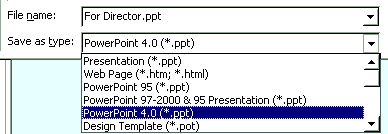
Unfortunately, PowerPoint 2002 does not allow you to save to the PowerPoint 4 format. You'll need access to PowerPoint 97 or 2000 to convert to the earlier version.
Once a version 4 file has been created, its a one-step procedure to import the file within Director from the Xtras menu. Be aware, however that some tweaking will be required after the import.
You can find more information from the following Macromedia TechNote:
Importing PowerPoint slide shows into Director 6.5 and later
Here's a tip from Andrew Morton, an Indezine reader:
Another way to get a PowerPoint presentation into Director is to use OpenOffice.org to save the presentation as a SWF file which can then be imported into Director as any other Flash SWF file. However, transitions don't seem to get carried through, although it is easy to control the Flash sprite in Director and apply transitions through Lingo, Director's scripting language. This works for any PowerPoint version which OpenOffice can open.
BackDCR is the format Macromedia Director uses to deliver web content. It's similar, although more advanced than the other Macromedia web format, SWF, which belongs to its Flash program.
The only way possible to incorporate Director content in PowerPoint is to output DCR files from Director. To convert your Director content to the DCR format, you can refer to your Director manual or help menu.
The Macromedia site has an excellent introduction to Shockwave Publishing.
BackOne would imagine that with everyone talking about ways to insert Flash movies into PowerPoint, it would only be a matter of time before similar questions would be raised about inserting Macromedia Director movies within PowerPoint. Nothing could be further from the truth. It's amazing that in months of research, we could not find anything on the Internet on this subject. Finally, we tried to do it ourselves, and the technique is detailed later in this page.
First, however we suggest you read the ActiveX sections on the PowerPoint And Flash page at Indezine:
BackMany of the systems which have the Shockwave Flash control installed also have another similar control installed as well. This is actually the Macromedia Director Shockwave control and is known as Shockwave ActiveX Control.
There are two such controls on most systems: the Flash control called Shockwave Flash Control and the Director control called the Shockwave ActiveX Control.
The prerequisites and techniques are strikingly similar. All you need to realize is that the Director control is separate from the Flash control. To install or update your Director control, visit:
Macromedia Shockwave (link no longer exists)
If you need to view more options, visit:
Macromedia Shockwave Alternate Downloads (link no longer exists)
BackBefore we begin inserting Director DCR content into PowerPoint, save the DCR file in the same folder as the actual PowerPoint PPT presentation file. This way, we will not have to enter a complete absolute path string later.
For my example, we've used a DCR file we quickly created using Director 8.5. To preview any DCR file just drag it from Windows Explorer into an open Internet Explorer window (presuming you have installed the Shockwave ActiveX control, discussed earlier on this page).
Back


Macromedia's new Director 8.5 has more abilities up its sleeve. Foremost is its 3D engine, which enables walkthroughs and close-ups in 3D space. Implications for PowerPoint usage of such Director content is extremely interesting, a hitherto unexplored horizon.
Another interesting capability within Director 8.5 is its native support for RealAudio, thus opening possibilities for hybrid PowerPoint-Director-RealAudio web presentations.
BackSince this page was created, we've received some extra content from Adam Crowley about exporting PowerPoint content to Director. You'll find this content here.
BackThis is just an experiment. No support can be provided for the techniques listed here. Also, we don't suppose either Microsoft or Macromedia would offer support on this subject.
However, both Microsoft and Macromedia newsgroups are well visited and intelligent interactions are possible on both the forums.
BackYou May Also Like: Use Your Breath to Become More Expressive When Public Speaking | Leafage PowerPoint Templates


Microsoft and the Office logo are trademarks or registered trademarks of Microsoft Corporation in the United States and/or other countries.
