
This is the print version of this page. All content is copyright Indezine.com 2000-2026.
Learn about suitable backgrounds for PowerPoint slides, and ways to create them.
Author: Geetesh Bajaj
Product/Version: PowerPoint
Presentations Are Paintings
PowerPoint Makes it Easy
A Few Questions
Create Your Own
Off the Beaten Track
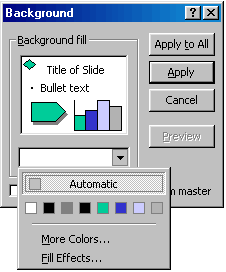
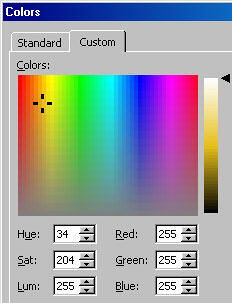
Changing Background Colours
If a presentation were a painting, then it's background would be a canvas. As any painter worth their palettes will tell you, a lot of thought goes into the selection and curing of a blank canvas. And that's even before the first streak of charcoal or a load of paint touches the very medium. Presentations are similar - a well designed background can lend immense value to the final product.
Choosing a proper background is a significant job - it can set the ambience for your presentation. Colours, textures and images play an important psychological role that may enhance the creativity and suitability of a story or theme.
Backgrounds need to be elegant and subdued - it's purpose is to never distract your audience from an actual event. Simplicity is of paramount value.
PowerPoint is a premier presentation tool and Microsoft has added many features which allow you to use backgrounds in myriad ways. This barrage of options comes with both merits and perils. A huge variety of options means that it's easy to input backgrounds into PowerPoint - although it's equally simple to end up with a gargantuan misendeavour.
Many of you may not believe this but a blank white background can be a base for a real killer presentation. And black doesn't work every time. Gradients work great for simple presentations and photo shows - but definitely not as a backdrop to figures and charts. Simple textures in light pastel colours are definitely the 'in' thing for most presentations, but they are certainly 'out' as far as kiosk shows are concerned.
This proves that a lot more thought has to be concentrated towards the concept and creation of backgrounds. If only backgrounds stood in the background, things would be so simple...In that case, I wouldn't be writing this article, nor would you be reading it this far!
At this stage, we all have a few questions unanswered. First - do you create or choose a background - about the spectrum of readymade backgrounds available and the plunge to create your own within or outside the PowerPoint environment, and more.
Let's start unraveling the secrets.
Looking first at readymade backgrounds - in fact a majority of the free and commercial PowerPoint design templates available online are new backgrounds embedded within a PowerPoint compartment - ready to use. You'll find scores of such templates if you follow the links at Indezine's PowerPoint Templates page.
The second and more fulfilling way is to create your own backgrounds. There are a few options to design them within PowerPoint itself, but for more elaborate and distinguished results, you should look at image editing software like Adobe Photoshop, Corel Painter and Corel PhotoPaint. These three are far from the only options available - other alternatives include Jasc Paint Shop Pro, Ulead PhotoImpact, Micrografx Picture Publisher, etc.
Adobe Photoshop is the epitome of all image editing applications - it has among the largest user bases and few programs have as faithful a following as Photoshop. Even though, Photoshop is severely limited when you're creating PowerPoint backgrounds from scratch. If you're scanning an image or accessing it from a digital camera - well, in that case Photoshop is all you need! Adobe also produces a cut-down version called Photoshop LE.
Corel Painter is definitely not a competitor to Photoshop - in fact both programs work more like companions. There's no equal to Painter if you want to start from scratch. It's the digital equivalent of paper, texture, brush and colour - nothing even comes close. For most purposes, you can work with Corel's stripped down version called Painter Classic.
Corel PhotoPaint is something in-between Photoshop and Painter, both in name and spirit. No other program gives you as many options - if there's only one program you can use - then PhotoPaint will cover all essentials. And it does a lot more - neither Photoshop nor Painter can open as many formats as PhotoPaint.
Jasc Paint Shop Pro started life as a poor man's alternative to Photoshop - even today it is priced much lower than Photoshop - yet it manages to do almost as much. The interface however still needs a revamp.
Ulead PhotoImpact is an elegant solution for most needs - it closely mimics the PowerPoint interface - so that makes it attractive to PowerPoint users. It comes with a slew of effects, each previewed in many variants.
Micrografx Picture Publisher (now part of Corel) is almost as old as Photoshop itself - a few years ago, it was considered almost as good as Photoshop. It still is a great program - there are a lot of wizards which do under-the-cover jobs for you.
BlackBelt Systems makes WinImages - it's no easy program to learn, but the rewards are exemplary. No other program can create more intricate backgrounds from scratch. WinImages also opens pictures in many formats including Photoshop.
The 'Photoshop' of Linux - Gimp is also available on the Windows platform. It offers great depth in all spheres - definitely something to look out for.
Corel Bryce can render exceptional backgrounds - although anyone from a mile away can ascertain the source of your creation.
If you are creating a presentation with many elements like charts, tables, pictures, text content, etc. - then maybe you should consider a plain colour background. Plain colour backgrounds are safe and elegant - and it's easy to choose any color.
You May Also Like: Making the Most of Your Potential | Djibouti Flags and Maps PowerPoint Templates




Microsoft and the Office logo are trademarks or registered trademarks of Microsoft Corporation in the United States and/or other countries.
