
This is the print version of this page. All content is copyright Indezine.com 2000-2025.
Use Snapz Pro X to capture movies of PowerPoint slides.
Author: Geetesh Bajaj
Product/Version: PowerPoint
Snapz Pro X for PowerPoint?
First Impressions
About Ambrosia Software
PowerPoint Capture Guidelines
Doing the Capture
More Ideas
We work cross-platform on PowerPoint for Windows and Mac. Most PowerPoint users on Windows believe that the best feature on PowerPoint for Mac is the ability to export an entire movie to a QuickTime file. A few PowerPoint designers actually create their presentations on Windows but move them to the Mac so that they can produce a movie.
So is PowerPoint's QuickTime output good enough? For simple presentations, it is adequate. Add some complicated animations or include a voice-over or background music score and PowerPoint's movie output options get stretched to their limits.
At times, we've output movies from PowerPoint:mac 2004 only to find that the entire narration for a slide plays before the first animation sequence even starts moving. That's clearly not acceptable.
Someone suggested Snapz Pro X as an alternative. Read more.
We downloaded and installed a trial version of Snapz Pro X. The trial version works identical to the full version for 15 days. Snapz Pro X loads with Mac OS X by default and you need to press the ⌘ + Shift + 3 keys to activate it. We'll explore the capture options later in this review.
To cut a long story short, let us tell you that our first movie capture of a PowerPoint presentation with Snapz Pro X exceeded our expectations. We even played it on Windows using the QuickTime Player and it was smoother than any other presentation capture that we had done on that platform.
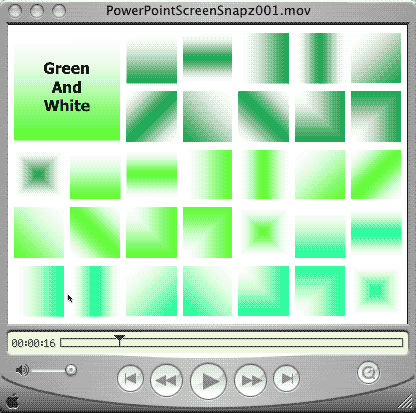
Our first movie capture with Snapz Pro X
SnapzProX is from Ambrosia Software, a company based in Rochester, New York, United States. Apart from SnapzProX, Ambrosia also makes SnapzPro, a similar product for those who still use OS 9 or other Mac OS classic versions. Ambrosia also creates several other Mac programs.
Our contact at Ambrosia for this review was Andrew Welch, the developer of Snapz ProX, and the president of Ambrosia Software. Thank you, Andrew.
For this tutorial, we are using a presentation that contains over a thousand gradient swatches. To make sure that we take Snapz Pro X to its limits we recorded a narration on each slide using PowerPoint:mac 2004 and a Plantronics DSP300 headset.
To ensure a perfect video capture, make sure to follow these guidelines:
Color and Resolution: To make the finished movie smaller in size, change the resolution and color depth and set it to 800 x 600 pixels at 256 colors. That's not too many colors, and your display make look patchy. Fortunately, it looks much better after a reboot so if you are lowering your resolution and color depth, do make sure that you reboot before doing an actual capture.
Start and end with blank slides: So that the narration on your first slide does not begin even before you can begin the capture, include a blank black or white slide before the presentation. Set the transition of this slide to occur on mouse-click. Create a similar last slide in the presentation.
Moving between slides: While the video capture is being done, make sure that you use the spacebar to move to the next slide rather than the mouse since the capture could pick up the mouse click sound.
Close applications: Make sure that you are not connected to an instant messenger application like MSN Messenger while doing the capture because you don't want a window popping up inside the capture to announce that a friend has just come online!
Follow these steps to do a typical PowerPoint to video capture using Snapz Pro X:
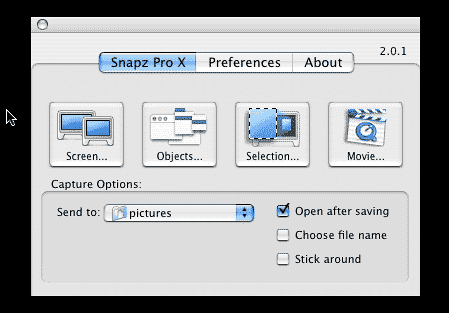
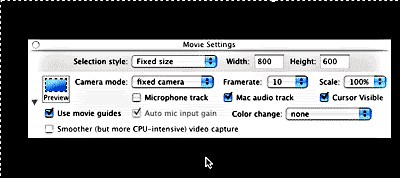
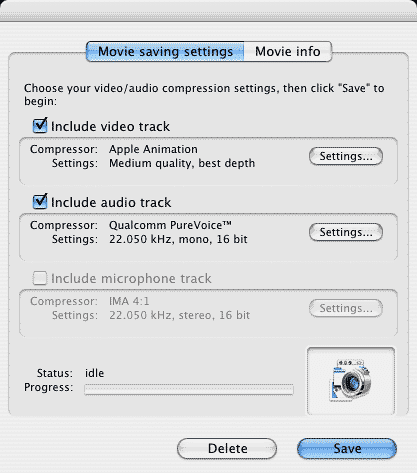
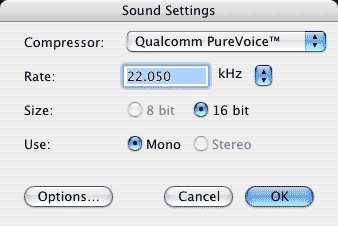
Movies recorded through Snapz Pro X are saved to the QuickTime MOV format. You can take this further:
You May Also Like: Three Ways to Make a Presentation Effective | Grooming Accessories PowerPoint Templates


Microsoft and the Office logo are trademarks or registered trademarks of Microsoft Corporation in the United States and/or other countries.
