Notes Master in PowerPoint 2003
Author: Geetesh Bajaj
Product/Version: Microsoft PowerPoint 2003
Date Created: September 30th 2011
Last Updated: September 30th 2011
Excerpt/Capsule: Learn about the Notes Master in PowerPoint 2003.
PowerPoint allows you to print Notes pages -- these contain the notes that you may have saved within the Notes pane for all your individual slides. Unless you modify the Notes Master, your printed Notes pages may look basic. The Notes Master is one of the four Masters within PowerPoint 2003 -- this Master enables you modify the appearance of your Notes pages -- especially how they will look when you print them. Do note though that these changes do not affect how the notes within the Notes pane of your slides in Normal View appear.
Within the Notes Master, you can add bulleted lists and page numbers, resize slides or the text placeholders on slides, and even change fonts. Follow these steps to access the Notes Master and make some edits:
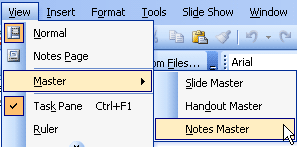
- Within PowerPoint 2003, make sure you have a presentation open. Then choose the View | Master | Notes Master menu option, as shown in Figure 1.

Figure 1: Notes Master option within the Master sub-menu of View menu
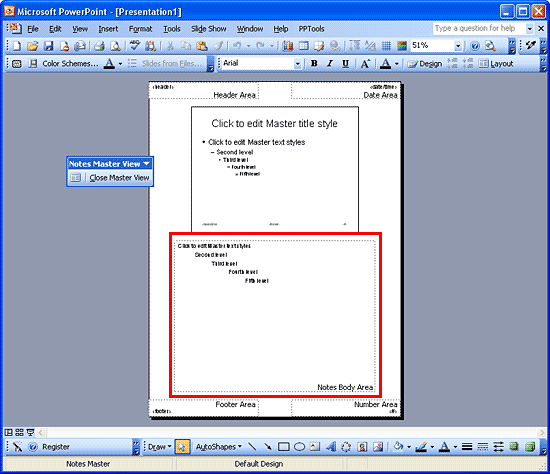
- This opens the Notes Master view. Do you see the Notes Master View toolbar, as shown in Figure 2?

Figure 2: Notes Master toolbar in PowerPoint 2003
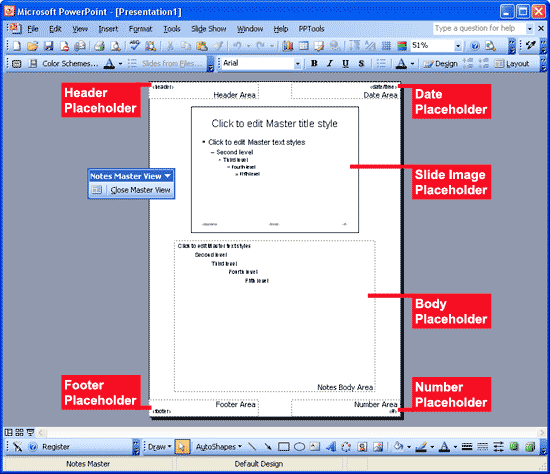
- Within the Notes Master view, you can type in your desired text within the Header and Footer placeholders -- you can also insert a picture such as a company logo in these placeholders.
For the content of date and slide number placeholders, you typically may want to make no changes (refer to Figure 3). You can also select the text within the Body placeholder (highlighted in red in Figure 2 above) and apply various font formatting as required.

Figure 3: Notes Master with placeholders
Can't find the placeholders within Notes Master view? To get these placeholders, click the Notes Master Layout button from Notes Master View toolbar (highlighted in red in Figure 4).

Figure 4: Notes Master Layout button within Notes Master View toolbar
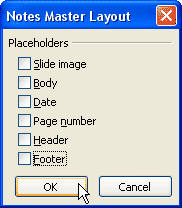
This opens the Notes Master Layout dialog box, as shown in Figure 5. Here you'll find six check-boxes for all these placeholders -- just select the check-boxes you need, and click the OK button.

Figure 5: Notes Master Layout dialog box
- Once you have made the changes, you can be back to Normal view from Notes Master View, choose either of these options:
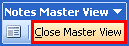
- Click the Close Master View button (highlighted in red in Figure 6 below) within Handout Master View toolbar.

Figure 6: Close Master View button within Notes Master View toolbar
- Click the Normal View button, the first button among the three View buttons located at the bottom right corner of the Notes Master View, just above the Drawing toolbar within the PowerPoint 2003 interface.
- Select View | Normal menu option.
- Click the Close Master View button (highlighted in red in Figure 6 below) within Handout Master View toolbar.