
This is the print version of this page. All content is copyright Indezine.com 2000-2026.
Explore part 1 of 3 on converting PowerPoint to Flash in PowerPoint 2007 for Windows. We explore how you can do this entire process manually.
Author: Geetesh Bajaj
Product/Version: PowerPoint 2007 for Windows
OS: Microsoft Windows XP and higher
Content on this page is not recent and has been retained for historical reasons.
If you read the title of the page above, one word that stands apart is "manually". Let us explain why. Look around this site, or search online and you'll run into tens (maybe hundreds) of PowerPoint to Flash converters that plug into PowerPoint and create some semblance of Flash presentations for you with one click. Some of them do an awesome job, and even those may not do all things perfectly all the time.
If you have the time, and if you are familiar with Adobe Flash, then there's another way of doing this conversion, and that's doing it manually! This approach lets you tweak, change, and edit the content as you deem fit. There's tons of stuff you can do with any slide object within the Adobe Flash interface, and this is not really a tutorial on how to go into any such advanced stuff. However, this tutorial will get you started!
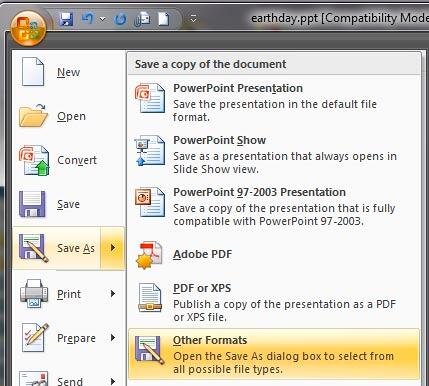
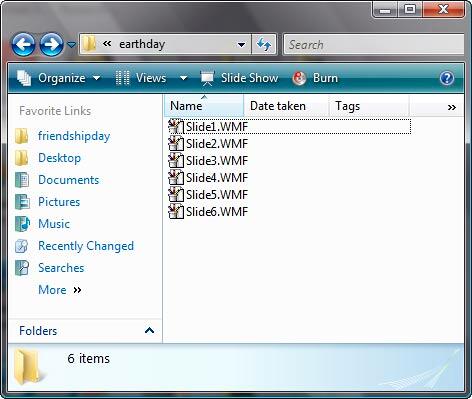
This tutorial involves two programs: Microsoft PowerPoint and Adobe Flash. First, we'll show you how to proceed with the PowerPoint part of this tutorial.



16 13 01 - PowerPoint to Flash: Convert PowerPoint to Flash Manually (Part 1) in PowerPoint (Glossary Page)
Convert PowerPoint to Flash Manually (Part 2) in PowerPoint 2007 for Windows
Convert PowerPoint to Flash Manually (Part 3) in PowerPoint 2007 for Windows
You May Also Like: Presentation Procrastinators: 03 | Dollar PowerPoint Templates



Microsoft and the Office logo are trademarks or registered trademarks of Microsoft Corporation in the United States and/or other countries.
