
This is the print version of this page. All content is copyright Indezine.com 2000-2026.
Learn how to insert Flash movies using Developer tab into PowerPoint 2010 for Windows. This technique is now deprecated.
Author: Geetesh Bajaj
Product/Version: PowerPoint 2010 for Windows
OS: Microsoft Windows XP and higher
Content on this page is not recent and has been retained for historical reasons.
There are two ways in which you can add a Flash movie to a PowerPoint slide. Inserting it as a normal movie through the Insert tab works as long as all recipients of your presentation use PowerPoint 2010. If any of them use PowerPoint 2007 or 2003, you should use the procedure explained on this page.
First of all, the Developer tab of the Ribbon has to be made visible. By default, this tab is hidden. You also need to have the updated version of Adobe's Shockwave Flash ActiveX control. To make sure, you have the current version installed, go to this site (link no longer works) using Microsoft Internet Explorer.
To bring in the Flash movie within PowerPoint, we need a Flash movie placed in the same folder which contains the PowerPoint presentation.
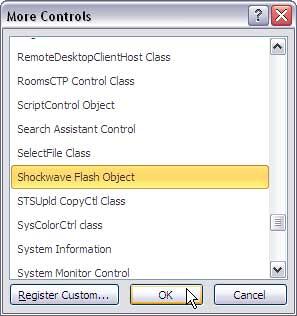
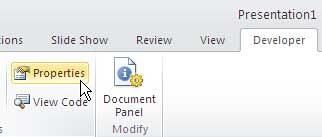
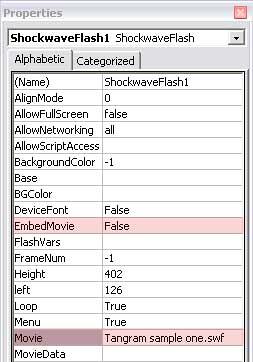
Follow these steps to insert a Flash movie into PowerPoint 2010 for Windows using the Developer tab:



If you save your PowerPoint presentations with Flash movies inserted in them as the default PPTX files, then those Flash movies will not play in PowerPoint 2003 or previous versions (on Windows). To have them play in those older versions, you should work with PPT files (the older PowerPoint file format) rather than PPTX files.
14 08 02 - Flash Movie Clips: Insert Flash Movies using the Developer Tab in PowerPoint (Glossary Page)
Insert Flash Movies using the Developer Tab in PowerPoint 2016 for Windows
Insert Flash Movies using the Developer Tab in PowerPoint 2013 for Windows
Insert Flash Movies using the Developer Tab in PowerPoint 2007 for Windows
You May Also Like: To Empower Others: Use the Four Cornerstones of Effective Feedback | Bermuda Flags and Maps PowerPoint Templates


Microsoft and the Office logo are trademarks or registered trademarks of Microsoft Corporation in the United States and/or other countries.
