Insert Audio (Sound) in PowerPoint 2011 for Mac
Author: Geetesh Bajaj
Product/Version: PowerPoint 2011
OS: Mac OS X
Date Created: September 13th 2011
Last Updated: September 13th 2011
Excerpt/Capsule: Learn how to insert audio or sound in PowerPoint 2011 for Mac.
PowerPoint 2011 for Mac enables you to work with various types of sound files such as MP3, WMA, or WAV. However, inserted sounds are always embedded within your presentation, which is different from the default behavior in previous versions of PowerPoint which always linked sound files rather than embedding them. This has a plus side since you now no longer have to worry about linked files getting misplaced or lost. On the flip side, this can balloon file sizes. Having said that, it is still a good practice to keep your sound files in the same folder in which you save your PowerPoint 2011 presentation -- even before you insert them.
Remember: As far as possible, work with a presentation that has been saved at least once.
Follow these steps to insert sound clips in your PowerPoint slide:
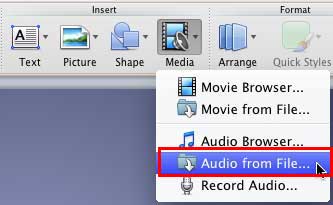
- Navigate to the slide where you want to add a sound. Within the Home tab of Ribbon, locate the Insert group and click the downward arrow next to the Media button to bring up the menu shown in Figure 1. From this menu, choose the Audio
from File option (highlighted in red in Figure 1).

Figure 1: Audio from File option within the Media drop-down menu
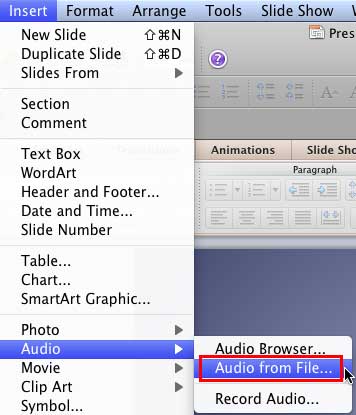
Alternatively, choose the Insert | Audio | Audio from File menu option (highlighted in red in Figure 2).

Figure 2: Audio from File option within Insert menu
Tip: You can also insert sounds into your slide through the Media Browser -- look at our Media Browser (Audio Tab) in PowerPoint 2011 for Mac to learn more.
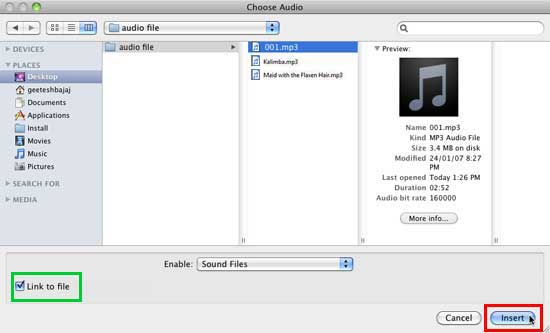
- Either of the ways brings up the Choose Audio dialog box, as shown in Figure
3. Navigate to the folder where your audio clips are saved, and select a file.

Figure 3: Choose Audio dialog box
- Now, click the Insert button (highlighted in red in Figure 3 above) to add the audio to the active slide and embed it as part of your presentation.
To link rather than embed, select the Link to file check-box (highlighted in green in Figure 3 above) located within the Choose Audio dialog box. Link to File does not store the audio clip as part of your presentation but links it -- this is the same as the default behavior in previous versions of PowerPoint (PowerPoint 2008 and earlier). If you do select the Link to File check-box, always copy your audio clip to the same folder as your presentation before you insert it within your slide.
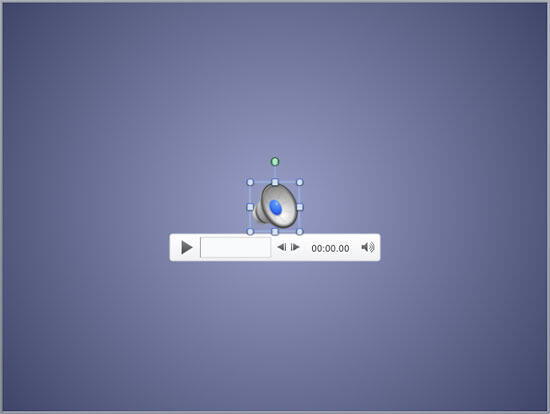
- Irrespective of whether you embed or link, PowerPoint will place a sound icon in the center of the slide, as shown in Figure 4. Note that you also see Player Controls, which is new for PowerPoint 2011.

Figure 4: Audio icon placed on slide
- You can use the Play button on the Player
Controls (below the audio icon, as shown in Figure
4 above).
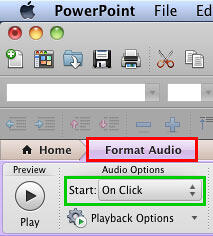
If you want the sound to play automatically without having to click the Play button, you first select the sound icon so that the Format Audio contextual tabs is active on the Ribbon, as shown in Figure 5 (highlighted in red).

Figure 5: Format Audio tab of the Ribbon activated
Note: The Format Audio tab is a contextual tab. Contextual tabs are special tabs in the Ribbon that are not visible all the time -- they only make an appearance when you are working with a particular slide object which can be edited using special options.
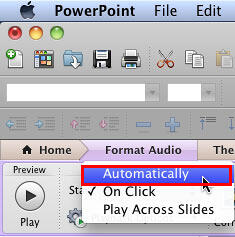
This tab offers you different options to control the playback of the audio you have selected. Within the Audio Options group, locate the Start option (highlighted in green in Figure 5 above) - this brings up a drop-down list, from this list select the Automatically option (highlighted in red in Figure 6). This will make the selected audio play automatically when the slide containing it comes up in Slide Show mode.

Figure 6: Automatically option selected within Start drop-down list
Note that the default option is On Click -- this plays the sound only after you click the Play button on the Player Control. In addition, you can also see a third option, Play Across Slides in the drop-down list shown in Figure 6 -- this spans the sound across slides and we explain this in a subsequent tutorial.
- Save your presentation.
Office 2011 for Mac All-in-One For Dummies
If you liked this tutorial, do look at this book, authored by Geetesh Bajaj and James Gordon . This book is the single most comprehensive content for Microsoft's latest Office suite offering for Mac users. Check the book on Amazon.com...